
M-LSM Series
Motorized micromanipulators
About This Series
Zaber's motorized micromanipulator series of products are stand-alone units that are either joystick or computer controlled. They can be mounted to either metric or imperial optical breadboards, and oriented to the left or to the right.
The micromanipulators' probe holders are designed to quickly and easily adjust for probe size and angle. The left thumbscrew on the holder adjusts for the size of the probe (diameters between 2 and 13 mm) and locks it into position. The front face of the holder can be rotated to adjust the angle at which a probe is held, and the top thumbscrew locks it into place.
These micromanipulators can be valuable companion tools to motorized microscopes in applications such as intracytoplasmic injections in reproductive medical procedures e.g. IVF as well as assist in microcellular biological research.
The included X-MCC3 controller connect to the RS-232 or USB port of any computer. Set up is easy with AutoDetect. Once connected, the controllers will automatically detect and configure the micromanipulator axes.
Feature Callouts
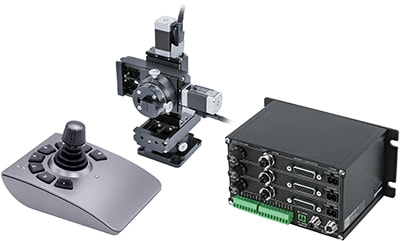
- Joystick control in velocity mode.
- Right and left hand configurations available.
- Probe can be rotated 360 degrees and easily locked in position.
- Probe holder can mount probes of 2 to 13 mm diameter.
- Post mount or optical breadboard mounting options available.
- Supports both metric and imperial mounting hardware.
- Computer-controlled motion possible in a range of programming languages.

Have a Question?
Contact us for device selection, troubleshooting & more!
Response time promise: 1 business day
Have a Question?
Easy Set-Up
Zaber's devices can share both data and power through a daisy-chain, which reduces cabling and makes set-up as easy as 1, 2, 3:
- Connect the Zaber device to your computer via USB or RS-232 port.
- Connect the power supply to your Zaber device.
- Send instructions or automate your set-up using the Zaber Launcher.
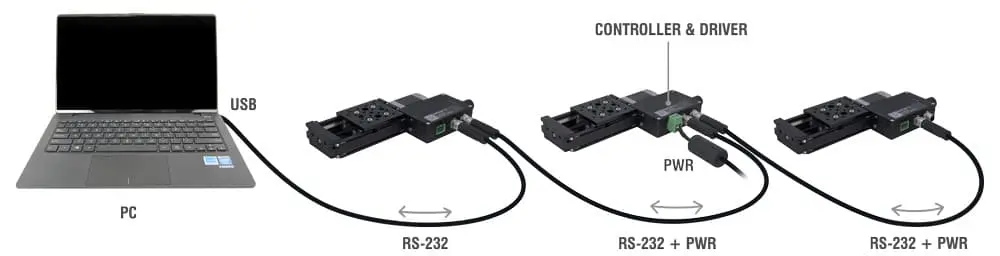
For more details on daisy-chaining, read our technical article, "Daisy-chaining Data and Power to Reduce Cabling", or to determine which accessories you need for your system, try our Connection Guide Tool.
For additional information about setting up our devices, please visit our Support page, which includes our Getting Started Guide, Troubleshooting Guides, product user manuals, and other resources.