
LSQ Gantry Series User's Manual
150 - 600 mm XY travel; 75-300 mm Z travel; up to 30 kg load
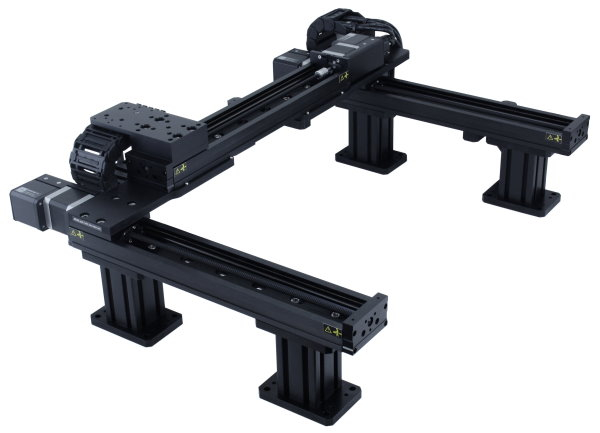
Disclaimer
Zaber’s products are not intended for use in any critical medical, aviation, or military applications or situations where a product's use or failure could cause personal injury, death, or damage to property. Zaber disclaims any warranty of fitness for a particular purpose. The user of this product agrees to Zaber's general terms and conditions of sale.
Precautions
 Collision Hazard! Zaber gantries contain motion products with significant thrust and load capacities. Take caution to prevent collisions with operators, work surfaces, and sensitive equipment.
Heavy! Completely assembled gantry products, partial assemblies, and some stage products can be very heavy. Exercise caution when lifting/moving larger assemblies and products. Loosely fasten risers and stage axes as soon as they are placed during assembly to prevent tipping and falling hazards.
 Important: Gantry products must be properly assembled and aligned to function optimally. Follow assembly instructions closely and contact Zaber Customer Support for help at any time if needed.
Product Overview
The following documentation uses specific terminology to refer to parts of the gantry product, outlined in the diagrams below:
| X-Axis Axes 1 and 2 |
Y-Axis | Z/Theta/End Effectors |
 |
 |

|
| X-Axis Cable Guide for Y-Axis Cables and Optional Z/Theta/End Effector Cables |
Y-Axis Cable Guide for Z/Theta/End Effector Cables |
 |

|
| X-Axis Stage Spacing Between Inner Fasteners | |
| Y-Axis Stage | Spacing in mm |
| LSQ150 | 350 |
| LSQ300 | 500 |
| LSQ450 | 650 |
| LSQ600 | 800 |
See Product Drawings for more information.
LSQ Family Configurations
| Configuration (X-Axis by Y-Axis Travel) | X-Axis 1 Cable Part Number | X-Axis 2 Cable Part Number | Y-Axis Cable Part Number | Z/Theta Cable Part Number | Recommended Minimum Cable Length for End Effectors, Additional Axes (m) | Cable Guide Links for X-Axis Guide (CG01 or CG02) | Cable Guide Links for Y-Axis Guide (CG01 or CG02) | Recommended Minimum Breadboard Dimensions (mm x mm) |
| 150 x 150 | MC10T3L060 | MC10T3 | MC10T3 | MC10T3L300 | 2.5 | 16 | 12 | 200 x 450 |
| 150 x 300 | MC10T3L060 | MC10T3 | MC10T3 | MC10T3L300 | 2.5 | 16 | 19 | 200 x 600 |
| 150 x 450 | MC10T3L060 | MC10T3L300 | MC10T3 | MC10T3L300 | 3 | 16 | 27 | 200 x 750 |
| 150 x 600 | MC10T3L060 | MC10T3L300 | MC10T3 | MC10T3L300 | 3 | 16 | 34 | 200 x 900 |
| 300 x 150 | MC10T3 | MC10T3 | MC10T3 | MC10T3L300 | 2.5 | 20 | 12 | 350 x 450 |
| 300 x 300 | MC10T3 | MC10T3 | MC10T3 | MC10T3L300 | 2.5 | 20 | 19 | 350 x 600 |
| 300 x 450 | MC10T3 | MC10T3L300 | MC10T3 | MC10T3L300 | 3 | 20 | 27 | 350 x 750 |
| 300 x 600 | MC10T3 | MC10T3L300 | MC10T3 | MC10T3L300 | 3 | 20 | 34 | 350 x 900 |
| 450 x 150 | MC10T3 | MC10T3 | MC10T3 | MC10T3L300 | 2.5 | 24 | 12 | 500 x 450 |
| 450 x 300 | MC10T3 | MC10T3L300 | MC10T3 | MC10T3L300 | 2.5 | 24 | 19 | 500 x 600 |
| 450 x 450 | MC10T3 | MC10T3L300 | MC10T3 | MC10T3L300 | 3 | 24 | 27 | 500 x 750 |
| 450 x 600 | MC10T3 | MC10T3L300 | MC10T3 | MC10T3L300 | 3 | 24 | 34 | 500 x 900 |
| 600 x 150 | MC10T3 | MC10T3 | MC10T3 | MC10T3L300 | 2.5 | 27 | 12 | 650 x 450 |
| 600 x 300 | MC10T3 | MC10T3L300 | MC10T3 | MC10T3L300 | 3 | 27 | 19 | 650 x 600 |
| 600 x 450 | MC10T3 | MC10T3L300 | MC10T3 | MC10T3L300 | 3 | 27 | 27 | 650 x 750 |
| 600 x 600 | MC10T3 | MC10T3L300 | MC10T3 | MC10T3L300 | 3 | 27 | 34 | 650 x 900 |
Gantry Assembly and Setup
Zaber's gantry products require some assembly and set-up upon arrival. These gantries can be disassembled, packed, and transported for use in new locations, or re-configured with new motion control axes to suit new applications. To set up your gantry, complete the following steps (where applicable).
Note: Instructions are provided for all hardware variants used in different gantry configurations. Not all hardware will be used in your configuration. Section headings will contain applicable part numbers.
Contact Zaber Customer Support at any time for help or additional information.
Preparation
- Unpack the high-flex motor cables and hang them vertically by one end for 24 hours to relieve packaging stresses. If the cables are too long to be hung up in one piece, loosely coil them on a flat surface into a large diameter such as 60 cm (2 ft).
- Unpack the brackets, tools (provided with AP200 or AP201 cross-members), cable guides and other hardware.
- Keep fasteners with their labelled bags to easily identify/locate the correct fastener for a step.
- Unpack the stage axes and identify the two identical X-axis stages, Y-axis stage and any additional axes you may have.
- Determine your mounting surface. The instructions provided assume a metric optical breadboard is used to mount the X-axis stages (or optional risers). See Product Overview for determining stage spacing and recommended breadboard dimensions.
- Determine stage orientations and locations of cable guide(s) and controller. The controller is typically located on the end of the gantry near the motor cable connections on the peripheral devices. It's preferable to mount it closer to X-axis 1, as this axis will mount to the cable guide. If the controller is required to be mounted at a significant distance from the gantry, longer cables or cable extensions may be necessary. See MC10T3(Lxxx) for longer 15 pin female to 26 pin male cables or MC10(Lxxx) for 26 pin female to 26 pin male extensions cables here: Zaber Accessories.
- Note: 'xxx' denotes a length in cm
- Identify the cables intended for each axis using the matching configuration table in the Product Overview.
- If you have LSQ stages with dust covers, see LSQ Dust Cover Removal - access to the LSQ stage mounting holes will be required during gantry assembly.
Tips
- Whenever allowable in your application, mount the CGxxT cable guide terminations to provide the largest bend radius of the cable.
X-MCC Setup and Stage Connection
Related Products
 |
 MC10T3L060 MC10T3L300 MC10T3L450 |
 |
Precautions
Important! Review the X-MCC User Manual for complete device precautions and operation instructions.
Important! Always remove power to the X-MCC controller before connecting or disconnecting peripherals.
Assembly
-
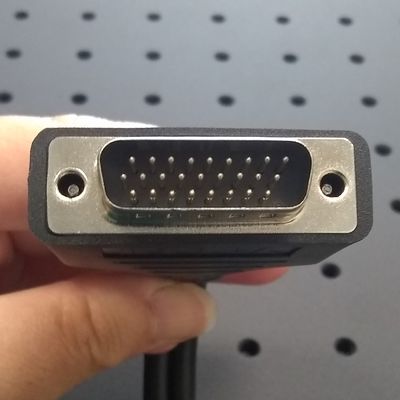
Determine which MC motor cables are required for each gantry peripheral. See the configuration table in Product Overview.
-
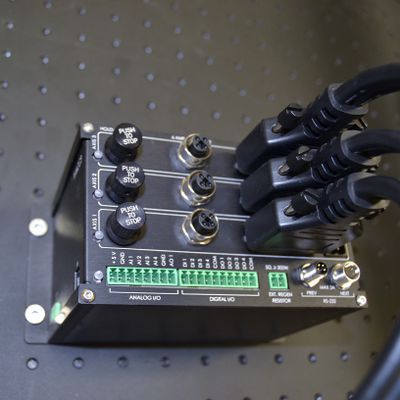
Connect the 26 pin male end of the MC cables to the X-MCC controller axes. Connect the cable for:
•X-axis 1 to X-MCC axis 1
•X-axis 2 to X-MCC axis 2
•Y-axis to X-MCC axis 3
•Optional Z/theta to X-MCC axis 4 (if present)
Tighten locking connector screws.
See Product Overview to identify the gantry axes. -
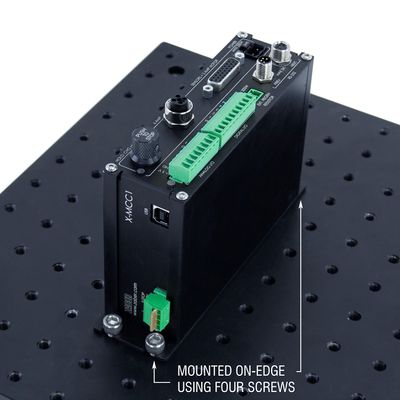
If desired, mount the X-MCC controller. See instructions in the X-MCC User Manual.
Note: Ensure the E-stop connector is reconnected with either the 'E-stop off' jumper or an E-stop (such as the ES01) to ensure controller function. -
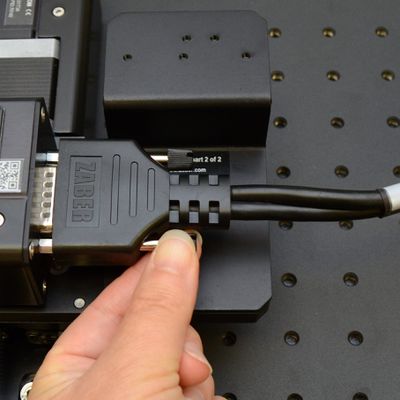
Connect the other end of each MC motor cable to the matching peripheral and tighten the locking connector screws.
Important: During gantry assembly you may wish to disconnect one or more peripherals. Always remove power to the X-MCC before connecting or disconnecting any peripheral. -
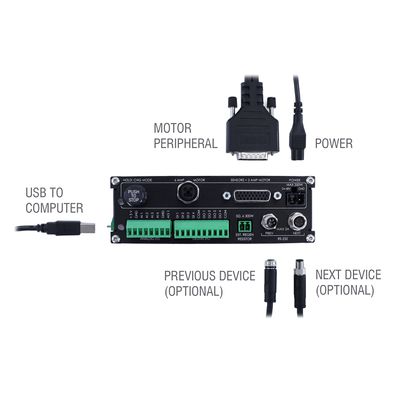
Connect the X-MCC controller to your computer using the USB cable (U-DC06) or to an X-JOY3 joystick with an X-DC cable (if a joystick is present).
Connect the X-MCC controller to one or more power supplies. -
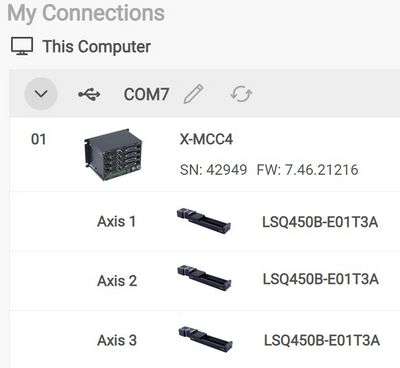
Open Zaber Launcher. Confirm that three stages are detected and activated. If a stage is not activated, an "Activate" button will appear next to it. See the X-MCC manual for more information on activating peripherals and setup.
LSQ X-Axis Stages to Breadboard
Related Products
 |
Precautions
Collision/Pinch Hazard! You may need to power a stage to move the carriage for access to mounting holes. We recommend removing power or pressing the E-stop (if present) before inserting tools or performing additional assembly steps.
Important: We recommend using M6 low profile fasteners for mounting the X-axis stages to allow for clearance while the stages are moving and the screws are left loose during assembly. 16 x M6 low profile screws are provided with the AP199 for mounting the X-axis stages.
Required Tools
- 4 mm hex key, L-shaped
- 4 mm hex key, T-shaped
Assembly
-
In devices where the carriage can't be moved by hand (with the stage un-powered/disconnected), ensure the stage(s) are connected and configured with their controller to allow movement. See X-MCC Setup and Stage Connection.
-
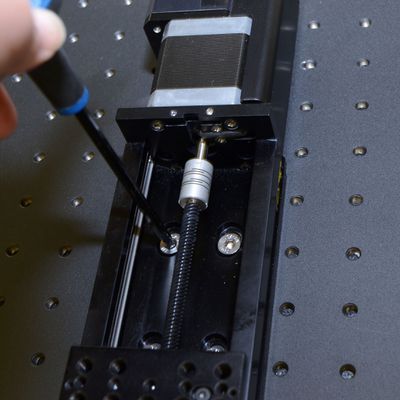
Move the LSQ stage carriage (by hand or using the manual control knob on the controller) to allow access to the eight mounting slots (four at each end of travel).
Loosely mount the first X-axis stage to a breadboard or other mounting surface using the provided M6 low profile screws and a 4 mm hex key. Install screws until snug, then back off a little to allow alignment. Repeat until all screws are present. -
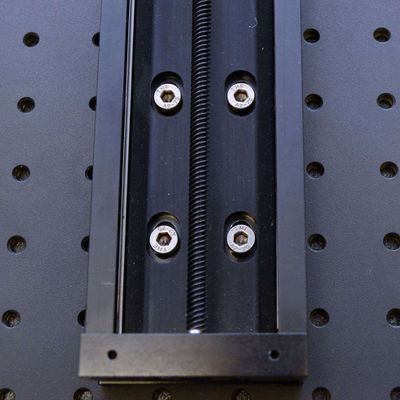
Move the stage along its axis until the mounting screws are approximately centered on the mounting slots. Tighten the eight mounting screws in several steps, alternating diagonally.
-
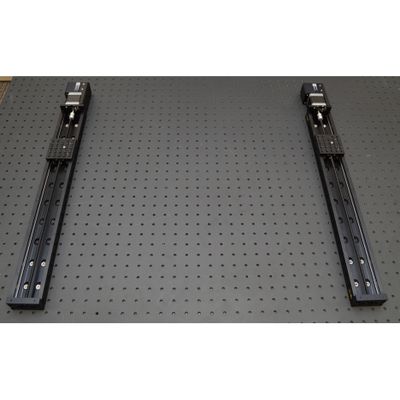
Locate the second stage at a distance from the first determined by the Y-axis travel (see chart in Product Overview) then repeat the previous steps to mount the second stage.
Do not tighten these mounting screws yet. Leave slightly loose for alignment during Assembly of AP200 Crossmembers and Lockstep Setup.
Using AP202 Risers
Related Products
 AP202H0300 Risers AP202H0500 Risers |
|
Precautions
Mounting/Tipping Hazard! The LSQ stages and AP202 risers can be heavy and may create a falling/tipping hazard during assembly. We recommend mounting the risers to a breadboard or other mounting surface before placing X-axis stages on top. Where possible, loosely install several screws between the stage and at least one riser to prevent accidental motion.
Collision/Pinch Hazard! You may need to power a stage to move the carriage for access to mounting holes. We recommend removing power or pressing the E-stop (if present) before inserting tools or performing additional assembly steps.
Important: Do not disassemble AP202 risers. They have been carefully aligned.
Important: We recommend using M6 low profile fasteners for mounting the X-axis stages to allow for clearance while the stages are moving and the screws are left loose during assembly. 16 x M6 low profile screws are provided with the AP202 risers for mounting the X-axis stages.
Required Tools
- 4 mm hex key, L-shaped
- 4 mm hex key, T-shaped
Assembly
-
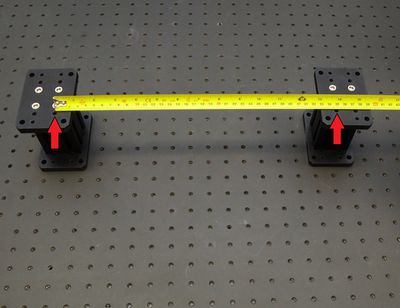
Loosely mount AP202Hxxxx risers to a breadboard or other mounting surface using the provided M6 x 16 mm low profile screws (longer of the provided screws) and a 4 mm hex key. See Product Overview for spacing between the red arrow indicated holes for your gantry configuration.
Install screws until snug, then back off a little to allow alignment. Repeat until all screws are present. You may wish to leave the risers loose or just snug until complete assembly is done, then loosen and re-align as needed.
Space additional risers for a single stage as far apart as possible (or equally spaced if using more than two), along the travel of the X-axis stages. -
In devices where the carriage can't be moved by hand (with the stage un-powered/disconnected), ensure the stage(s) are connected and configured with their controller to allow movement. See X-MCC Setup and Stage Connection.
-
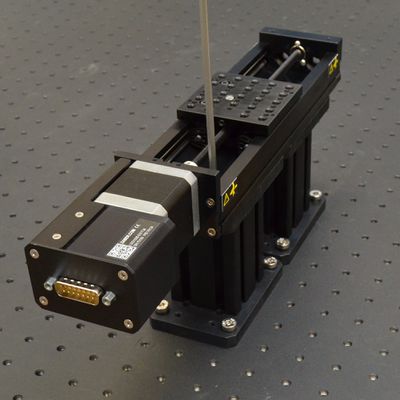
Mount stages to top of risers using the provided M6 x 8 mm low profile screws. Start by installing two screws diagonally for each riser, leaving screws just a bit loose. Firmly tighten the riser to breadboard screws once the X-axis stages are assembled on top.
Assembly of AP200 Crossmembers and Lockstep Setup
Related Products
 |
|
Precautions
Mounting Hazard! The LSQ Y-axis stage may be heavy and could create a falling hazard during assembly.
Collision/Pinch Hazard! You may need to power a stage to move the carriage for access to mounting holes. We recommend removing power or pressing the E-stop (if present) before inserting tools or performing additional assembly steps.
Important: If you are using a cable guide along the Y-axis, we recommend that you install the AP204 part 1 to the bottom of the AP200 part 1 before you install the AP200 plates to the X-axis stages.
Required Tools
- 4 mm hex key, L-shaped
- 4 mm hex key, T-shaped
Assembly
-
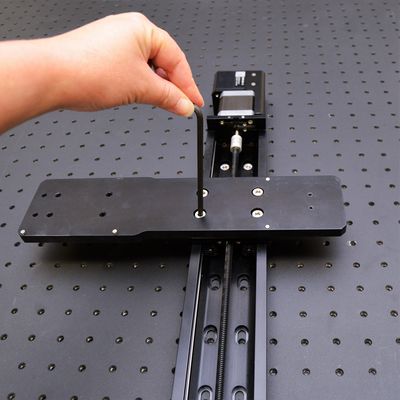
Loosely mount AP200 part 1 on the X-axis 1 stage (connected to X-MCC axis 1) using a 4 mm hex key and four of the provided M6 low profile screws.
-
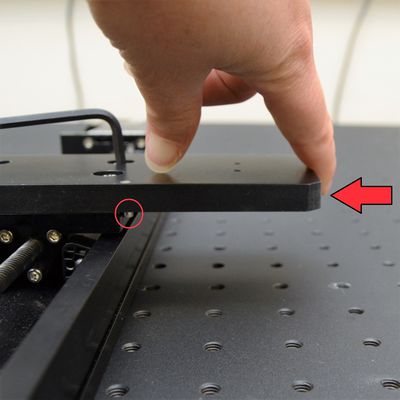
Push the AP200 plate as shown until the dowels on the bottom of the plate are both firmly in contact with the edge of the LSQ carriage - this provides Y-axis alignment. While holding the AP200 in place, firmly tighten the M6 fasteners using the 4 mm hex key.
Note: Tightening in several steps, while alternating screws diagonally, may help prevent the plate from moving during this step. -
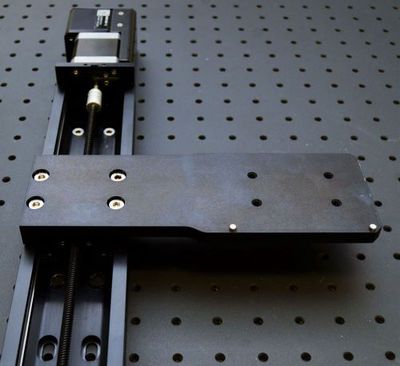
Loosely mount AP200 part 2 on the X-axis 2 stage (connected to controller axis 2) using a 4 mm hex key and four of the provided M6 low profile screws.
This plate will be tightened and aligned later. -
See X-MCC Setup and Stage Connection if you have not already connected your stages.
Open Zaber Launcher. Confirm that three stages are detected and activated. -
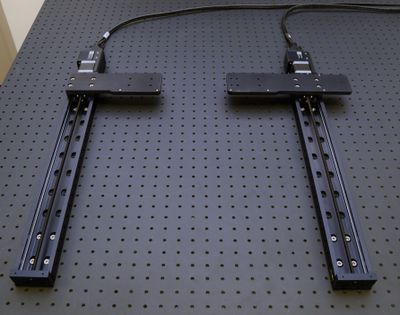
Using Zaber Launcher, send a home command to each of the two X-axis stages to move them to their home positions.
-
In Zaber Launcher, use the Lockstep Configuration App to lock the motion of the two X-axis stages together.
-
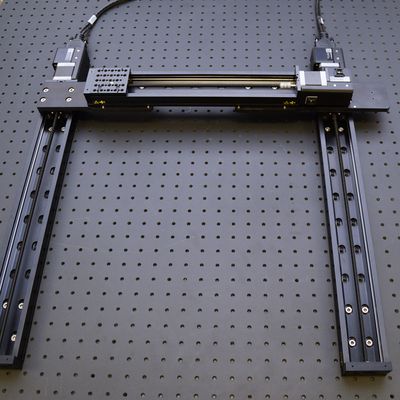
Place the Y-axis stage on top of the two AP200 plates (or against the connected AB208 brackets, if applicable), with the connector end closest to the X-axis 1 stage (controller axis 1), on the larger of the two plates.
-
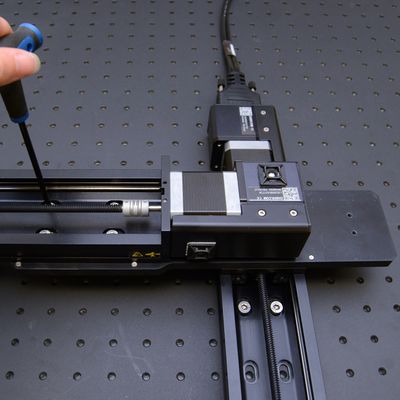
Using four of the M6 low profile screws (provided with the AP200), loosely assemble the Y-axis stage to the AP200 part 1 (the larger plate).
Loosely assembly the other end of the Y-axis stage to the AP200 part 2, also using four M6 low profile screws. -
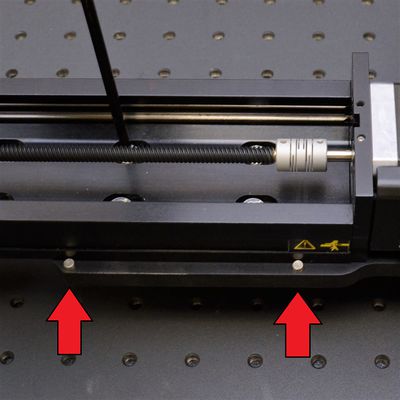
With screws still loose, push the Y-axis stage firmly against the two dowels on the AP200 plate. With both dowels in contact, tighten the M6 screws between the AP200 part 1 (larger plate) and the Y-axis stage.
Leave the screws between the other AP200 plate and the Y-axis stage loose for now. -
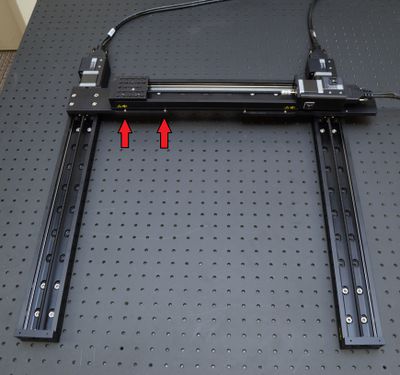
To align the X-axis stages, move the X-axis 2 stage back and forth along its axis (loosen X-axis stage mounting screws if needed), until the AP200 part 2 (the smaller AP200 plate) can be aligned to the Y-axis stage with both dowels touching the edge simultaneously.
Do not move the X-axis carriages during this step - keep them at their home positions. Align the stages only by moving the entire stage. -
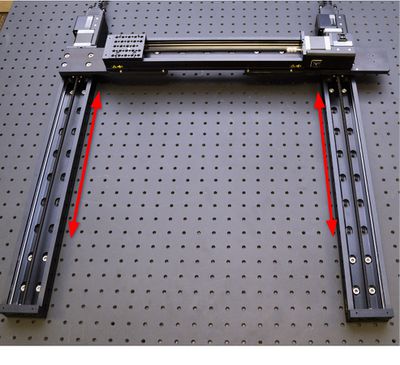
If there is not enough adjustment possible with moving only one X-axis stage, you may wish to loosen and move both X-axis stages along their axes.
Note: If you need to move the carriage to access mounting holes for the X-axis stages, use the manual control knob for either axis 1 or 2 on the controller. Both X-axis stages will move together, as they are connected in lockstep.
Return the stages to their home position before continuing with the AP200 assembly. -
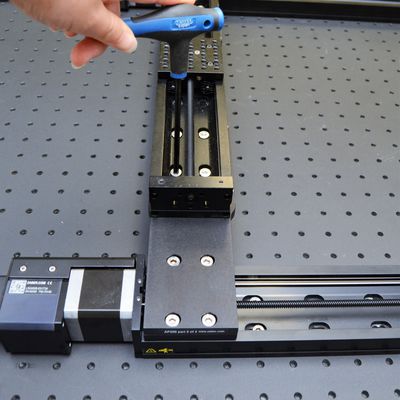
When the X-axis stages are aligned well, tighten the four screws connecting the AP200 part 2 to the Y-axis stage, while ensuring both dowels remain in contact with the side of the Y-axis stage.
Leave the screws connecting the AP200 part 2 to the X-axis stage loose for now. -
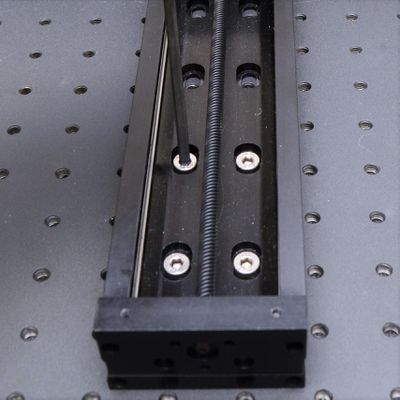
Snug the accessible mounting screws for all X-axis stages (those at the far end of travel).
Note: These will be loosened again. -
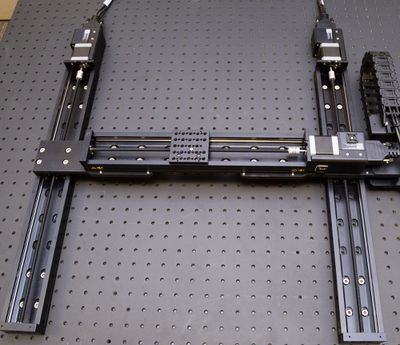
Using the manual control knob for axis 1 or 2, move the X-axis stages along their travel to mid-travel.
-
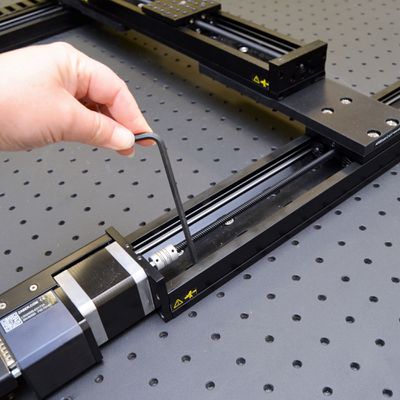
Snug the mounting screws that are now accessible near the home positions for the X-axis travel.
Loosen the screws at the far end of the X-axis travel. -
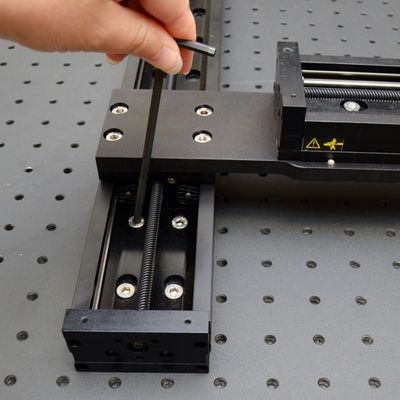
Move the X-axis stages to the far end of travel, then back enough to expose the mounting screws.
Firmly tighten the screws at the far end of X-axis travel.
Slightly loosen the screws at the home end of X-axis travel. -
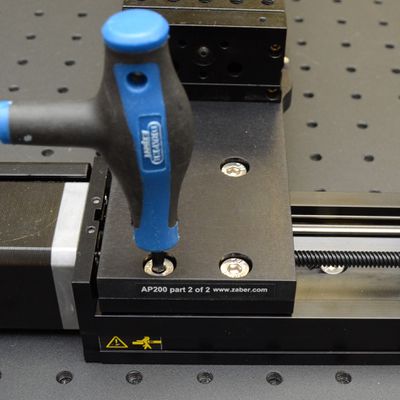
Move the X-axis stages to the home end of travel.
Firmly tighten the screws for the AP200 part 2 plate to the X-axis stage. -
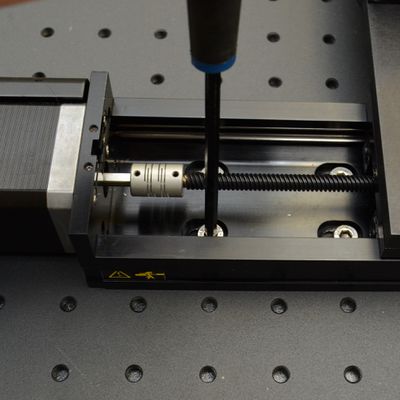
Move the X-axis stages to expose the mounting screws at the home end of X-axis travel.
Firmly tighten the screws at the home end of X-axis travel.
The X & Y axes should now be aligned and secure.
To confirm that the stages move well, home the lockstep group in Zaber Launcher, then move the X-axis and Y-axis stages throughout their travel ranges using either Zaber Launcher or the manual control knobs.
See Troubleshooting if stages are not moving well together.
Installing AP204 Cable Guide Mounts for Y- or Z-Axis Cable Guides
Related Products
 |
|
 |
 |
Required Tools
- 4 mm hex key
- 2 mm hex hey
Assembly
-
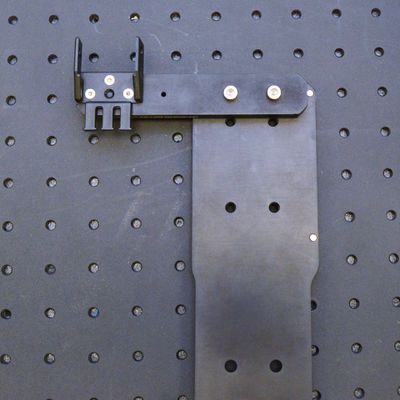
If you are not using AB208 angle brackets, install the AP204 part 1 to the bottom of the AP200 part 1 before you install it to the X axis stages. Use two M5 x 16 mm screws (with M6 threaded holes as through-holes) and the 4 mm hex key to fasten the part to the AP200 as shown.
Attach the CGxxT termination (CG01T shown) with two bores as shown using three of the provided M3 flathead screws and the 2 mm hex key.
Complete the remaining assembly after Assembly of AP200 Crossmembers and Lockstep Setup. -
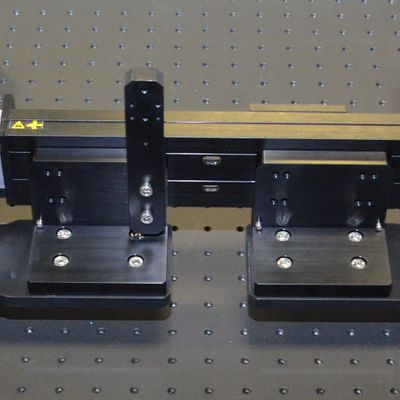
If you are using AB208 angle brackets, install the AP204 part 1 to the AB208 bracket using two M5 x 16 mm screws (with M6 threaded holes as through-holes) and the 4 mm hex key.
-
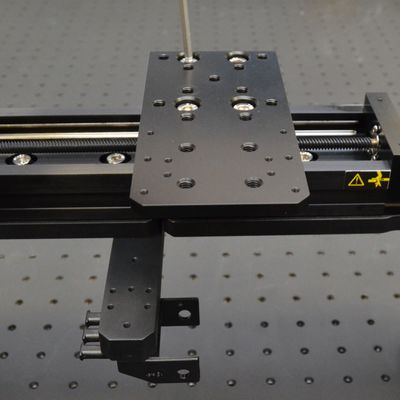
Install AP204 part 2 onto the top of the Y axis LSQ stage using four M6 x 20 mm screws and the 4 mm hex key. Align the stage top and AP204 part 2 edges to each other. Alternate tightening fasteners in a diagonal pattern to snug, then tightly secure.
Z-Axis Installation
Related Products
|
|
|
Precautions
Important: Where possible, mount all Z/theta/end effector axes as close to the Y-axis stage as possible to reduce moment loading and off-axis motion errors.
Required Tools
- 4 mm hex key
- 5 mm hex key (for some products)
Assembly
-
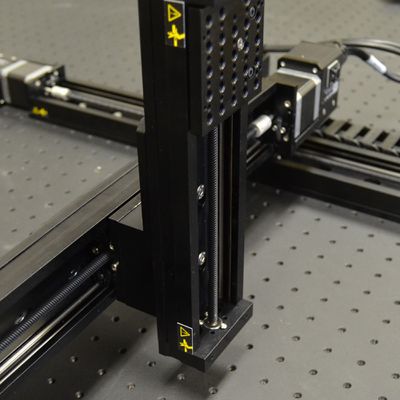
Additional axes can be mounted directly to the top of the AP204 part 2 as shown.
-
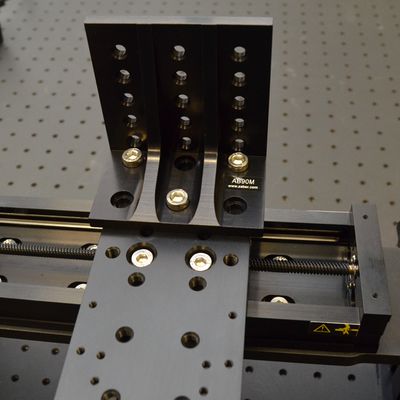
For additional axes at 90 degrees to the AP204 part 2, add an angle bracket such as the AB151 (recommended for linear stages) or the AB90M (for other devices). Use the provided M6 mounting screws and a 5 mm hex key to attach the brackets.
-
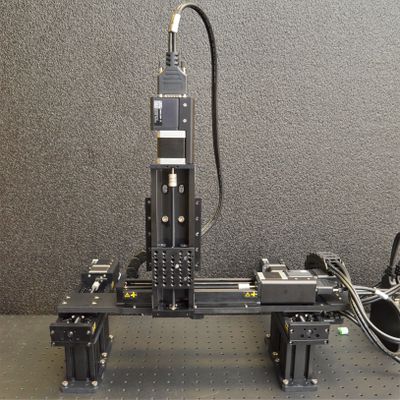
A completely assembled XZY gantry using an AB151 bracket is shown here.
CG Cable Guide and Cable Assembly
Related Products
 |
 |
 |
|
|
 |
MC10T3L060 MC10T3L300 MC10T3L450 |
|
Precautions
Important: Ensure cables are not twisted along their length. This can reduce cable lifetime.
Assembly
-
Ensure all motor cables are connected to the correct peripherals before building the cable guides.
-
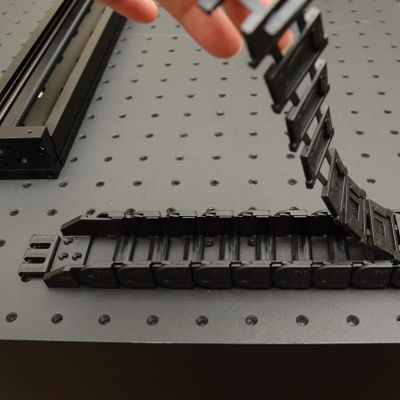
Determine the number of links required for the X-axis guide and, if present, the Y-axis guide. See the Product Overview for configuration specific quantities.
Peel open the cable guide. -
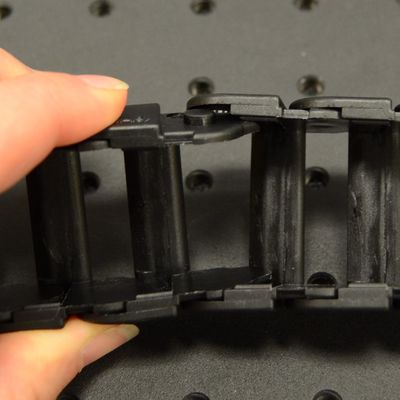
Break the CGxx chain at the appropriate position.
-
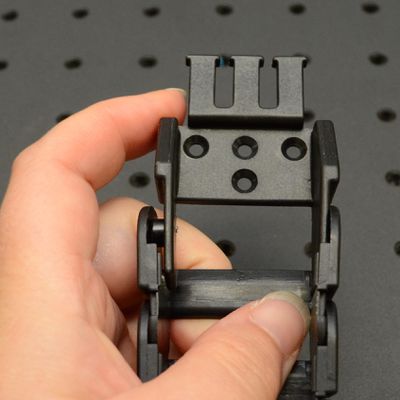
Attach the CGxxT parts to the mating ends of the CGxx.
Note: You may need to remove these temporarily to attach them to the mounting adaptors. -
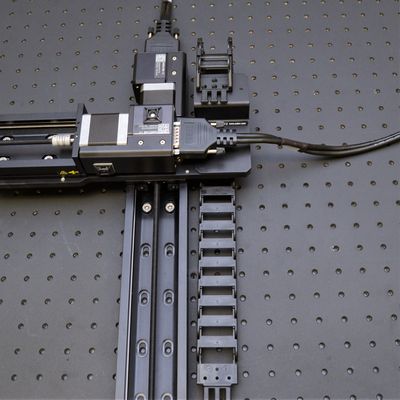
Lay out the cable guide and determine which way it will bend and where the CGxxT terminations will mount to the cable guide adaptors.
Note: If using CG06T, the pivoting termination should mount to the upper cable guide adapter. -
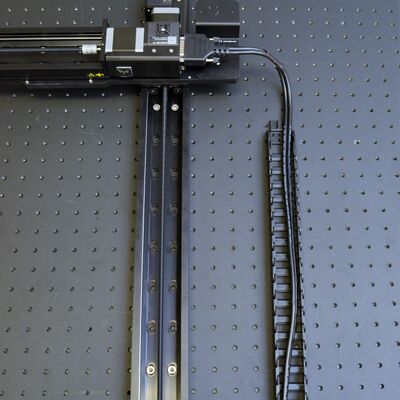
Lay cables in the guides, ensuring that the peripheral connectors are exiting the top end of the guide. Remove any twists in the cable(s) and lay them in the centre of the guide. Minimize twists outside the cable guide.
Important: If you are using a Y-axis cable guide, ensure that the cable(s) for the Z/theta axis and any end effectors are also included in the X-axis cable guide. -
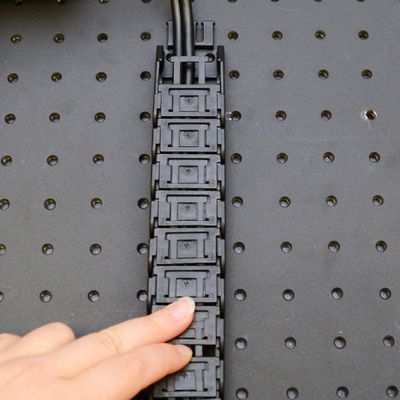
Close the CGxx cable guide by clicking the parts together.
Note: The CGxx cable guide parts must be oriented as shown to click together. -
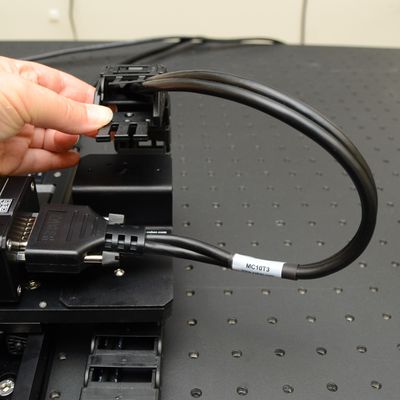
Ensure 150-200 mm (6-8 inches) of cable length extends from the top end of the cable guide where it will connect.
-
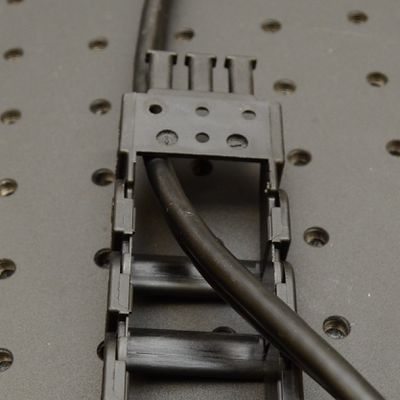
Terminations can be attached in two orientations, depending on how they will attach to the mounting adaptors. If the termination needs to be flipped, you will need to assemble the cable in the guide then remove and re-attach the termination as shown.
Installing AP199 Cable Guide Mounts for X-Axis Cable Guides
Related Products
 |
|
|
|
Precautions
Important: Creating a loop in the cable of 150-200 mm (6-8 inches) between the top cable guide mount and the Y-axis stage protects the cable and increases cycle lifetime.
Required Tools
- 4 mm hex key
- 2 mm hex key
Assembly
-
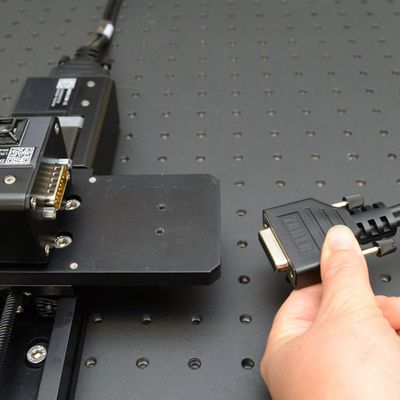
Remove power to the controller, then remove the connector to the Y-axis stage (if connected).
-
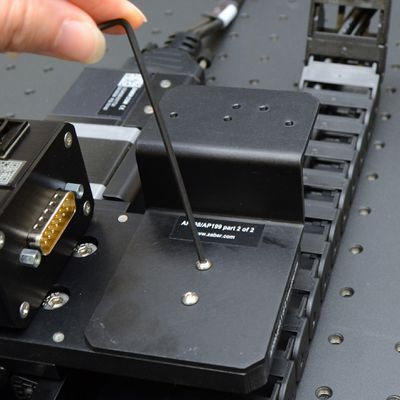
Attach the AP199 part 2 to the AP200 part 1 using two M3 button cap screws and the 2 mm hex key.
-
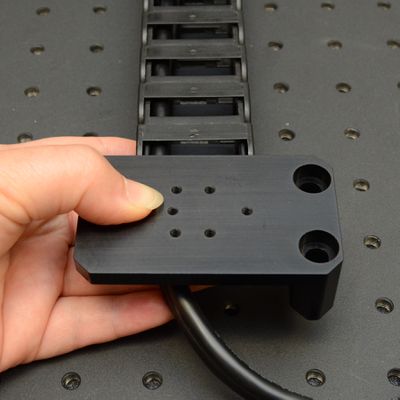
Hold the cable guide up as it will be installed to determine how the adaptors should be oriented.
-
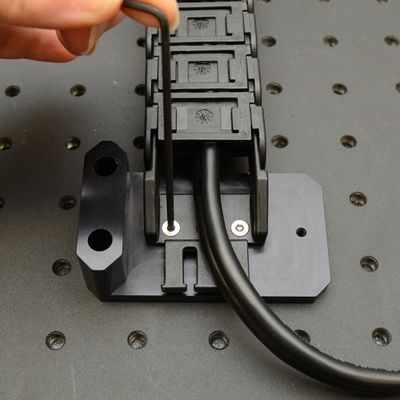
Attach the AP199 part 1 to the lower termination of the cable guide (CG01T shown here).
-
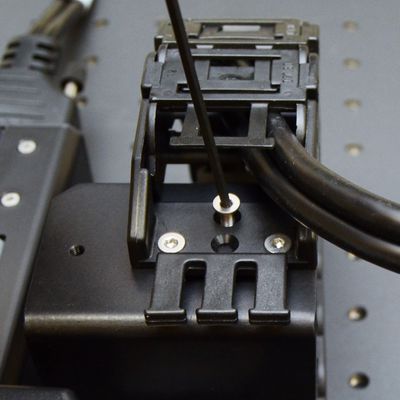
Attach the upper termination of the cable guide to the AP199 part 2 using three M3 flathead screws and the 2 mm hex key.
Move the X-axis stages through their full travel to determine a good mounting location (typically around mid-travel) for the AP199 part 1 and mount it down with the provided long M6 low profile screws and a 4 mm hex key.
Installing AP198 Cable Guide Mounts for X-Axis Cable Guides
Related Products
 |
|
|
|
Precautions
Important: Creating a loop in the cable of 150-200 mm (6-8 inches) between the top cable guide mount and the Y-axis stage protects the cable and increases cycle lifetime.
Required Tools
- 4 mm hex key
- 2 mm hex key
Assembly
-
Remove power to the controller, then remove the connector to the Y-axis stage (if connected).
-
Attach the AP198 part 2 to the AP200 part 1 using two M3 button cap screws and the 2 mm hex key.
-
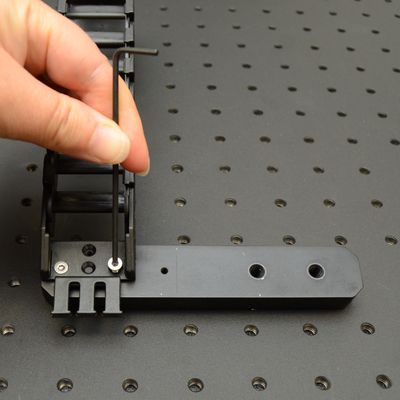
Attach the AP198 part 1 to the lower termination of the cable guide (CG01T shown here).
-
Attach the upper termination of the cable guide to the AP198 part 2 using three M3 flathead screws and the 2 mm hex key.
-
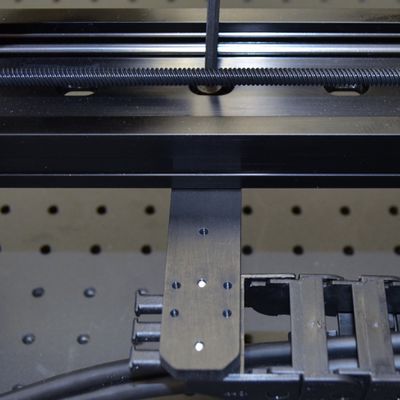
Attach the AP198 part 1 to the bottom of the LSQ X-axis 1 using two M6 screws and the 4 mm hex key.
Move the X-axis stages through their full travel to determine a good mounting location (typically around mid-travel) for the AP198 part 1. -
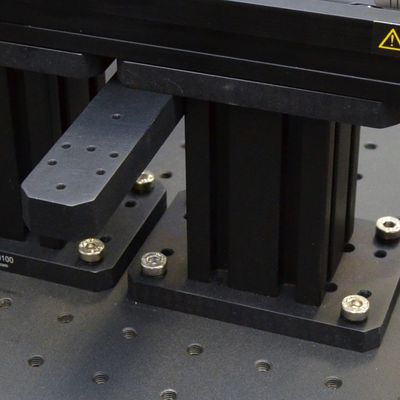
For short X-axis stages the AP198 part 1 can be mounted to the AP202 risers using two M5 x 16 mm screws (with M6 threaded holes as a through-holes) and the 4 mm hex key.
Installing CG Cable Guides with AP204
Related Products
|
|
|
|
Precautions
Important: Creating a loop in the cable of 150-200 mm (6-8 inches) between the top cable guide mount and the Y-axis stage protects the cable and increases cycle lifetime.
Assembly
-
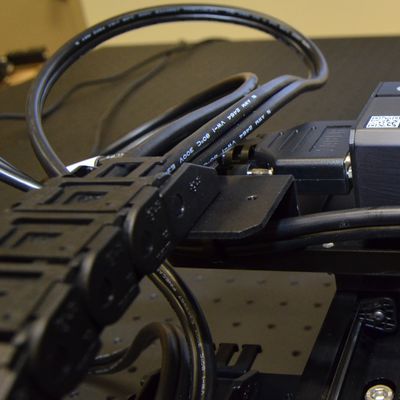
Ensure cables for Z/theta and end effectors have a 150-200 mm (6-8 inches) loop as they exit the X-axis cable guide. Route the cables under the AP198/AP199 top plate as shown before attaching cable guides.
-
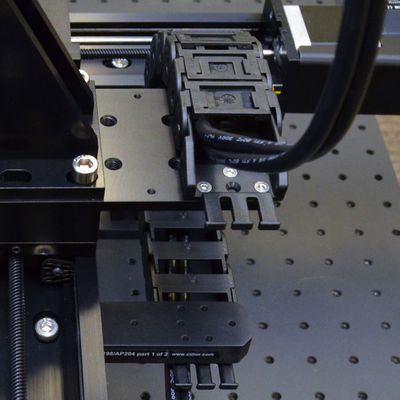
Ensure cable is correctly assembled into guide. See CG Cable Guide and Cable Assembly if not already complete.
Connect upper cable guide termination to AP204 part 2 as shown and connect the cable guide to AP204 part 1 as shown.
Installing AP213 Cable Guide Supports
Related Products
 |
|
Required Tools
- 4 mm hex key
Assembly
-
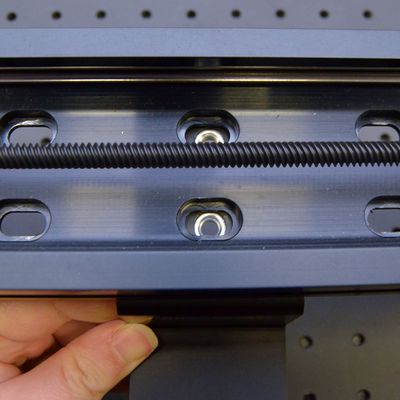
Align the AP213 to mounting holes in the LSQ stage.
Place a single adaptor at approximately 3/4 of the travel of the Y-axis stage (away from the motor).
For two adaptors, space them equally between 2/3 of the travel and the end of travel of the Y-axis stage. -
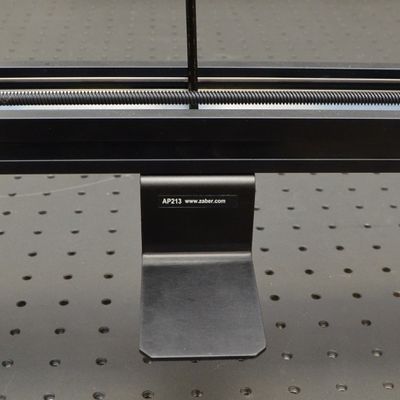
Use two M6 screws and a 4 mm hex key to fasten the AP213 cable guide support(s) to the Y-axis stage.
Cable Management
Related Products
|
|
MC10T3L060 MC10T3L300 MC10T3L450 |
Precautions
Important: Creating a loop in the cable of 150 to 200 mm (6-8 inches), between the top cable guide mount and the Y-axis stage, protects the cable and increases cycle lifetime.
Required Tools
- cable ties
- cable tie mounts
- scissors
Assembly
-
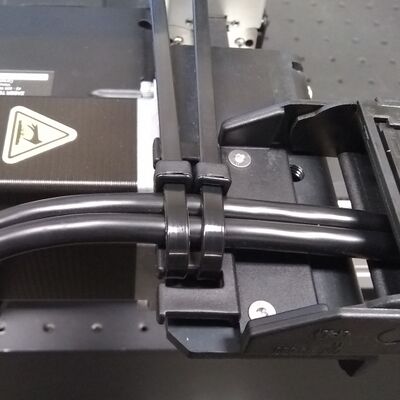
Use cable ties (provided in CGxxT kit) to loosely secure cables to the prongs on the CGxxT as shown, to restrict their motion.
-
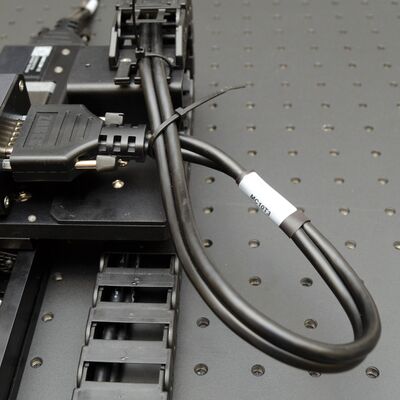
Create the loop of cable using at least 150 to 200 mm (6-8 inches) of cable, for each cable as it exits the guide.
-
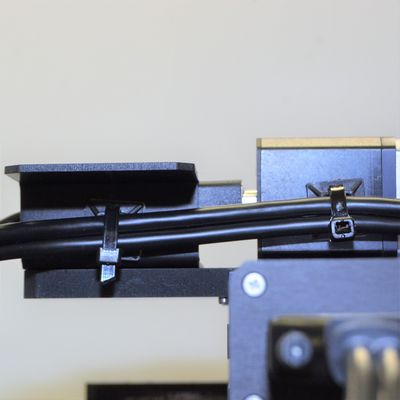
For cables to Z/theta and end effector devices, route the cable(s) beside the Y-axis stage and use an adhesive-backed cable tie mount (provided in the CGxxT kit) and a cable tie to hold the cable in place as shown.
-
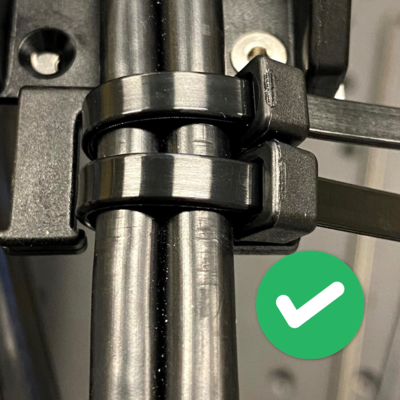
To create the upper strain relief tighten two cable ties on the upper prongs of the CGxxT and the cable. The cable ties should be loose enough that you can move the cable though them fairly easily by hand, but tight enough to constrain the external cable jacket. This allows the internal cable wires to move through the strain relief to relieve bending stresses during motion.
-
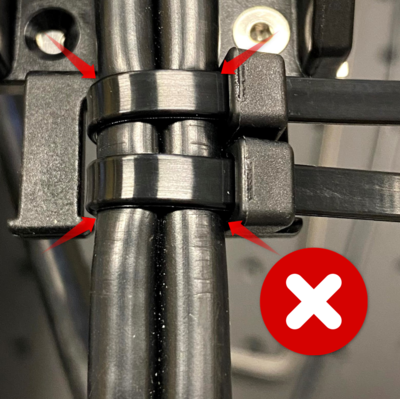
The cable ties in this image have been overtightened and are pinching the cable jacket. Remove ties and start again if needed.
-
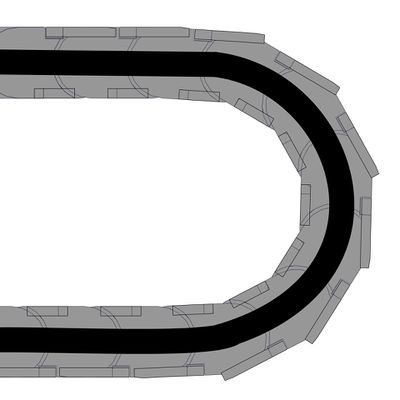
Adjust the cable position inside the guide.
1. The cable should be in the centre of the guide, not pulled tight against the inner radius or pushed against the outer radius of the bend.
2. Holding the cable gently on the controller side of the cable, move the stage along its entire range of travel several times and ensure the cable runs freely in the guide. -
Tighten the cable tie on the second CGxxT prongs to create the lower strain relief, matching the snugness of the first termination.
Trim the ends of the cable ties.
LSQ Dust Cover Removal
Required Tools
- 1.5 mm hex key
- 2 mm hex key
Assembly
-
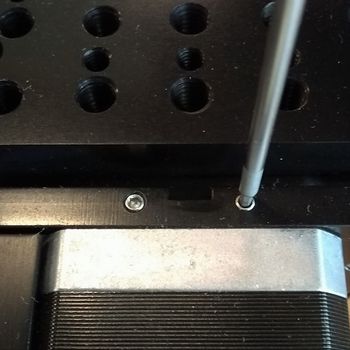
Loosen the two set screws on the motor end plate. Use 1.5 mm hex key.
-
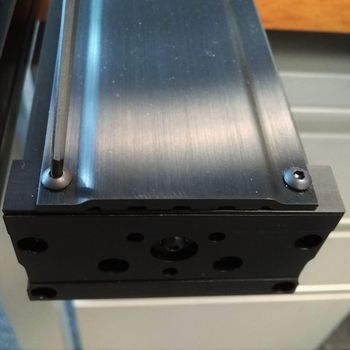
Remove the two M3 screws on the end of the LSQ device using a 2 mm hex key.
Slide the dust cover and spacer plate out from the end plate and through the carriage. The carriage top can remain in place or be removed.
To reinstall the dust cover, simply slide the cover back into place and replace/tighten the set screws and M3 screws.
Disassembly
To disassemble, follow the assembly procedures in reverse. Please keep the following guidelines in mind:
- Remove power before attempting to disassemble devices to prevent unexpected motion
- Retain fasteners for future use
- Keep cable guide assemblies intact
Operation
Setting Lockstep Tolerance
The lockstep tolerance limits the amount of twist between the two lockstepped stages as they travel. If the tolerance is exceeded, the devices will be brought to a stop, to prevent device damage from excessive twist. We recommend adjusting the default setting to larger values (up to the maximum safe values presented below for your specific configuration). Setting a larger tolerance reduces the risk of unexpected or jarring stops and should not affect the typical operating performance of the lockstepped stages.
| X-Axis Part Number | Y-Axis Part Number1 | Maximum Lockstep Tolerance Setting (microsteps)2 |
| LSQxxxA | LSQ150x | 6766 |
| LSQ300x | 9472 | |
| LSQ450x | 12178 | |
| LSQ600x | 14884 | |
| LSQxxxB | LSQ150x | 1353 |
| LSQ300x | 1894 | |
| LSQ450x | 2436 | |
| LSQ600x | 2977 | |
| LSQxxxD | LSQ150x | 0 (unlimited) |
| LSQ300x | 474 | |
| LSQ450x | 609 | |
| LSQ600x | 744 |
- 1 Assumes standard mounting using AP200 hardware to determine spacing between X-axis stages.
- 2 Allows misalignment to a maximum of 0.134 degrees.
Device Product Manuals
Zaber's gantry products include combinations of several Zaber motion control devices. For device operation, maintenance procedures and troubleshooting, consult the detailed product manuals for these devices:
- X-MCC Universal Drive Controller
- These controllers are available with 1-4 axes. In a gantry, a three or four axis controller is typically used to operate the two X-axis stages in lockstep, and to provide coordinated motion for up to two additional axes of motion. This controller may be daisy-chained with other Zaber controllers or motion devices with integrated control.
- LSQ-E Linear Stage
- Provides X,Y and optional Z axis linear motion in LSQ-E Gantries.
- LSQ-EC Linear Stage
- Provides X,Y and optional Z axis linear motion in LSQ-EC Gantries.
- LRT-EC Linear Stage
- Provides X,Y and optional Z axis linear motion in LRT-EC Gantries.
- LC40B-KM01 Linear Guide with Integrated Controller Motor Kit
- Provides X,Y linear motion in LC40 Gantries.
- LC40B-KM02 Linear Guide with Motor Kit for External Controller
- Provides X,Y linear motion in LC40 Gantries.
- LC40C-KM03 Linear Cantilever Axis with Integrated Controller Motor Kit
- Provides X,Y linear motion in LC40 Gantries.
- LC40C-KM04 Linear Cantilever Axis with Motor Kit for External Controller
- Provides X,Y linear motion in LC40 Gantries.
- RSW Rotary Stage
- Provides and optional rotary axis to a gantry.
Additional Zaber motion products can be used in any Zaber gantry. Product Manuals can be found through their product pages here: Zaber Products
Troubleshooting a Gantry product
The following sections contain tips for troubleshooting gantry behavior. Please also see the Device Product Manuals for individual stage behavior, indicator information, and additional troubleshooting.
Unexpected Behaviour
- An axis doesn't respond to a move command.
- The axis stage(s) may need to be homed before use. Send the home command, or the lockstep home command if the axis is in a lockstep group (X-axis).
- Ensure commands addressed to lockstep group stages (X-axis) are lockstep motion commands.
- A peripheral won’t move and move commands are rejected.
- The peripheral may have been unplugged and plugged back in to the wrong axis. Send the activate command the peripheral to continue using it.
- The device is moving on its own and running against the ends of travel.
- The position encoder has de-synchronized.
- Reset the device by power cycling it or sending the system reset (T:0) command, then re-initialize it with the home (T:1) command.
- The X-axis stages have stopped unexpectedly during a move.
- See warning flags for more information.
- A stage may have stalled. See X-MCC Troubleshooting.
- Lockstep twist tolerance may have been exceeded. Consider adjusting lockstep tolerance. See Operation section for maximum recommended settings.
- Lockstepped Stages Stuck or Not Moving Well
- Alignment may not be ideal or stages may have become twisted.
- Disable the lockstep group by sending lockstep setup disable. Typically this will look like 'lockstep 1 setup disable'.
- Perform alignment steps, homing, and lockstep setup again.
Warranty and Repair
For Zaber's policies on warranty and repair, please refer to the Ordering Policies.
Standard products
Standard products are any part numbers that do not contain the suffix ENG followed by a 4 digit number. Most, but not all, standard products are listed for sale on our website. All standard Zaber products are backed by a one-month satisfaction guarantee. If you are not satisfied with your purchase, we will refund your payment minus any shipping charges. Goods must be in brand new saleable condition with no marks. Zaber products are guaranteed for one year. During this period Zaber will repair any products with faults due to manufacturing defects, free of charge.
Custom products
Custom products are any part numbers containing the suffix ENG followed by a 4 digit number. Each of these products has been designed for a custom application for a particular customer. Custom products are guaranteed for one year, unless explicitly stated otherwise. During this period Zaber will repair any products with faults due to manufacturing defects, free of charge.
How to return products
Customers with devices in need of return or repair should contact Zaber to obtain an RMA form which must be filled out and sent back to us to receive an RMA number. The RMA form contains instructions for packing and returning the device. The specified RMA number must be included on the shipment to ensure timely processing.
Email Updates
If you would like to receive our periodic email newsletter including product updates and promotions.
Contact Information
Contact Zaber Technologies Inc by any of the following methods:
| Phone | 1-604-569-3780 (direct) 1-888-276-8033 (toll free in North America) |
|---|---|
| Fax | 1-604-648-8033 |
| #2 - 605 West Kent Ave. N., Vancouver, British Columbia, Canada, V6P 6T7 | |
| Web | www.zaber.com |
| Please visit our website for up to date email contact information. |
The original instructions for this product are available at https://www.zaber.com/manuals/Gantry.
Appendix A: Default Settings
Please see the Zaber Support Page for default settings for this device.
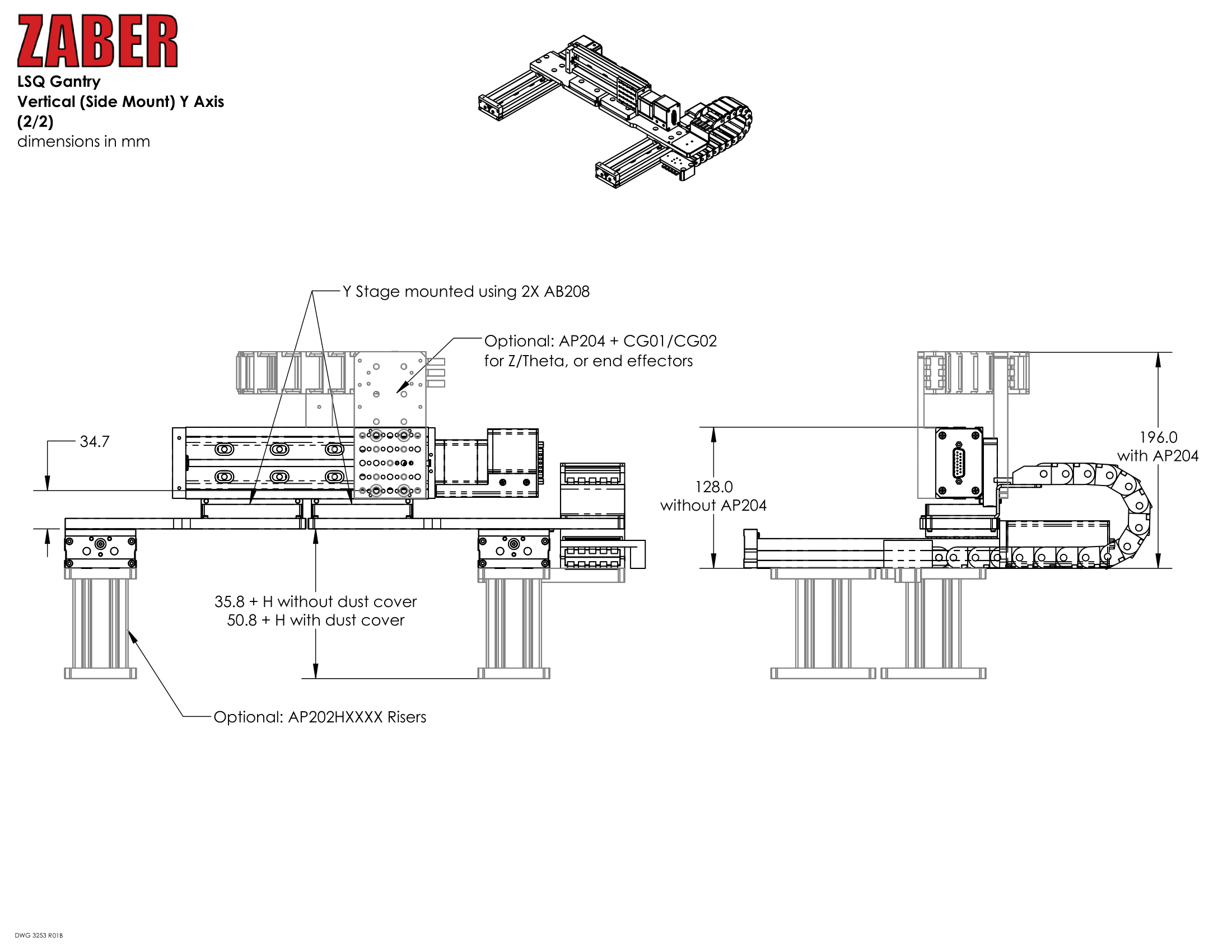
Product Drawings
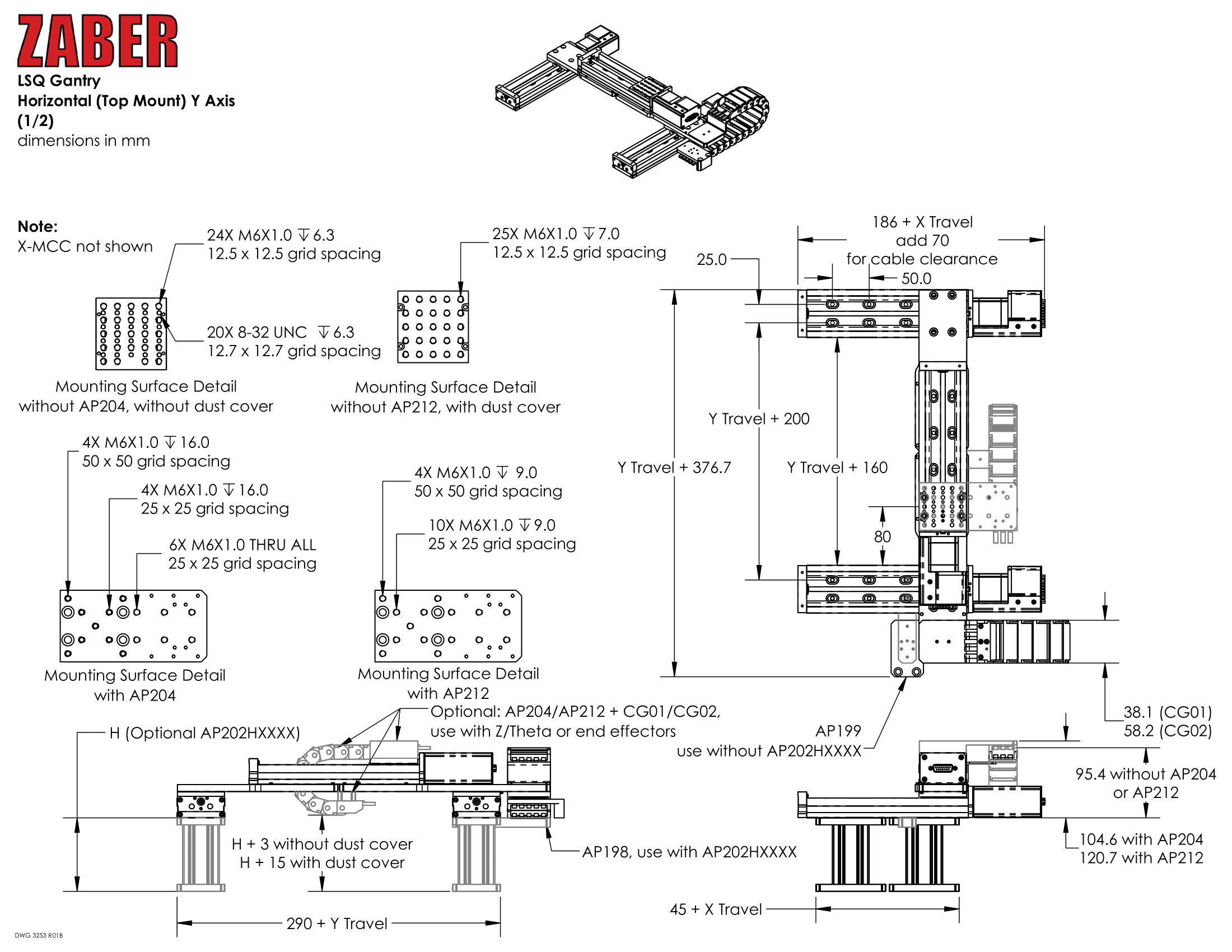
Specifications
| Specification | Value | Alternate Unit |
|---|---|---|
| X Travel Range | 150 – 600 mm | |
| Y Travel Range | 150 – 600 mm | |
| Z Travel Range | 75 – 300 mm | |
| Load Capacity | 30 kg | |
| Repeatability | < 3-15 µm | |
| Maximum Speed | 1000 mm/s | 39.370"/s |
| Maximum Continuous Thrust | 100 N | 22.4 lb |
| CE Compliant | Yes |
Charts and Notes
| LSQ GANTRY | |||
|---|---|---|---|
| Y axis Travel | Maximum Y axis Deflection / Load 1 | ||
| 150 mm | 1.4 µm/kg | ||
| 300 mm | 5.3 µm/kg | ||
| 450 mm | 10.8 µm/kg | ||
| 600 mm | 20.1 µm/kg | ||
1: for an LSQ gantry assembled using AP200 crossmembers
| LSQ GANTRY - Combined Two Axis Repeatability | |||
|---|---|---|---|
| Y-Axis X-Axis | LSQxxxA | LSQxxxB | LSQxxxD |
| LSQxxxA | < 3 µm | < 4 µm | < 11 µm |
| LSQxxxB | < 4 µm | < 5 µm | < 11 µm |
| LSQxxxD | < 11 µm | < 11 µm | < 15 µm |
| LRT GANTRY | |||
|---|---|---|---|
| Y axis Travel | Maximum Y axis Deflection / Load 1 | ||
| 500 mm | 3.5 µm/kg | ||
| 750 mm | 12 µm/kg | ||
| 1000 mm | 20 µm/kg | ||
| 1500 mm | 40 µm/kg | ||
1: for an LRT gantry assembled using AP201 crossmembers
| LRT GANTRY - Combined Two Axis Repeatability | ||||
|---|---|---|---|---|
| Y-Axis X-Axis | LRTxxxA | LRTxxxB | LRTxxxD | LRTxxxH |
| LRTxxxA | < 6 µm | < 6 µm | < 9 µm | < 6 µm |
| LRTxxxB | < 6 µm | < 6 µm | < 9 µm | < 6 µm |
| LRTxxxD | < 9 µm | < 9 µm | < 12 µm | < 9 µm |
| LRTxxxH | < 6 µm | < 6 µm | < 9 µm | < 6 µm |
| LC40 GANTRY - Recommended Support | |||
|---|---|---|---|
| Load | Maximum Span Between Supports | ||
| 0 kg | 1.4 m | ||
| 1 kg | 1.3 m | ||
| 2 kg | 1.1 m | ||
| 5 kg | 0.9 m | ||
| 10 kg | 0.8 m | ||
| 20 kg | 0.6 m | ||
| 50 kg | 0.5 m | ||
For detailed specs for the specific stages used in the GANTRY, visit the following page:
This product uses the FreeRTOS kernel. FreeRTOS is © 2026 Amazon.com, Inc. or its affiliates and is governed by the following license:
All rights reserved.
Permission is hereby granted, free of charge, to any person obtaining a copy of this software and associated documentation files (the "Software"), to deal in the Software without restriction, including without limitation the rights to use, copy, modify, merge, publish, distribute, sublicense, and/or sell copies of the Software, and to permit persons to whom the Software is furnished to do so, subject to the following conditions:
The above copyright notice and this permission notice shall be included in all copies or substantial portions of the Software.
THE SOFTWARE IS PROVIDED "AS IS", WITHOUT WARRANTY OF ANY KIND, EXPRESS OR IMPLIED, INCLUDING BUT NOT LIMITED TO THE WARRANTIES OF MERCHANTABILITY, FITNESS FOR A PARTICULAR PURPOSE AND NONINFRINGEMENT.
IN NO EVENT SHALL THE AUTHORS OR COPYRIGHT HOLDERS BE LIABLE FOR ANY CLAIM, DAMAGES OR OTHER LIABILITY, WHETHER IN AN ACTION OF CONTRACT, TORT OR OTHERWISE, ARISING FROM, OUT OF OR IN CONNECTION WITH THE SOFTWARE OR THE USE OR OTHER DEALINGS IN THE SOFTWARE.
This product uses the LZ4 compression library. LZ4 is © 2011–2016 Yann Collet and is governed by the following license:
All rights reserved.
Redistribution and use in source and binary forms, with or without modification, are permitted provided that the following conditions are met:
- Redistributions of source code must retain the above copyright notice, this list of conditions and the following disclaimer.
- Redistributions in binary form must reproduce the above copyright notice, this list of conditions and the following disclaimer in the documentation and/or other materials provided with the distribution.
THIS SOFTWARE IS PROVIDED BY THE COPYRIGHT HOLDERS AND CONTRIBUTORS "AS IS" AND ANY EXPRESS OR IMPLIED WARRANTIES, INCLUDING, BUT NOT LIMITED TO, THE IMPLIED WARRANTIES OF MERCHANTABILITY AND FITNESS FOR A PARTICULAR PURPOSE ARE DISCLAIMED. IN NO EVENT SHALL THE COPYRIGHT HOLDER OR CONTRIBUTORS BE LIABLE FOR ANY DIRECT, INDIRECT, INCIDENTAL, SPECIAL, EXEMPLARY, OR CONSEQUENTIAL DAMAGES (INCLUDING, BUT NOT LIMITED TO, PROCUREMENT OF SUBSTITUTE GOODS OR SERVICES; LOSS OF USE, DATA, OR PROFITS; OR BUSINESS INTERRUPTION) HOWEVER CAUSED AND ON ANY THEORY OF LIABILITY, WHETHER IN CONTRACT, STRICT LIABILITY, OR TORT (INCLUDING NEGLIGENCE OR OTHERWISE) ARISING IN ANY WAY OUT OF THE USE OF THIS SOFTWARE, EVEN IF ADVISED OF THE POSSIBILITY OF SUCH DAMAGE.