
X-RSW Series
Motorized rotary stages with built-in controllers
About This Series
Zaber's X-RSW Series products are motorized rotary stage devices with built-in controllers. Rated for 2.25 N⋅m of torque they are ideal for high precision, angular positioning applications.
They are stand-alone units requiring only a standard 24-48 V power supply. An indexed knob provides smooth manual control at variable speeds in both directions for versatile operation even without a computer. Press and hold to switch between velocity mode and position mode, turn to move the stage, and press to stop.
The stages connect to the USB 2.0 or RS-232 port of any computer and can be chained with several units per chain. They can be chained with any other Zaber products. Convenient locking, 4-pin, M8 connectors on the unit allow for easy and secure connection between products. The chain also shares power, so multiple X-Series products can use a single power supply.
Feature Callouts
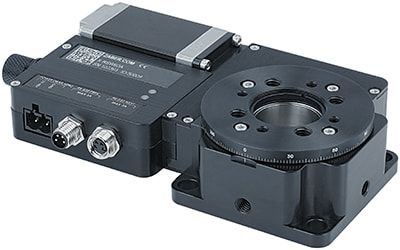
- Control all units in the daisy-chain via serial port (with a locking X-SDC cable) or USB (with an X-USBDC cable).
- Daisy-chain additional units with a locking X-DC02 cable or X-DC06 cable. Power can also be shared in the chain.
- Integrated controller and 200 step per revolution stepper motor, microstepped up to 256x to provide easy-to-use, smooth and precise motion.
- Stage top has metric M6 threaded holes as well as UNC #8-32 holes; centre lens holder fits 1" and 25 mm optics.
- Holes on bottom and two sides provide flexible mounting options; can be mounted directly on other Zaber stages.

Have a Question?
Contact us for device selection, troubleshooting & more!
Response time promise: 1 business day
Have a Question?
Easy Set-Up
Zaber's devices can share both data and power through a daisy-chain, which reduces cabling and makes set-up as easy as 1, 2, 3:
- Connect the Zaber device to your computer via USB or RS-232 port.
- Connect the power supply to your Zaber device.
- Send instructions or automate your set-up using the Zaber Launcher.
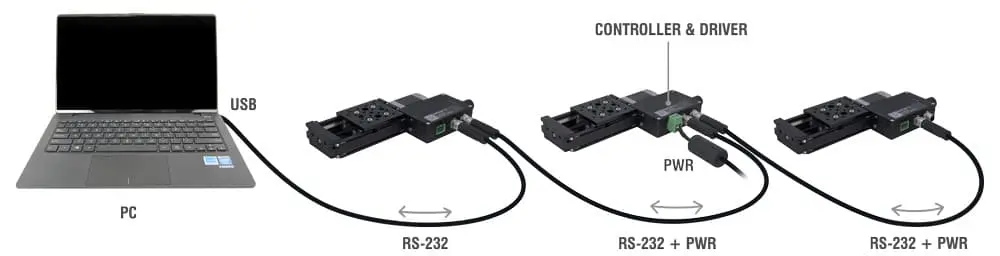
For more details on daisy-chaining, read our technical article, "Daisy-chaining Data and Power to Reduce Cabling", or to determine which accessories you need for your system, try our Connection Guide Tool.
For additional information about setting up our devices, please visit our Support page, which includes our Getting Started Guide, Troubleshooting Guides, product user manuals, and other resources.