
X-SCA4 Series User's Manual
Universal process controller
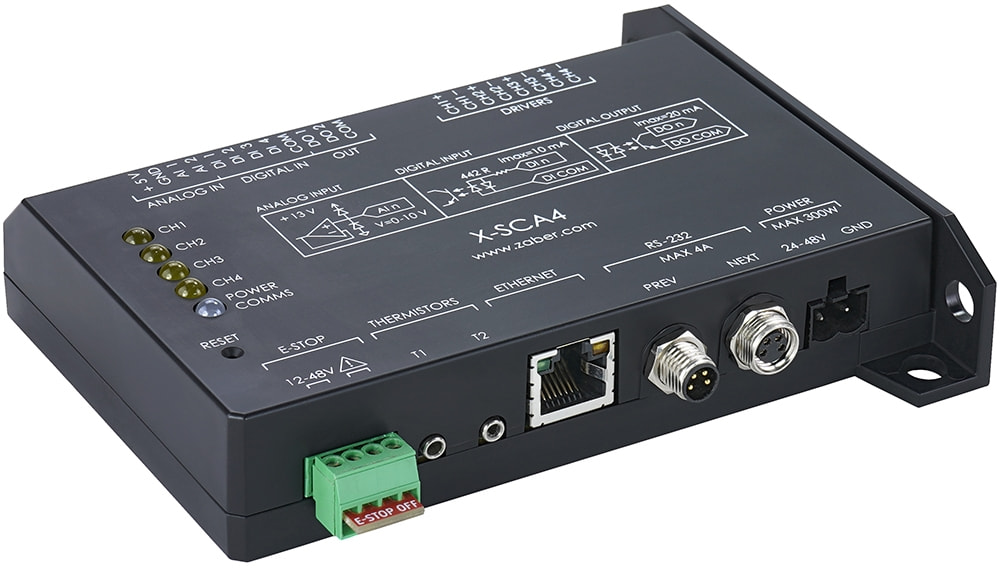
Table of Contents
Table of Contents
Disclaimer
Zaber’s products are not intended for use in any critical medical, aviation, or military applications or situations where a product's use or failure could cause personal injury, death, or damage to property. Zaber disclaims any warranty of fitness for a particular purpose. The user of this product agrees to Zaber's general terms and conditions of sale.
Precautions
The X-SCA4 controller is intended to drive a wide variety of DC loads. Damage to the DC load may result if the settings are not correct. Always follow the instructions in Configuring an Output when switching between peripherals.
 WARNING: Serious damage can occur to customer loads when operated with significantly higher-than-rated current for the load. The X-SCA4 controller is capable of delivering up to 48V and 4 A of current to a load. BEFORE CONNECTING A NEW LOAD to the X-SCA4 controller, it is important to set the correct parameters in the controller. Please check the rated voltage and current for your load before changing the settings of your controller. If you have any questions, please contact Zaber Technical Support.
Conventions used throughout this document
- Fixed width type indicates communication to and from a device. The ↵ symbol indicates a carriage return, which can be achieved by pressing enter when using a terminal program.
Quick Tutorial
We recommend using the X-SCA App within the Zaber Launcher to communicate with the device(s). For other software options, see the Software page. Please refer to the Protocol Manual for more detailed information on the available commands.
Initial Set-up
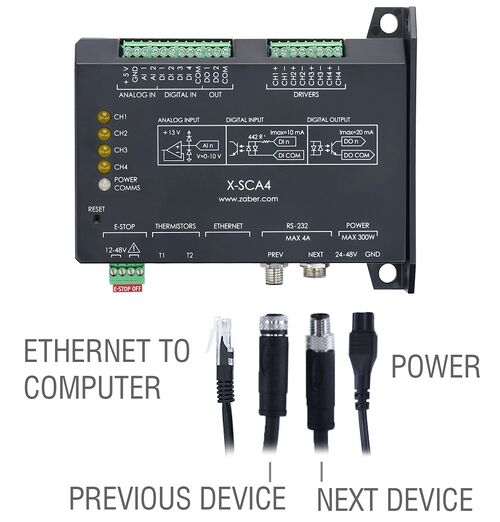
- Connect DC Load(s) to the desired output(s) of your X-SCA4, while unpowered.
- Daisy chain all integrated devices and controllers together using the RS-232 "Prev" and "Next" connectors (see Daisy-Chaining Devices for more details).
- Supply power to one or more devices. Many products share power through the daisy-chain cables. The green power indicator on each should light up.
- Download and install Zaber Launcher. Start Zaber Launcher.
- Create a New Connection and select the communications port the first controller is connected to. For instructions on how to find the available communication ports on your system, please refer to: Appendix A - Available Communications Ports.
- If multiple devices are detected and there are conflicting device numbers, Zaber Launcher will renumber them or you can renumber (T:2) them as desired. The first device in the chain (closest to the computer) will become Device 1, the next will become Device 2, and so on.
- When the communication port is open, Zaber Launcher's "My Connections" page will indicate the connection status of each axis with a message suggesting what action may be needed.
- Open the X-SCA4 App in Zaber Launcher, select your process controller, and set up the steady voltage and current parameters.
Connecting Loads to the Controller
Always connect loads to the process controller while the controller is powered off.
Uni-directional Loads
For simple loads such as valves that only require current to flow in a single direction, connect the positive and negative wires from the load to the positive and negative terminals of one of the 4 channels.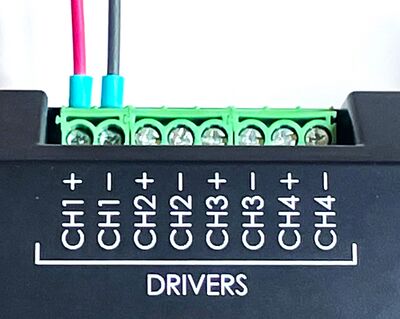
Bi-directional Loads
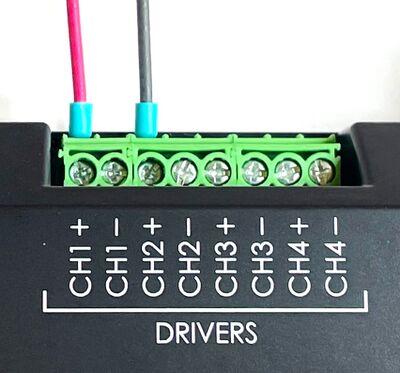
For more complex devices such as reversible DC motors that require current to flow in both directions, two separate channels will be required to drive the load. Choose from either channels {1, 2} or channels {3, 4}.
- Connect the positive wire from the load to the positive terminal of either channel #1 or channel #3.
- Connect the negative wire from the load to the positive terminal of either channel #2 or #4.
Using the Device
Several commonly used ASCII commands for X-SCA4 devices are shown below. For a full list of available commands, please refer to the Protocol Manual.
| Command | Description |
|---|---|
| /1 1 set process.voltage.on 24↵ | Set the output voltage of Device #1, Channel #1 to 24V |
| /1 2 set process.control.mode 0↵ | Set the control mode of Device #1, Channel #2 to Manual |
| /2 1 process on↵ | Turn on the process connected to Device #2, Channel #1 |
| /2 1 process off↵ | Turn off the process connected to Device #2, Channel #1 |
| /3 get sensor.temperature.2↵ | Read the value of temperature sensor #2 |
| /3 io get ai 2↵ | Read the value of analog voltage input #2 |
| /1 system restore↵ | Restore all the settings of Device #1 to the default. |
Configuring an Output
 Important: The X-SCA should always be powered down before disconnecting or connecting a load from its outputs.
Uni-directional loads
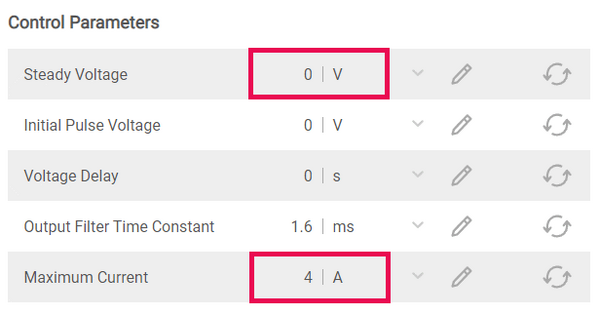
The default configuration for an output is 0 V and up to 4 A. For each channel that is being used, these two settings should be adjusted before using the channel for the first time. Ensure that each output is configured for the correct voltage for the load and the current limit is set to a reasonable value above the maximum expected current. This is very easy to do with the Zaber Launcher App as shown below. It is also possible to do this directly using the ASCII commands set process.voltage.on and set process.current.max.
Bi-directional loads
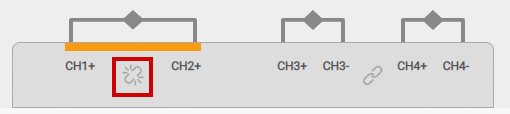
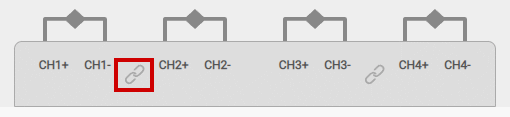
To drive current in both directions, first configure the pair of channels in bipolar mode by pressing the link icon between two adjacent channels. The even numbered channel will disappear and the output will be entirely controlled by the odd numbered channel. The output voltage will permit negative values to drive current in the opposite direction. Next, follow the instructions for a Unidirectional load to set the correct voltage and maximum current for the load. To undo the process, click on the unlink icon.
Temperature Sensing
Operation with Feedback
In addition to reading temperature and voltage sensors and using the information directly, the X-SCA has a powerful feature that enables the use of that information as feedback for controlling an output. The feedback can be used with two possible types of controller: 2-state (on/off) control or Proportional, Integral, Derivative (PID) control.
Two state (on/off control)
Select the two state control type and the feedback source (either of the two thermistors or the two analog inputs) using the app. While the output is off, set the maximum voltage, minimum voltage, and the control direction.
PID Control
Firmware Upgrades
To allow access to new features and bug fixes, this Zaber device can be upgraded remotely through the Firmware Upgrade app in Zaber Launcher. Click on the “...” menu to the right of the device and select “Click for Updates” for the latest firmware version.
Device Overview
Connectors
All images are shown looking into the device.
Power
|
Pin | Description |
|---|---|---|
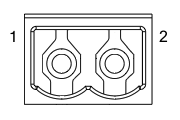
| 1 | 12 - 48 V | |
| 2 | Device GND |
Note: This product requires a CE/UL approved AC/DC power converter such as Zaber's PS13S, PS14S or PS15S with a DC cord of at most 3 m.
Note: As of February 2022, the power supplies Zaber provides are isolated and thus the device is not connected to Earth ground.
Prior to 2022, most power supplies were non-isolated. Isolated units can be distinguished by the "S" suffix in their Zaber part number (eg. PS14S), which is marked on the label on the bottom of the power supply.
Multiple Power Supplies: When connecting the X-SCA4 to other devices in a chain, the highest voltage supply in the chain will power the devices, even if a lower voltage supply is plugged into a given device.
RS-232 Communications
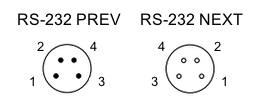
|
Pin | Previous | Next |
|---|---|---|---|
| 1 | Power (max 4 A) | Power (max 4 A) | |
| 2 | Ground | Ground | |
| 3 | Receive | Transmit | |
| 4 | Transmit | Receive |
- Default Settings
- Baud rate: 115200
- Protocol: Zaber ASCII
- Specifications
- Supported Protocols: Zaber ASCII
- Supported baud rates: 9600, 19200, 38400, 57600, 115200
- Bits: 8
- Parity: None
- Stop Bits: 1
- Flow Control: None
E-Stop

|
Pin | Description |
|---|---|---|
| 1 | E-Stop Power (12-48 V) | |
| 2 | E-Stop Ground | |
| 3 | E-Stop Override Input | |
| 4 | E-Stop Override Ground |
E-Stop power inputs are optically isolated, but E-Stop override inputs are not. For details on using the E-Stop, please refer to the dedicated Emergency Stop section.
Mating Products
TE Connectivity 284506-4 or 1986692-4
Ethernet Communications
- Specifications
- Ethernet (10/100 Mbit/s)
- TCP/IP, TCP Ports: 55550, 55551
- Supported Protocol: Zaber ASCII
High Power Outputs
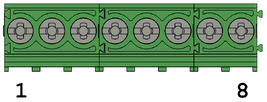
|
Pin | Description |
|---|---|---|
| 1 | Channel 4 - | |
| 2 | Channel 4 + | |
| 3 | Channel 3 - | |
| 4 | Channel 3 + | |
| 5 | Channel 2 - | |
| 6 | Channel 2 + | |
| 7 | Channel 1 - | |
| 8 | Channel 1 + |
Low power I/O
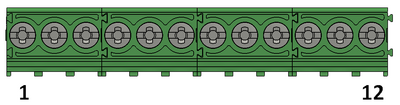
|
Pin | Description |
|---|---|---|
| 1 | Digital Out Common | |
| 2 | Digital Out 2 | |
| 3 | Digital Out 1 | |
| 4 | Digital In Common | |
| 5 | Digital In 4 | |
| 6 | Digital In 3 | |
| 7 | Digital In 2 | |
| 8 | Digital In 1 | |
| 9 | Analog In 2 | |
| 10 | Analog In 1 | |
| 11 | Ground | |
| 12 | +5V |
| Specifications | Equivalent circuit |
|---|---|
| Maximum Input Voltage (per pin): 8.0 V† | 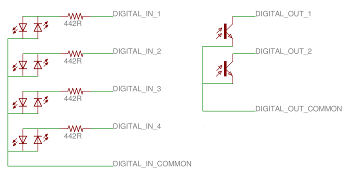
|
| Minimum Input Logic High Voltage: 1.5 V | |
| Maximum Output Current (per pin): 3 mA | |
| Maximum Switchable Voltage (per pin): 50 V |
†The input voltage range can be extended with additional series resistance, as described in the I/O Usage and Examples (Digital Inputs) section.
| Analog Input Specifications | Equivalent circuit |
|---|---|
| Absolute Maximum Input Range (per pin): 0 - 12.8 V | 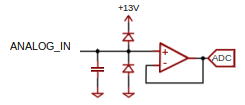
|
| Nominal Input Range (per pin): 0 - 10.0 V | |
| Resolution: 0.001 V |
+5 V Output
The +5 V and GND connections can provide power for low-current I/O applications. The pins can source up to 200 mA of current. If additional current is needed, an external power supply is required. Note that this output is not isolated.
Note: Any cables connected to the I/O port should be limited to 3 m in length.
Other Connectors
For any connections not described in this document, cables should be limited to a length of 3 m.
Indicators
- Green (Device) - Power
- On: Controller is operational.
- Blinking twice per second: The power supply voltage or controller temperature is out of range.
- Red (Device) - System Error
- On/blinking: An error has occurred. Please contact Zaber Technical Support.
- Yellow (Device) - Communication
- On: Data is being transferred.
- Blinking twice per second: Packet corruption has occurred for ASCII commands sent with a checksum.
- Yellow (Channel) - Channel Status
- On: Channel is active and some voltage is present on the output.
Communications
The X-SCA4 supports multiple simultaneous communication interfaces. The device will respond to commands on the communication interface which originally sent the message. It will always send alert messages on all available communication interfaces. When multiple communication interfaces are available, only one interface at a time can communicate with daisy-chained devices connected to the RS-232 Next port. Other communication interfaces may also be used to communicate with the device, but their commands will not be forwarded over the Next port. By default, a fixed priority order is used to determine which communication interface may communicate with daisy-chained devices. Alternatively, a specific communication interface may be selected with the comm.next.owner setting.
- Interface Priority
-
- Ethernet
- RS-232
Daisy Chaining
Daisy Chaining is supported from Ethernet to RS-232 Next and RS-232 Prev to RS-232 Next.
Installation
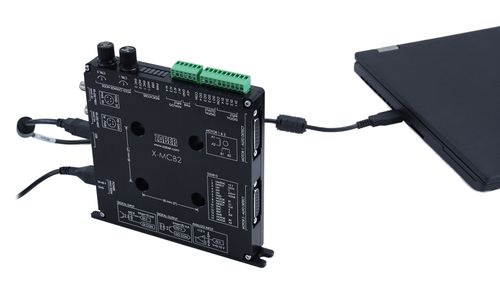
The X-SCA4 can be connected to a computer as follows:
- Connect one or more loads to the X-SCA4 controller on the screw terminals for the main output channels.
- Connect the controller to your computer using the X-USBDC cable from the X-SCA4 Previous port to the computer's USB input.
- Connect the power plug of your power supply to the power connector of the device. The green LED should light up indicating the device has power.
- Additional devices can simply be daisy-chained to the first. See Daisy-Chaining Devices below.
- Install software from the Software page. For the initial setup, using Zaber Launcher is recommended.
Daisy-Chaining Devices
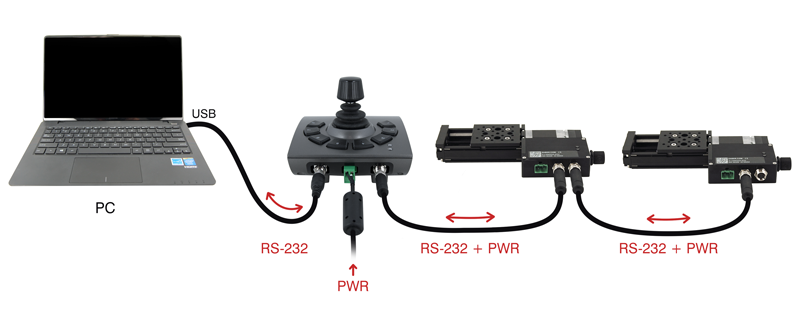
Multiple devices can be connected together in a chain through the Prev and Next connectors. This allows any number of devices to be controlled from a single connection to a computer, reducing cabling demands. In addition, X-Series devices carry power through the daisy chain, so in most cases a power supply only needs to be connected to one device in the chain. Whenever a device is added or removed from a chain, a renumber command should be sent to prevent device address conflicts. If there are device address conflicts, Zaber Launcher will renumber automatically the next time you use it to connect to the chain.
Note: Daisy-chaining devices with cable lengths exceeding 8 m (25 ft) is not recommended.
Physical Installation
The X-SCA4 is designed to mount to 25 mm or 1" pitch optical breadboards using M6 or 1/4" screws, respectively, or for use on a desk or table. The X-SCA4 can be mounted to optical breadboards either vertically or horizontally, snapped into DIN rails in two different orientations, or placed on a table with handy rubber feet.
-
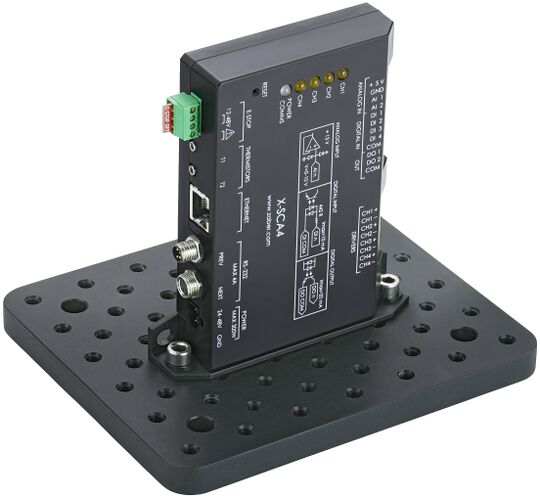
Breadboard mounted controller in the vertical orientation.
-
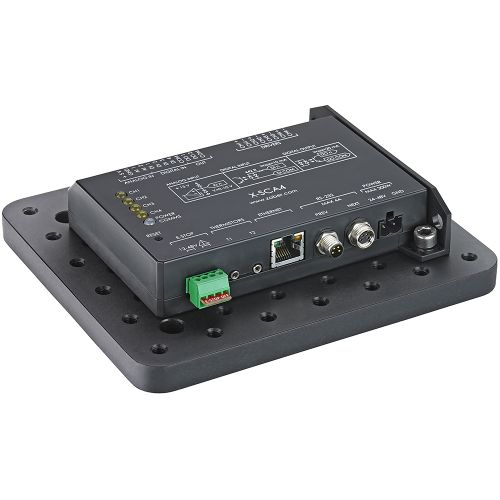
Breadboard mounted controller in the horizontal orientation.
-
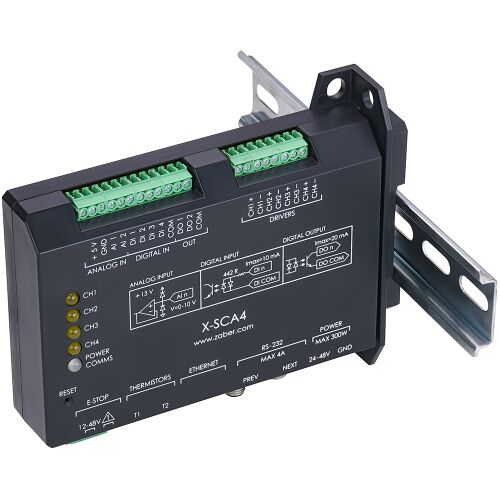
Compact and high density DIN rail mounting with the optional AB258 accessory.
-
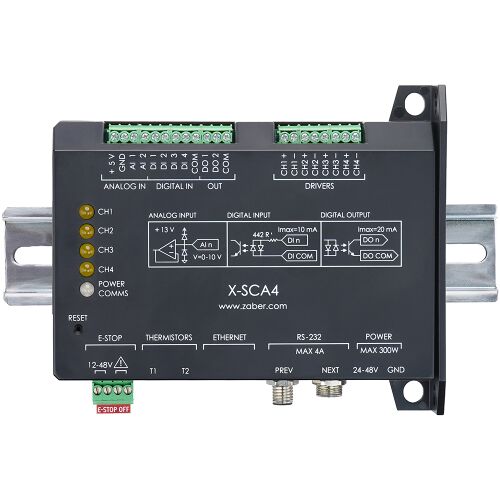
Convenient and accessible DIN rail mounting with the optional AB259 accessory.
-
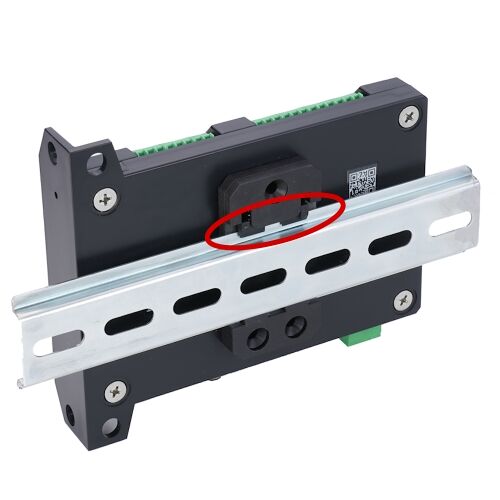
Both DIN rail brackets are bolted to X-SCA4 controller using M3 thread forming screws for plastic. The recommended way of attaching the brackets to the controller is with the spring clip on the top side for easier assembly onto the DIN rail.
-
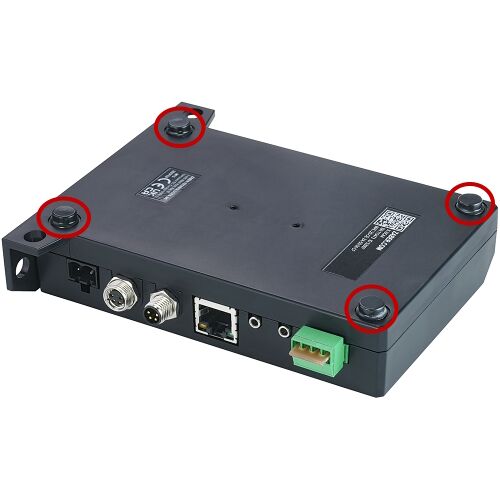
In situations where mounting is not necessary, four adhesive rubber feet are provided which can be applied to the underside of the unit to prevent it from sliding on the surface of a desk or table.
I/O Usage and Examples
The X-SCA4 features a range of flexible input and output options that can be easily examined and controlled from user software. The input and output capabilities of the X-SCA4 can also be used with triggers to perform actions based on the current value of the I/O channel.
To minimize the number of power supplies needed, the on-board +5 V and GND connections can be used as non-isolated power supplies for I/O circuitry as long as the current draw remains below 200 mA.
Digital Inputs
The digital inputs on the X-SCA4 are fully opto-isolated and bi-directional, giving added flexibility when interfacing to external equipment. The two examples below demonstrate how the common line can be connected to a power rail or to ground, depending on the application.
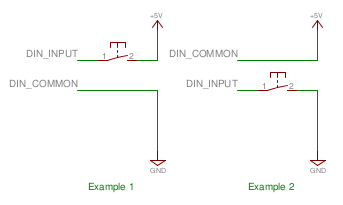
Each digital input contains an internal current limiting resistor of 442 ohms. While this value is suitable for driving the inputs with 5 V (as shown in the circuit above), higher voltages will require the addition of a series resistor. A list of recommended values for the external resistor and example circuit are shown below.
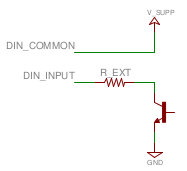
| V_SUPP (V) | R_EXT (Ohms) | Power (mW) |
|---|---|---|
| 0 - 8 | 0 | n/a |
| 8 - 15 | 500 | 125 |
| 15 - 24 | 1500 | 250 |
The circuit above also shows how to interface with an open collector output from another device. Reading the inputs is accomplished by sending the unit an io get command, as shown below.
/1 io get di↵

@01 0 OK IDLE -- 0 0 1 0
/1 io get di 1↵

@01 0 OK IDLE -- 0
The first command queries all inputs on the device and shows that input 3 is "on" (not equal to the common line) and all others are "off" (equal to the common line). Depending on whether your common line is connected to ground or a positive voltage, "on" might mean a high or a low voltage level. The second command queries a specific input on the device, in this case input 1, which is "off".
Digital Outputs
All digital outputs on the X-SCA4 are fully opto-isolated and capable of sinking a minimum of 3 mA at up to 50 V. The first example circuit below shows how to drive an LED from one of the digital outputs. In order to switch loads with a higher current draw, for example a relay, an external switching transistor is required, as shown in example 2.
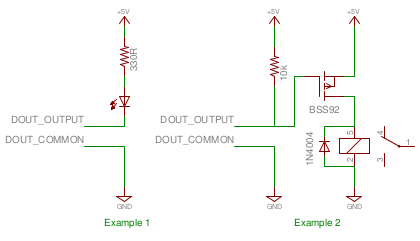
The digital outputs are set through the io set command, as shown below.
/1 io set do 1 1↵

@01 0 OK IDLE – 0
/1 io set do 1 0↵

@01 0 OK IDLE – 0
The first command sets the first digital output "on", which would cause the LED in example 1 above to glow. The second command turns "off" the output, turning off the LED.
TTL Outputs
Additional circuitry is required to get TTL signal levels from the X-SCA4, as shown below.
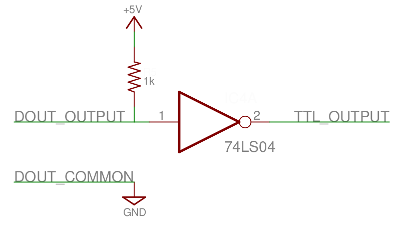
The 74LS04 contains 6 inverters so it is possible to convert all of the digital outputs with one IC. In order to maintain isolation, it is recommended that the 5 V and GND supply connections come from the device requiring the TTL signalling. It is, however, possible to use the 5 V and GND connections on the X-SCA4 to power the external device, as long as the current limits are adhered to.
Analog Inputs
The analog inputs on the X-SCA4 accept and display voltages in the range of 0 – 10 V. In order to measure other analog variables, a transducer or sensor is required that outputs an appropriate voltage range. As transducers typically provide low voltage signals, an amplifier and buffer circuit is required to interface a transducer to the X-SCA4.
The reference circuit below demonstrates how to connect a wheatstone bridge to one of the analog inputs on the X-SCA4. Various instruments are configured in a wheatstone bridge arrangement, including load-cells and strain gauges.
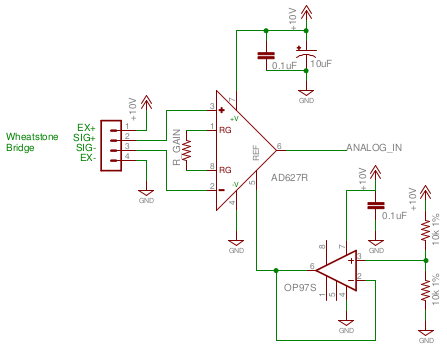
R_GAIN's value should be chosen so that a positive full scale of the instrument produces 10 V at the analog input of the X-SCA4 and a negative full scale produces 0 V. The OP97 op-amp provides an offset of 5 V to the amplified value so that no load on the instrument produces an output of 5 V.
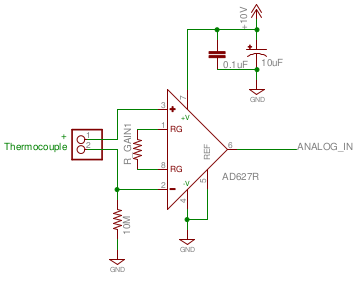
The reference circuit below demonstrates interfacing a thermocouple to the X-SCA4. Depending on the application, an offset voltage may need to be provided.
Emergency Stop
The X-SCA4 is equipped with an optional 4 pin Emergency Stop input.
A voltage between 12-48 V must always be applied to the two E-stop power inputs. When the E-stop input is de-energized, the X-SCA4 disables all of the high power driver outputs. The controller will still be active in this state and remain responsive to queries and commands. The outputs will remain unpowered until the E-stop input is re-energized and the driver is re-enabled with a driver enable command.
 WARNING: An unpowered E-stop is not recommended for all usage cases because a sudden loss of power to the outputs may result in unsafe behavior.
WARNING: It is the user’s responsibility to evaluate the safety of their overall application and put in place the correct safety features. For example, applications relying on the presence of pressure may become unsafe if a valve is suddenly unpowered. All safety features must be tested in controlled, non-dangerous situations to ensure they will work properly during a real E-stop event.
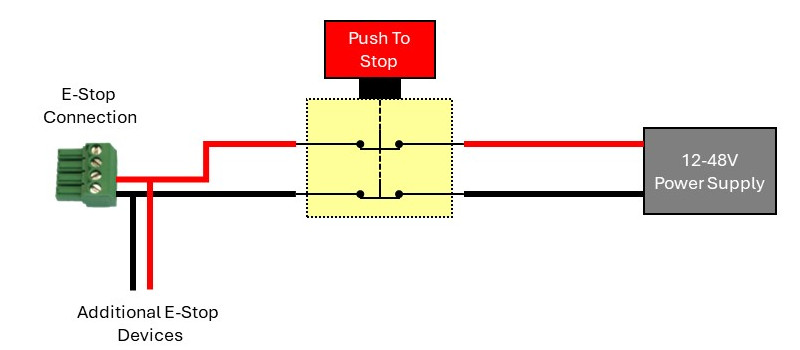
The X-SCA4 ships with a shorting bar across all four interface pins to disable the E-stop by default and allow normal motor operation. To use the E-stop circuit, first remove the shorting bar and then wire a DC power supply with a voltage of between 12 V and 48 V in series with a normally closed switch as shown below. The signal can be wired in either polarity. Opening the switch will cause the E-stop to engage.
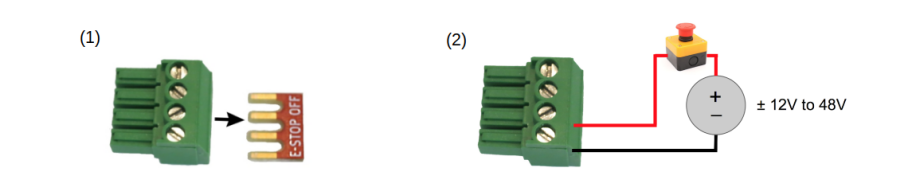
Shown below is a straightforward circuit to integrate the X-SCA4 and additional devices with a 2 circuit normally closed (NC) switch, similar to Zaber’s ES01 accessory. The E-Stop will be activated when the switch is pressed, opening the circuit.
Troubleshooting
The following sections contain tips for troubleshooting common problems. If the device is unable to communicate, and it is operating erratically, a manual factory reset can be performed on the X-SCA4 using the following steps. Note that this will reset most settings.
- Power Off the device
- Insert a small pin such as a paperclip into the reset hole on the front of the controller.
- Power On the device
- Continue to depress the reset pin for ~5 seconds until the power LED begins fading in and out.
- Release the reset pin.
- The device has been returned to its factory defaults and can be configured as per the steps in Initial Setup.
Communication Errors
- There is no communication with the device; the Yellow LED does not come on or flash.
- There are several things that should be checked:
- Make sure the correct serial port is selected. Try selecting other serial ports in the software.
- Check the baud rate, hand shaking, parity, stop bit, etc. when configuring the serial communications software. The required settings are listed in the RS-232 Communications section above.
- Make sure there are no bent pins in the ends of all the data cables
- Make sure the device is powered. The Green LED should be on.
- If the computer is a laptop running on batteries, try plugging in the power. Some laptops disable the serial ports when running on batteries.
- Make sure a null modem adaptor or cable is not being used.
- Make sure the correct adaptors (if any) are being used. Refer to the pinouts in the RS-232 Communications section above.
- If the problem was encountered when trying to control the device with custom software, try using Zaber Launcher to verify that the hardware is functioning properly.
- Two or more devices both respond to commands sent to device 1.
- Most devices are shipped with their device number set as 1. If you connect to the devices with Zaber Launcher, it will automatically renumber them if needed. If you aren't able to install and open Zaber Launcher, send the renumber command in the software you are using to set all of the device numbers to different values.
- The Yellow LED comes on briefly when sending a command, but the axis does not move and does not reply.
- Check baud rate, hand shaking, parity, stop bit, etc. are set as per the RS-232 Communications defaults.
- The device numbers may not be what is expected, issue a renumber command. Make sure that the computer does not transmit anything else while the devices renumber.
Warranty and Repair
For Zaber's policies on warranty and repair, please refer to the Ordering Policies.
Standard products
Standard products are any part numbers that do not contain the suffix ENG followed by a 4 digit number. Most, but not all, standard products are listed for sale on our website. All standard Zaber products are backed by a one-month satisfaction guarantee. If you are not satisfied with your purchase, we will refund your payment minus any shipping charges. Goods must be in brand new saleable condition with no marks. Zaber products are guaranteed for one year. During this period Zaber will repair any products with faults due to manufacturing defects, free of charge.
Custom products
Custom products are any part numbers containing the suffix ENG followed by a 4 digit number. Each of these products has been designed for a custom application for a particular customer. Custom products are guaranteed for one year, unless explicitly stated otherwise. During this period Zaber will repair any products with faults due to manufacturing defects, free of charge.
How to return products
Customers with devices in need of return or repair should contact Zaber to obtain an RMA form which must be filled out and sent back to us to receive an RMA number. The RMA form contains instructions for packing and returning the device. The specified RMA number must be included on the shipment to ensure timely processing.
Email Updates
If you would like to receive our periodic email newsletter including product updates and promotions.
Contact Information
Contact Zaber Technologies Inc by any of the following methods:
| Phone | 1-604-569-3780 (direct) 1-888-276-8033 (toll free in North America) |
|---|---|
| Fax | 1-604-648-8033 |
| #2 - 605 West Kent Ave. N., Vancouver, British Columbia, Canada, V6P 6T7 | |
| Web | www.zaber.com |
| Please visit our website for up to date email contact information. |
The original instructions for this product are available at https://www.zaber.com/manuals/X-SCA4.
Appendix A - Available Communications Ports
The following instructions outline how to find installed serial ports on your computer.
Windows
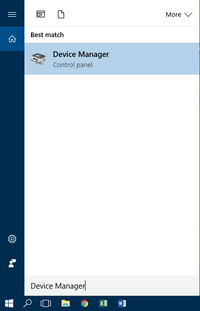
- Open Search or Run from the Start Menu or Taskbar, type "Device Manager" and press enter.
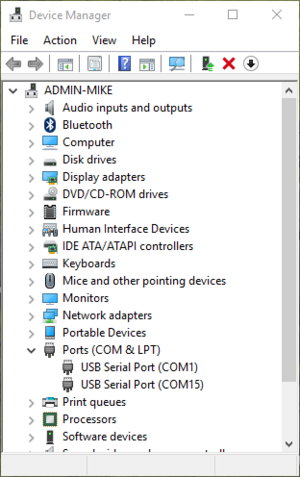
- Expand the Ports (COM & LPT) category.
- In this example there are two serial ports available (COM1 and COM15), which are both USB adaptors.
Linux
- Finding devices
- Open a terminal and execute the following command:
- dmesg | grep -E ttyU\?S↵
- The response will be similar to the following:
[ 2.029214] serial8250: ttyS0 at I/O 0x3f8 (irq = 4) is a 16550A
[ 2.432572] 00:07: ttyS0 at I/O 0x3f8 (irq = 4) is a 16550A
[ 2.468149] 0000:00:03.3: ttyS4 at I/O 0xec98 (irq = 17) is a 16550A
[ 13.514432] usb 7-2: FTDI USB Serial Device converter now attached to ttyUSB0 - This shows that there are 3 serial ports available: ttyS0, ttyS4 and ttyUSB0 (a USB adaptor)
- Checking port permissions
- Using the ports found above, execute the following command
- ls -l /dev/tty{S0, S4, USB0}↵
- The permissions, given below, show that a user has to be root or a member of the dialout group to be able to access these devices
crw-rw---- 1 root dialout 4, 64 Oct 31 06:44 /dev/ttyS0
crw-rw---- 1 root dialout 4, 68 Oct 31 06:45 /dev/ttyS4
crw-rw---- 1 root dialout 188, 0 Oct 31 07:58 /dev/ttyUSB0
- Checking group membership
- groups↵
- The output will be similar to the following:
adm cdrom sudo dip plugdev users lpadmin sambashare
Notice that dialout is not in the list - A user can be added to the dialout group with the following command
- sudo adduser $USER dialout↵
- Group membership will not take effect until the next logon.
OSX
- Finding devices
- Open a terminal and execute the following command:
- ls /dev/cu.*serial*
- The response will be similar to the following:
/dev/cu.usbserial-FTB3QAET
/dev/cu.usbserial-FTEJJ1YW - This shows that there are two serial ports available, both of which happen to be USB adaptors.
- There may be other devices that match this query, such as keyboards or some web cameras. To determine which one corresponds to your USB serial cable, try repeating the command with and without the cable connected to the computer, to see which one appears and disappears.
Appendix B - Ethernet Setup
By default, the Ethernet communication interface uses DHCP to obtain an IP address automatically. This is the easiest way to use the Ethernet communication interface and does not require any configuration before connecting to an existing network which has a DHCP server available.
Alternatively, to manually configure a static IP address, subnet mask, and default gateway address, use the <comm en ipv4 static> command. This command can be sent over any available communication interface, such as USB or RS-232.
The following example describes how to use the USB or RS-232 communication interface with Zaber Launcher to configure Ethernet for a network which uses the following (sample) static configuration details:
| IPv4 address: | 192.168.123.2 |
| Subnet mask: | 255.255.255.0 |
| Default gateway IPv4 address: | 192.168.123.1 |
Manually Configuring Network Details
- Connect the Zaber device to the computer using a USB cable (or alternatively, an RS-232 interface).
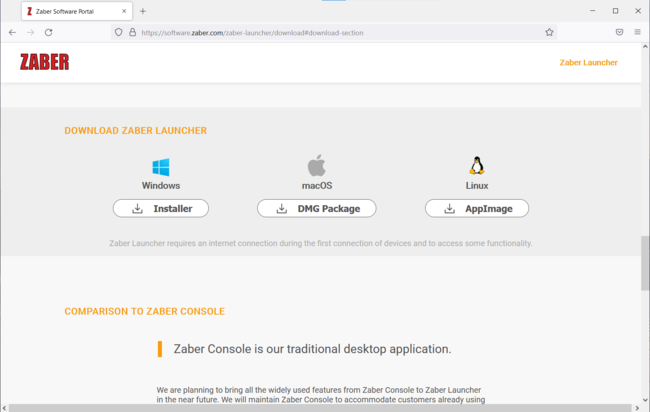
- Install Zaber Launcher software for the appropriate operating system: https://software.zaber.com/zaber-launcher/download#download-section
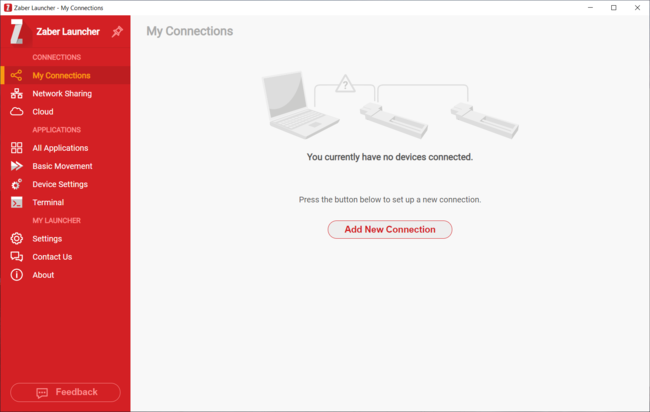
- Open Zaber Launcher.
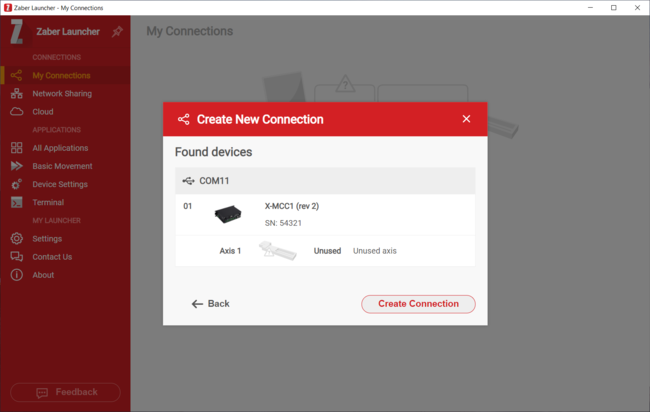
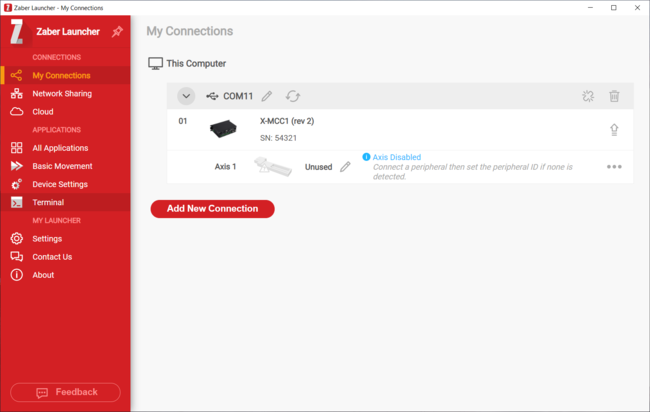
- Click the “Add New Connection” button (or, use a previously configured connection for the device).
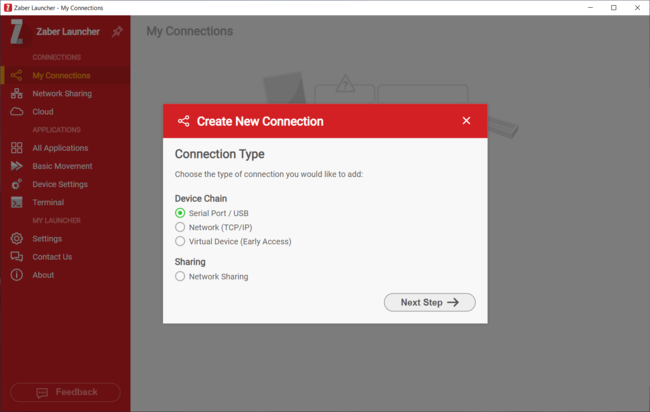
- Select the “Serial Port / USB” option and click the “Next Step” button.
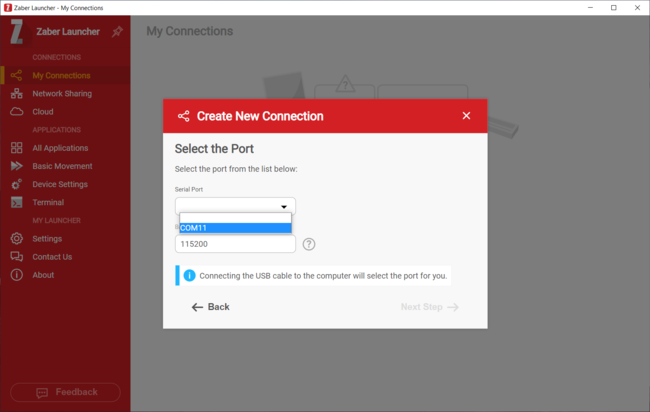
- Select the appropriate “Serial Port” from the drop-down list.
- Click “Next Step”, and then “Create Connection”.
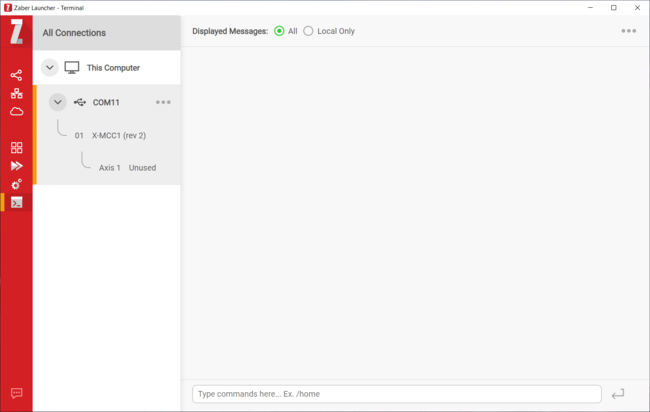
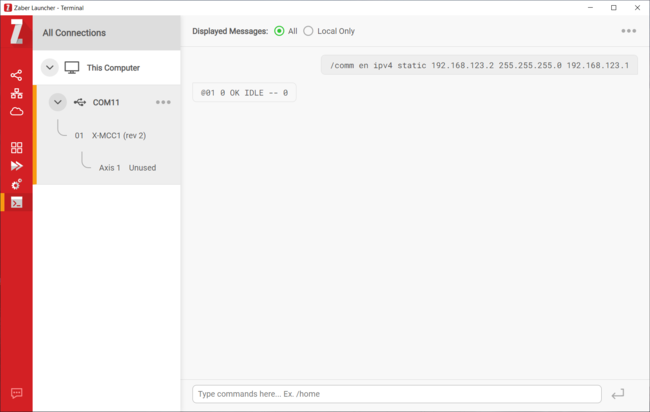
- Select “Terminal” from the sidebar.
- Select the appropriate connection from the “All Connections” list.
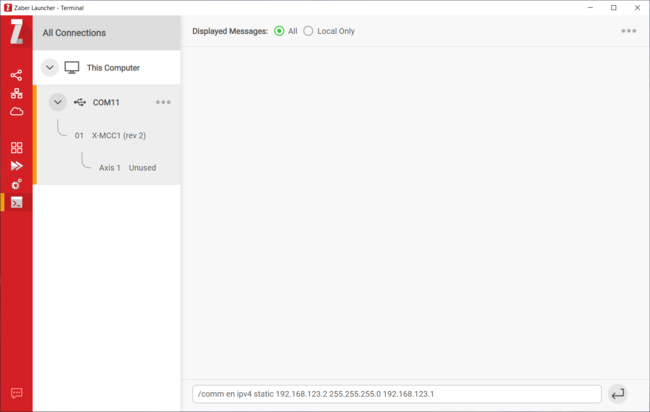
- Enter the “comm en ipv4 static” command to apply the network configuration (replace the sample values shown here with appropriate values for your network):
/comm en ipv4 static 192.168.123.2 255.255.255.0 192.168.123.1
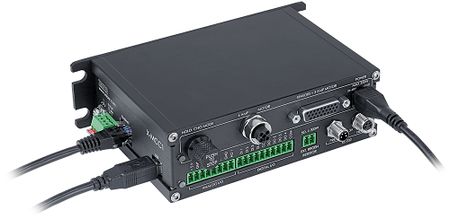
- The Zaber device is now configured to use the provided network details.
Connecting via Ethernet
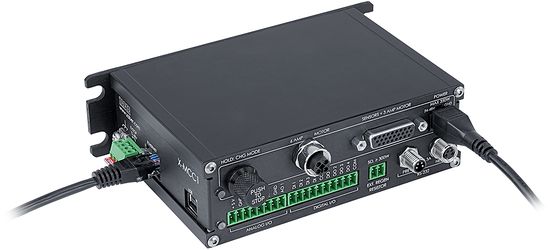
- Connect the Zaber device to the network using an Ethernet cable.
- Open Zaber Launcher.
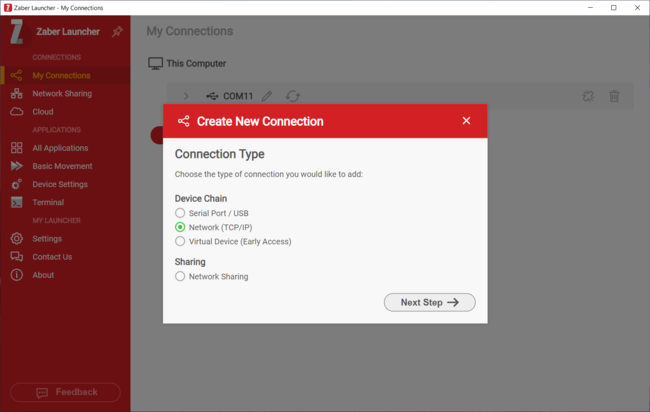
- Click the “Add New Connection” button.
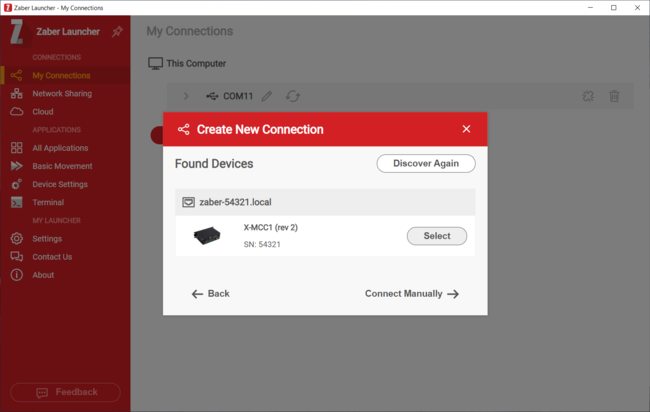
- Select the “Network (TCP/IP)” option and click the “Next Step” button.
-
- If the Zaber device is detected automatically in the “Found Devices” listing, click the “Select” button.
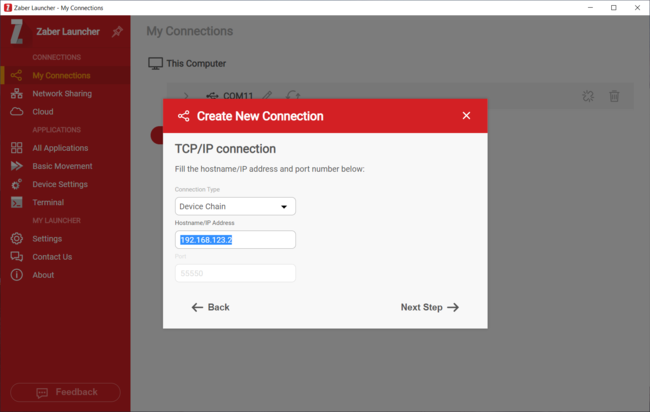
- Otherwise, click the “Connect Manually” button, then enter the device’s configured IPv4 address in the “Hostname/IP Address” field.
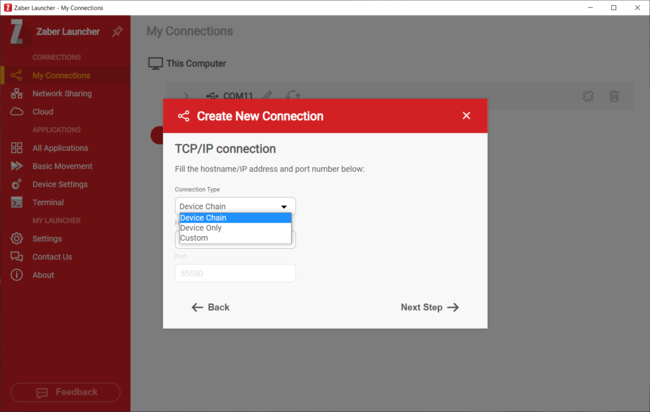
- In the “Connection Type” field, select “Device Chain” (for communicating with a device and daisy-chained devices) or “Device Only” (for communicating with the directly connected device only), then click the “Next Step” button.
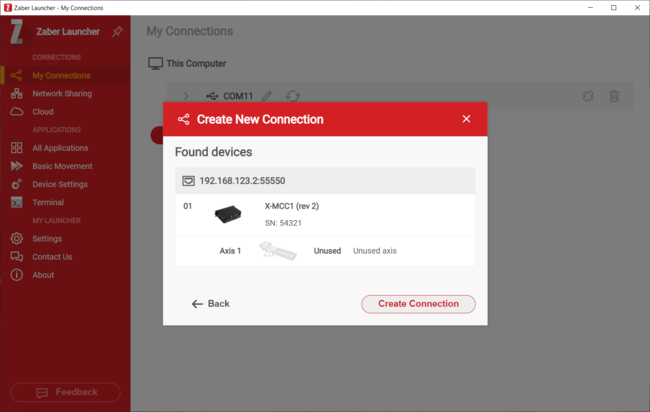
- Select the Zaber device from the "Found devices" list. Click the “Create Connection” button.
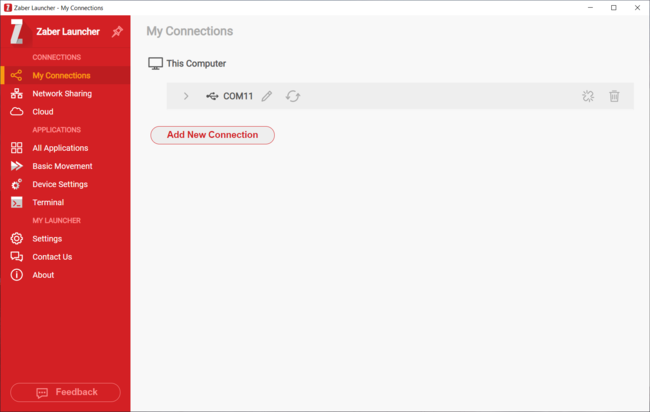
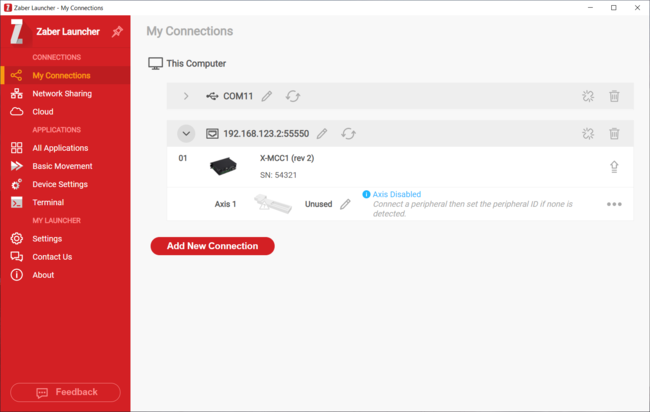
- The Zaber device is now listed in the “My Connections” list and is ready for use with Zaber Launcher.
Specifications
| Specification | Value | Alternate Unit |
|---|---|---|
| Weight | 0.2 kg | 0.441 lb |
| Communication Interface | RS-232, Ethernet (10/100 Mbit/s) | |
| Communication Protocol | Zaber ASCII | |
| Data Cable Connection | Locking 4-pin M8, Ethernet | |
| Power Supply | 12 to 48 VDC | |
| Power Plug | 5.0 mm Screw Terminal | |
| Maximum Current Draw | 4800 mA | |
| Maximum Current Per Channel | 3.8 amps | |
| Number of Output Channels | 4 | |
| Number of Temperature Sensor Inputs | 2 | |
| Supported Temperature Sensor Types | HT03 - 10k thermistor | |
| Isolated Digital Input | 4 | |
| Isolated Digital Output | 4 | |
| Analog Input | 2 | |
| Analog Input Range | 0-10 V | |
| Analog Input Resolution | 1 mV | |
| E-Stop Input Range | 12 to 48 V | |
| Operating Temperature Range | 0 to 50 °C | |
| CE Compliant | Yes | |
| Vacuum Compatible | No |
Product Change Notices
Click here to view the current product change notices and subscribe to future change notifications.
This product uses the FreeRTOS kernel. FreeRTOS is © 2026 Amazon.com, Inc. or its affiliates and is governed by the following license:
All rights reserved.
Permission is hereby granted, free of charge, to any person obtaining a copy of this software and associated documentation files (the "Software"), to deal in the Software without restriction, including without limitation the rights to use, copy, modify, merge, publish, distribute, sublicense, and/or sell copies of the Software, and to permit persons to whom the Software is furnished to do so, subject to the following conditions:
The above copyright notice and this permission notice shall be included in all copies or substantial portions of the Software.
THE SOFTWARE IS PROVIDED "AS IS", WITHOUT WARRANTY OF ANY KIND, EXPRESS OR IMPLIED, INCLUDING BUT NOT LIMITED TO THE WARRANTIES OF MERCHANTABILITY, FITNESS FOR A PARTICULAR PURPOSE AND NONINFRINGEMENT. IN NO EVENT SHALL THE AUTHORS OR COPYRIGHT HOLDERS BE LIABLE FOR ANY CLAIM, DAMAGES OR OTHER LIABILITY, WHETHER IN AN ACTION OF CONTRACT, TORT OR OTHERWISE, ARISING FROM, OUT OF OR IN CONNECTION WITH THE SOFTWARE OR THE USE OR OTHER DEALINGS IN THE SOFTWARE.
This product uses the LZ4 compression library. LZ4 is © 2011-2016 Yann Collet and is governed by the following license:
All rights reserved.
Redistribution and use in source and binary forms, with or without modification, are permitted provided that the following conditions are met:
- Redistributions of source code must retain the above copyright notice, this list of conditions and the following disclaimer.
- Redistributions in binary form must reproduce the above copyright notice, this list of conditions and the following disclaimer in the documentation and/or other materials provided with the distribution.
THIS SOFTWARE IS PROVIDED BY THE COPYRIGHT HOLDERS AND CONTRIBUTORS "AS IS" AND ANY EXPRESS OR IMPLIED WARRANTIES, INCLUDING, BUT NOT LIMITED TO, THE IMPLIED WARRANTIES OF MERCHANTABILITY AND FITNESS FOR A PARTICULAR PURPOSE ARE DISCLAIMED. IN NO EVENT SHALL THE COPYRIGHT HOLDER OR CONTRIBUTORS BE LIABLE FOR ANY DIRECT, INDIRECT, INCIDENTAL, SPECIAL, EXEMPLARY, OR CONSEQUENTIAL DAMAGES (INCLUDING, BUT NOT LIMITED TO, PROCUREMENT OF SUBSTITUTE GOODS OR SERVICES; LOSS OF USE, DATA, OR PROFITS; OR BUSINESS INTERRUPTION) HOWEVER CAUSED AND ON ANY THEORY OF LIABILITY, WHETHER IN CONTRACT, STRICT LIABILITY, OR TORT (INCLUDING NEGLIGENCE OR OTHERWISE) ARISING IN ANY WAY OUT OF THE USE OF THIS SOFTWARE, EVEN IF ADVISED OF THE POSSIBILITY OF SUCH DAMAGE.