
E-MCC Series User's Manual
EtherCAT universal motor controllers / drives
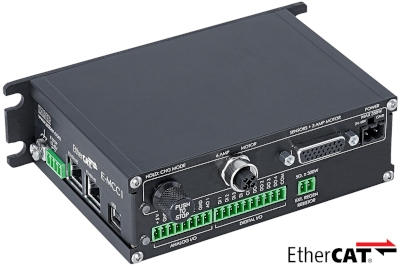
Table of Contents
Table of Contents
Disclaimer
Zaber’s products are not intended for use in any critical medical, aviation, or military applications or situations where a product's use or failure could cause personal injury, death, or damage to property. Zaber disclaims any warranty of fitness for a particular purpose. The user of this product agrees to Zaber's general terms and conditions of sale.
Precautions
The E-MCC controller is intended to drive a wide variety of Zaber peripheral axes. Damage to the peripheral may result if the settings are not correct. Always follow the instructions in Activating Peripherals when switching between peripherals.
 CAUTION: Serious damage can occur to peripheral axes when operated with higher-than-rated current. The E-MCC controller can provide up to 6 A of current to a peripheral. BEFORE CONNECTING A NEW PERIPHERAL to the E-MCC controller, it is important to set the correct parameters in the controller or ensure you are using an autodetect peripheral (Zaber product with a part number ending in 'A'). Please check the rated current for any peripheral axis before changing the current settings on the E-MCC from the default values. If you have any questions, please contact Zaber Technical Support
CAUTION: Instant stopping of a moving axis through the manual control knob or E-Stop may result in damage to the peripheral product and reduced lifespan. Use sparingly if the axis is under heavy load.
Conventions
Conventions used throughout this document:
- When referring to commands that involve physical distances, this manual uses the term 'increments'. For stepper motor products, this term refers to the microstep size of the positioner. For non-stepper devices, the term refers to the size of an encoder count. See the ASCII Protocol Manual and CANopen Protocol Manual for more details.
- Hex numbers are indicated by the prefix “0x”, for example 0x001. All numbers are represented in decimal form unless indicated otherwise.
Flagged Text
 NOTE: Includes additional information or tips.
CAUTION: Indicates a condition that may result in equipment damage.
 WARNING: Indicates a condition that may result in serious injury.
Terms and Definitions
The following abbreviations are used in this document:
- (AL) Application Layer
- (CAN) Controller Area Network
- (CANopen) Application layer protocol for the CAN bus
- (CiA402) CANopen device profile for drives and motion control.
- (CoE) CANopen over EtherCAT
- (ESM) EtherCAT State Machine
- (ESI) EtherCAT Slave Information
- (PDS) Power Drive System
EtherCAT® is a registered trademark and patented technology, licensed by Beckhoff Automation GmbH, Germany.
Quick Tutorial
There are three primary options to control your E-MCC:
- CANopen over EtherCAT
- The E-MCC can be directly controlled from any CiA402 compatible EtherCAT master of your choice.
- For most basic motion tasks, the E-MCC can be connected directly to your EtherCAT master without any additional setup.
- Refer to the CANopen Protocol Manual for more information.
- USB and Zaber Launcher
- Zaber Launcher is a cross-platform application that helps you set up, tune and explore your devices.
- We recommend using this option for advanced setup, tuning, and configuration.
- USB and Zaber Motion Library
- Zaber Motion Library is a multi-language API allowing automated, low-level control of your device.
- We recommend using this option for automating setup of advanced configurations, or automating motion without an EtherCAT master.
For other software options, see the Software page.
Initial Set-up
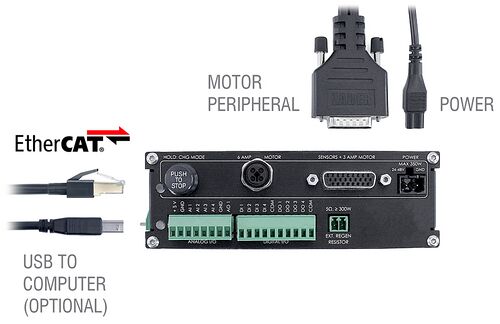
- Connect peripheral(s) to the desired axes of your E-MCC.
- Next, supply 24-48 Vdc power to the E-MCC. The green power indicator on each should light up.
- The E-MCC will automatically activate the first peripheral device that’s connected to each axis and configure its settings automatically. If this has succeeded, you should see the axis status LED blinking blue.
- NOTE: If the axis status LED is fading yellow, the connected peripheral needs to be activated manually. See Activating Peripherals.
For use with EtherCAT:
- Connect the E-MCC to your EtherCAT master and any additional EtherCAT slave devices.
- Download the ESI file from the product webpage.
- Set up the device in the EtherCAT master's software. The E-MCC functions like most CiA402 CANopen over EtherCAT devices. Refer to the CANopen Protocol Manual for more information.
- Refer to our guides for certain third party software packages:
For advanced setup, tuning, and configuration:
- Connect the E-MCC’s USB port to your computer.
- Install the appropriate USB driver. See Appendix B for instructions.
- Download and install Zaber Launcher. Start Zaber Launcher.
- Create a new connection and select the USB port your device is connected to. See Appendix A for instructions on how to find the correct port on your computer.
- Change the control mode from EtherCAT to USB control. See Local and Remote Control Modes.
- Once in USB control mode, you can control the device in Zaber Launcher’s
Basic Controlsapp.- Press
Enable Driverto turn on motor power. - Press the home icon to home the axis. Most Zaber positioners will only move at reduced speed in one direction until they have been homed.
- Use the arrow buttons to jog the axis around.
- Press
- See Using the Device for instructions on configuring device settings.
Activating Peripherals
CAUTION: Remove power to the E-MCC before disconnecting or connecting a peripheral axis.
The E-MCC is compatible with many Zaber peripherals, including those with AutoDetect, a feature that automatically configures settings for the connected peripheral. Peripherals with AutoDetect have an “A” at the end of their product number, for example: "LAC10A-T4A".
Out of the box, each E-MCC axis defaults to the unused state. Axes in the unused state will automatically activate the first connected peripheral, loading their settings onto the controller.
- Simply plug in the peripheral and power up the controller; all default settings will be automatically configured.
If you connect an AutoDetect peripheral and the axis status LED is fading yellow, the axis has already been configured for a different peripheral.
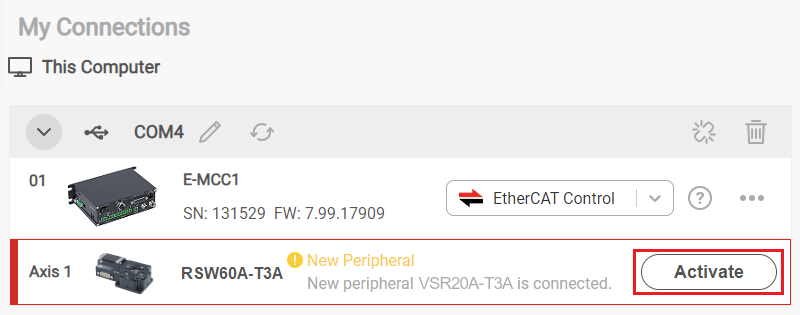
- In this case, you need to activate the axis manually to overwrite the existing configuration. Activating the new peripheral will wipe all previously configured settings.
- If you’re sure that you want to activate the new peripheral, use the
Activatebutton in theMy Connectionswindow of Zaber Launcher as shown below, or use object 0x2400:01 Activate from EtherCAT. - If you have swapped axes unintentionally, remove power, disconnect the current peripheral and then reconnect the desired peripheral instead. Any custom settings for the original peripheral will be maintained.
Local and Remote Control Modes
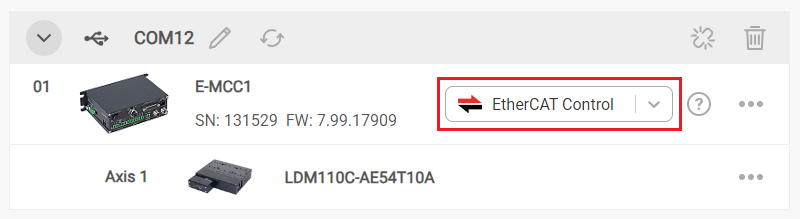
Motion on the E-MCC can be commanded from either the EtherCAT or USB connections. However, only one connection is allowed to control motion related functions at a given time.
The E-MCC has two control modes:
- EtherCAT (Remote) Control
- USB (Local) Control
NOTE: Upon power up or a system reset, the device will always initialize to Remote mode.
Depending on the mode selection, the active connection has exclusive control over the following:
- Enabling/disabling motor power
- Movement
- Homing
- Analog and digital I/O
- Motion critical settings
Otherwise, both connections can simultaneously read/write settings and perform general purpose commands.
The active control mode can be changed from EtherCAT using object 0x2000 Remote Mode, or from USB using the My Connections window in Zaber Launcher.
CAUTION: The E-MCC will immediately respond to commands from the active connection when the control mode is switched. Exercise caution when switching control modes, as doing so can cause the motor to enable, disable, or move if the newly active connection is issuing motion commands.
Initialization
Every time the controller is powered up or reset, all motorized peripherals need to be homed. To perform homing over EtherCAT, the E-MCC uses CiA402 Homing Mode (HM). HM mode is selected by setting object 0x6060 Modes of Operation to 6. See Homing Mode for more information. Until homing has completed, most positioners will only allow motion in one direction, towards the sensor.
NOTE: If an axis is un-homed, the E-MCC will transmit a CoE emergency message with error code 0x8680 when the ESM reaches Pre-Op state. Upon homing the axis, another emergency message with error code 0x0000 will be transmitted to indicate the warning has been resolved.
Homing can also be performed from the USB connection. In the Zaber Launcher Basic Controls app, press the home icon to home the axis.
NOTE: If your peripheral has a persistent Driver Disabled fault, ensure the control mode is set to USB control. See Local and Remote Control Modes.
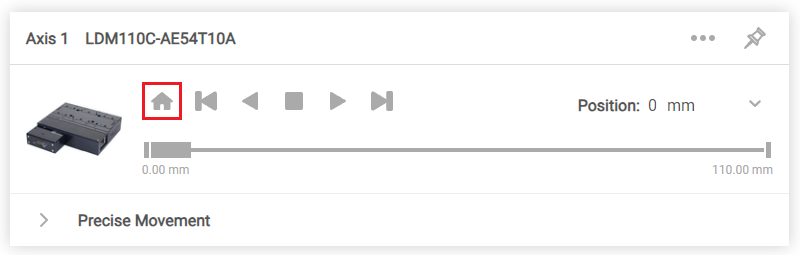
Using the Device
To perform motion over EtherCAT, the E-MCC supports CiA402 Cyclic Synchronous Position (CSP) Mode. CSP mode is selected by setting object 0x6060 Modes of Operation to 8. See Cyclic Synchronous Position Mode for more information.
Motion can also be performed over the USB connection using the Zaber Launcher Basic Controls app.
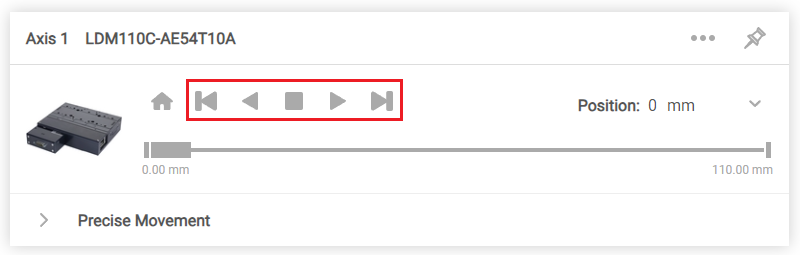
Modifying Device Settings
Certain device settings can be accessed through the CANopen Object Dictionary. See the Object Reference for more information. For complete access to all device settings, use the Device Settings app in Zaber Launcher.
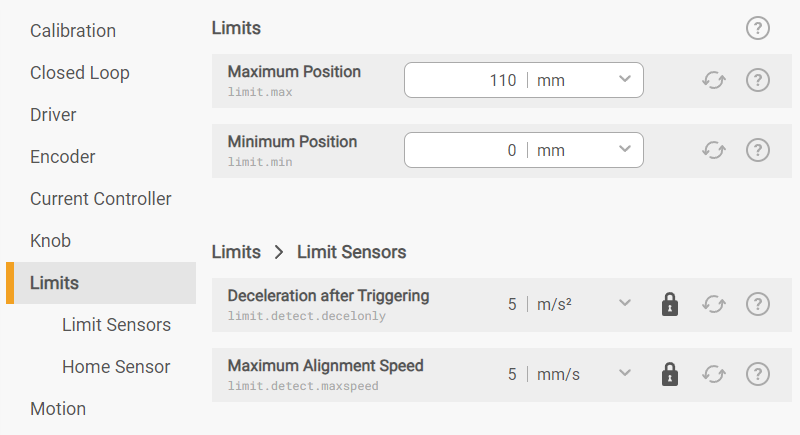
Firmware Upgrades
To allow access to new features and bug fixes, firmware on this Zaber device can be updated from the USB connection using the Zaber Launcher Firmware Upgrade app. In the My Connections window, click the ... menu next to the device and select Firmware Upgrade. Zaber recommends using the latest firmware for your device whenever possible.
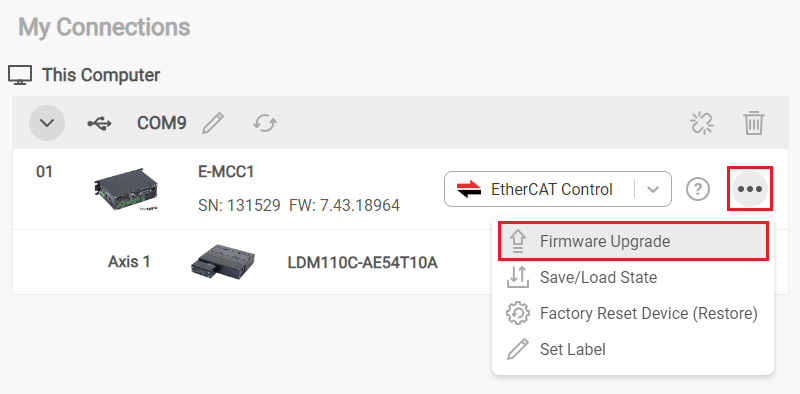
Device Overview
Connectors
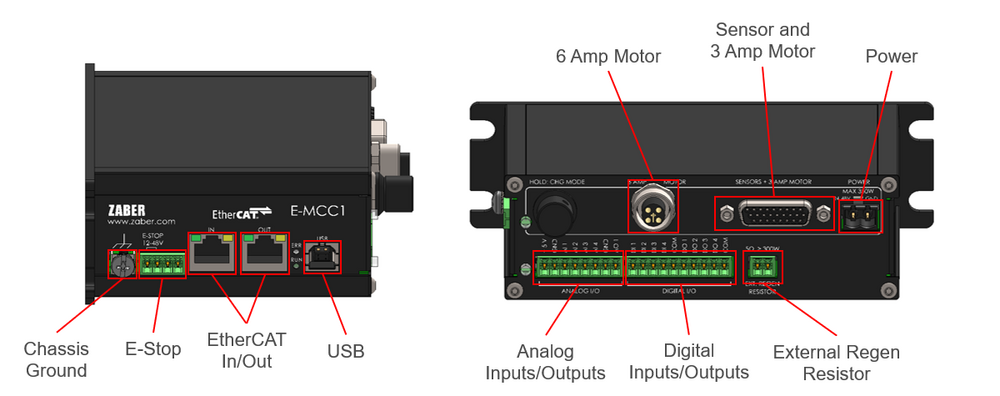
All images are shown looking into the device.
Power
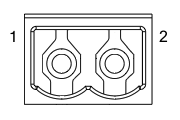
|
Pin | Description |
|---|---|---|
| 1 | 24 - 48 V | |
| 2 | Device GND |
Note: This product requires a CE/UL approved AC/DC power converter such as Zaber's PS13S, PS14S or PS15S with a DC cord of at most 3 m.
Note: As of February 2022, the power supplies Zaber provides are isolated and thus the device is not connected to Earth ground. If desired, the chassis may be connected to Earth ground with a screw terminal on the dedicated grounding lugs on MCC and MCB controllers. Prior to 2022, most power supplies were non-isolated. Isolated units can be distinguished by the "S" suffix in their Zaber part number (eg. PS14S), which is marked on the label on the bottom of the power supply.
Multiple Power Supplies: The E-MCC controller can have multiple power supplies connected (1 per available axis). If not all available axes are supplied directly with power, power is shared between axes. If you wish to use both 48 V and 24 V power supplies for different axes, ensure all axes to be supplied with 24 V are directly powered. For devices using the 6 Amp connector (T11A), one power supply per axis is required.
Sensor and 3 Amp Motor Interface
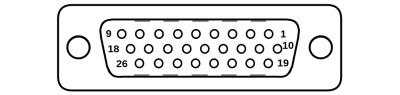 Female High Density D-sub26 Connector |
Pin | Description |
|---|---|---|
| 1 | AutoDetect Clock | |
| 2 | AutoDetect Data | |
| 3 | Encoder Power Enable (BLDC motors) or C Limit Sensor (Stepper motors) | |
| 4 | Away Limit Sensor | |
| 5 | Home Limit Sensor | |
| 6 | Motor Over-Temperature | |
| 7 | Ground | |
| 8 | Motor A2 / Motor V | |
| 9 | Motor A1 / Motor U | |
| 10 | Differential Encoder A+ | |
| 11 | Differential Encoder B+ | |
| 12 | Differential Encoder Index+ | |
| 13 | Differential Encoder Error | |
| 14 | Single-ended Encoder Index | |
| 15 | +5 V | |
| 16 | Ground | |
| 17 | Reserved | |
| 18 | Motor B1 / Motor W | |
| 19 | Differential Encoder A- | |
| 20 | Differential Encoder B- | |
| 21 | Differential Encoder Index- | |
| 22 | Single-ended Encoder A | |
| 23 | Single-ended Encoder B | |
| 24 | Reserved | |
| 25 | Reserved | |
| 26 | Motor B2 |
The sensor and 3 Amp motor interface is the only connection required for most Zaber peripherals. Certain peripherals with high current motors will feature a separate M12 male connector. For these peripherals, see 6 Amp Motor Interface.
NOTE: The limit sensor inputs are pulled up to an internal supply rail and are designed to be pulled low by an open collector.
NOTE: All single-ended encoder inputs are non-isolated 5 V TTL lines.
NOTE: All differential encoder signals are terminated on the controller with 120 Ω. They are expected to be either RS-422 digital signals with a maximum wave frequency of 10 MHz, or 1 V peak-to-peak analog signals with the common mode of each pair between 1.5 V and 2.5 V.
6 Amp Motor Interface
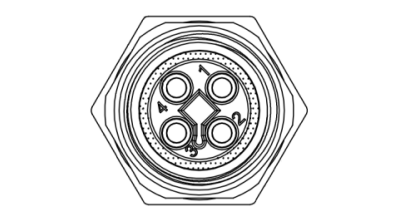
Female T-Coded M12 Connector |
Pin | Stepper Motor Connection | Three Phase Motor Connection |
|---|---|---|---|
| 1 | Motor A2 | Phase V | |
| 2 | Motor A1 | Phase U | |
| 3 | Motor B2 | N/C | |
| 4 | Motor B1 | Phase W |
The 6 Amp motor interface is to be used when the connected peripheral's motor requires more current than the Sensor and 3 Amp Motor Interface can supply. Most Zaber peripherals do not require the 6 Amp motor interface. Peripherals designed to use the 6 Amp motor interface will feature a similar M12 male connector.
NOTE: If using this connector, the four motor pins on the Sensor and 3 Amp Motor Interface must not be used.
NOTE: For devices using the 6 Amp connector, one power supply per axis is required if using a multi-axis controller.
USB Communications
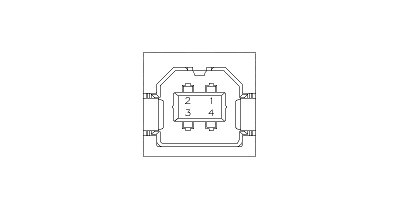
USB Type-B Connector
- Specifications
- USB 2.0 Full Speed
- Communications Device Class, Abstract Control Model
- Default Protocol: Zaber ASCII
- Supported Protocols: Zaber ASCII
EtherCAT Communications
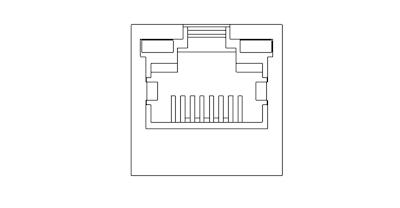
Dual RJ-45 Connector
NOTE: EtherCAT requires shielded Cat5e or newer Ethernet cables.
- Specifications
- EtherCAT (100BASE-TX)
- Supported Protocols: CANopen over EtherCAT (CoE)
- Synchronization Modes: Distributed Clocks (DC)
- Max Cycle Rate: 1 kHz
- Process Data: User-configurable mapping, up to 64 bytes/cycle
Digital Inputs/Outputs
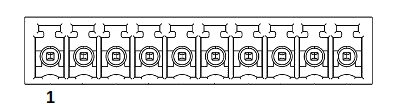
|
Pin | Description |
|---|---|---|
| 1 | Digital In 1 | |
| 2 | Digital In 2 | |
| 3 | Digital In 3 | |
| 4 | Digital In 4 | |
| 5 | Digital In Common | |
| 6 | Digital Out 1 | |
| 7 | Digital Out 2 | |
| 8 | Digital Out 3 | |
| 9 | Digital Out 4 | |
| 10 | Digital Out Common |
| Specifications | Equivalent circuit |
|---|---|
| Maximum Input Voltage (per pin): 8.0 V† | 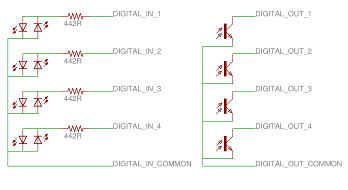
|
| Minimum Input Logic High Voltage: 1.5 V | |
| Maximum Output Current (per pin): 3 mA | |
| Maximum Switchable Voltage (per pin): 50 V |
†The input voltage range can be extended with additional series resistance, as described in the I/O Usage and Examples (Digital Inputs) section.
Note: Any cables connected to the I/O port should be limited to 3 m in length.
Mating Products
TE Connectivity 284506-5 or 1986692-5
Analog Inputs/Output
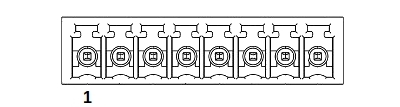
|
Pin | Description |
|---|---|---|
| 1 | +5 V | |
| 2 | Ground | |
| 3 | Analog In 1 | |
| 4 | Analog In 2 | |
| 5 | Analog In 3 | |
| 6 | Analog In 4 | |
| 7 | Ground | |
| 8 | Analog Output |
| Analog Input Specifications | Equivalent circuit |
|---|---|
| Absolute Maximum Input Range (per pin): 0 - 12.8 V | 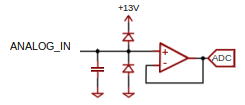
|
| Nominal Input Range (per pin): 0 - 10.0 V | |
| Resolution: 0.001 V |
| Analog Output Specifications | Equivalent circuit |
|---|---|
| Analog Output Range: 0 - 10 V | 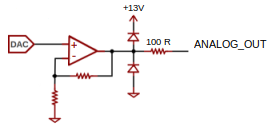
|
| Resolution: 2.5 mV | |
| Output Impedance: 100 Ω |
+5 V Output
The +5 V and GND connections can provide power for low-current I/O applications. The pins can source up to 200 mA of current. If additional current is needed, an external power supply is required. Note that this output is not isolated.
Note: Any cables connected to the I/O port should be limited to 3 m in length.
Mating Products
TE Connectivity 284506-8 or 1986692-8
External Regenerative Braking Resistor

|
Pin | Description |
|---|---|---|
| 1 | External Regen + | |
| 2 | External Regen - |
NOTE: Pin 1 is internally connected to the controller's bus voltage, so this pin's voltage will nominally be in the 24-48 V range. During overvoltage transients this voltage may rise to 65 V.
The E-MCC is equipped with an internal regen resistor to assist with energy dissipation during heavy braking events under load. If the braking power in the regen resistor is insufficient, the controller's bus voltage may rise to excessive levels and the controller will be forced to disable the driver. For a single axis under heavy load or multiple axes under moderate load, the internal resistor is usually sufficient to dissipate the generated electrical energy.
For applications with high loads, fast decelerations, and/or multiple axes, an external regen resistor may be required for extra dissipation capacity. In these cases, a resistor rated for 5 Ω and 300 Watts should be connected to the two terminals provided. The required regenerative power for a trapezoidal trajectory may be approximated as 3*m*v*a, where m is the moving mass including the stage top, v is the maximum trajectory velocity and a is the deceleration setting. Please consult Zaber Technical Support to determine if your application may benefit from the addition of an external regen resistor.
Note: Cables to external regenerative braking resistors should be limited to 3 m in length.
Mating Products
TE Connectivity 284506-2 or 1986692-2
E-Stop

|
Pin | Description |
|---|---|---|
| 1 | E-Stop Power (12-48 V) | |
| 2 | E-Stop Ground | |
| 3 | E-Stop Override Input | |
| 4 | E-Stop Override Ground |
E-Stop power inputs are optically isolated, but E-Stop override inputs are not. For details on using the E-Stop, please refer to the dedicated Emergency Stop section.
Mating Products
TE Connectivity 284506-4 or 1986692-4
Chassis Connection
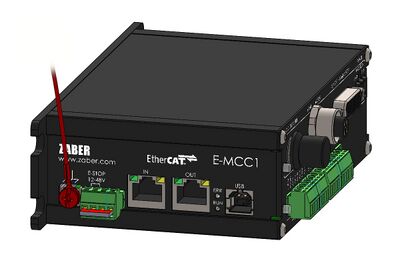
No portion of the controller operates at voltages exceeding 50 VDC, so the controller is considered a low voltage device and does not need to be explicitly connected to Earth for safe operation. Additionally, Zaber's PS11-PS15 power supplies are non-isolated, thereby already providing a connection from the Ground pin of the power input to Earth. However, if the controller is supplied by an isolated power supply, it may be desirable to ground the metal housing. Signal integrity or application specific safety considerations may also make it desirable to connect the E-MCC's metal frame to the Earth connection shared by the rest of the apparatus. For making grounding connections to the E-MCC frame, attach a 4 mm or 3/16” ring terminal to the provided M4 machine screw as shown below.
Other Connectors
For any connections not described in this document, cables should be limited to a length of 3 m.
Indicators
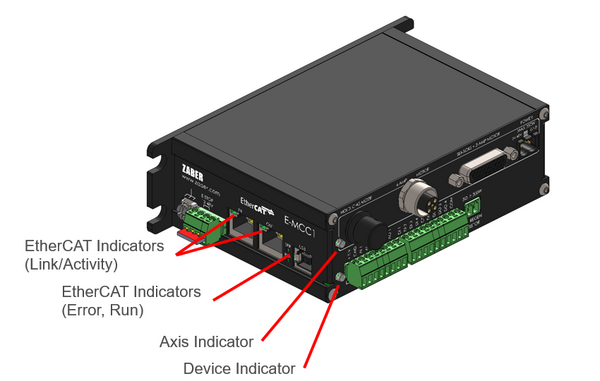
Device Indicator
- Green (Device Indicator) - Power
- On: Controller is operational.
- Blinking twice per second: The power supply voltage or controller temperature is out of range.
- Red (Device Indicator) - System Error
- On/blinking: An error has occurred. Please contact Zaber Technical Support.
- Yellow (Device Indicator) - USB Communication
- On: Data is being transferred.
- Blinking twice per second: Packet corruption has occurred for ASCII commands sent with a checksum.
Axis Indicators
- Yellow (Axis Indicator) - Axis Status
- On: Peripheral positioner is moving.
- Blinking: Axis is under manual control via the knob (in Velocity mode). The blinking rate is proportional to movement speed.
- Fading in and out every 2 seconds: A connected autodetect peripheral is awaiting activation. See Activating Peripherals.
- Blue (Axis Indicator) - Axis Warning/Error
- Solid: Peripheral is deactivated.
- Blinking twice per second: Driver is disabled. This could be due to a user request, E-Stop, out-of-range voltage or other driver fault. See Warnings Flags. Note that the driver is disabled by default upon powerup.
- On briefly, during a move: The axis is slipping.
- Blinking once every 2 seconds: The axis has stalled and stopped.
- Burst of 2 flashes every 1 second: The stationary axis has been forced out of position.
- Burst of 5 flashes every 2 seconds: The encoder has encountered a read error and raised the FQ or FA Warning Flag.
EtherCAT Indicators
The EtherCAT run, error, and link/activity indicator behavior is defined by the ETG.1300 standard for indicators and labelling:
- The run indicator shall show the status of the ESM.
- The error indicator shall show errors such as watchdog timeouts and unsolicited state changes due to local errors (e.g. input error).
- The Link/Activity indicators show the state of the physical link and activity on this link.
- Green (Run Indicator) - ESM Status
- Solid: The device is in Operational State
- Single Flash: The device is in Safe-Operational State
- Blinking: The device is in Pre-Operational State
- Off: Device is in Init State
- Red (Error Indicator) - Error Status
- Solid: A critical communication or application controller error has occurred.
- Double Flash: An application watchdog timeout has occurred.
- Single Flash: The slave device has changed the EtherCAT state autonomously, due to a local error. Error Indicator bit is set to 1 in AL Status register.
- Blinking: General Configuration Error.
- Flickering: A booting error was detected. Init state was reached, but error indicator bit is set to 1 in AL Status register.
- Off: No error
- Green (Link/Activity Indicators) - Physical Connection Status
- Solid: Physical connection established, no activity.
- Flickering: Physical connection established, with activity.
- Off: No link (no physical connection).
EtherCAT indicator patterns:
- Flickering: Rapid flashing with a period of approx. 50ms (10 Hz)
- Blinking: Flashing with equal on and off periods of 200ms (2.5Hz)
- Single Flash: Repeating ON for 200ms and OFF for 1s
- Double Flash: Two flashes with a period of 200ms followed by 1s OFF period
Manual Control Knob
The E-MCC has an integrated, depressible knob with 20 detents per revolution, allowing each axis to be controlled without the use of a computer or EtherCAT master. There are two manual movement modes available: Velocity and Displacement. Switch between these modes by holding down the knob for 1 second or by configuring the knob.mode setting.
NOTE: To use the knob, the E-MCC must be in USB (local) control mode. See Local and Remote Control Modes.
NOTE: Upon initialization, most axes will only allow travel towards the home sensor at a speed determined by limit.approach.maxspeed until the home position is reached. Upon reaching the home sensor, the axis will automatically perform its homing routine. Once the axis has been homed, the full range of travel becomes available.
Velocity Mode
In velocity mode, turning the knob moves the axis at a constant speed. Each detent of the knob increases the trajectory speed. Turn the knob clockwise to move the axis in the positive direction or counter-clockwise for negative direction.
There are 16 speeds in each direction. The velocity profile and maximum speed can be configured via the knob.speedprofile and knob.maxspeed settings. The axis automatically stops and resets the knob upon arriving at the end of travel.
Displacement Mode
In displacement mode, each detent of the knob moves the axis by a fixed distance increment, specified by the knob.distance setting. Turn the knob clockwise to move the axis in the positive direction, and counter-clockwise for the negative direction. The axis moves at the speed specified by the maxspeed setting. If there are fewer than knob.distance move increments to the end of travel and another move is requested, the axis will move to the end of travel and then stop.
If knob.distance is set to 0, each detent of the knob will move to the next index position, similar to move index movements.
Summary of knob functionality
- Turning the knob:
- Moves the axis in the direction of knob turn.
- Pressing the knob:
- Decelerates and stops the axis (identical to a stop command).
- Instantly stops the axis, if the axis is already decelerating.
- CAUTION: Stopping instantly may result in damage to the product and reduced lifespan. Use sparingly if the axis is under heavy load.
- Pressing and holding the knob for 1 second:
- Toggles between Velocity Mode and Displacement Mode.
Installation
Physical Installation
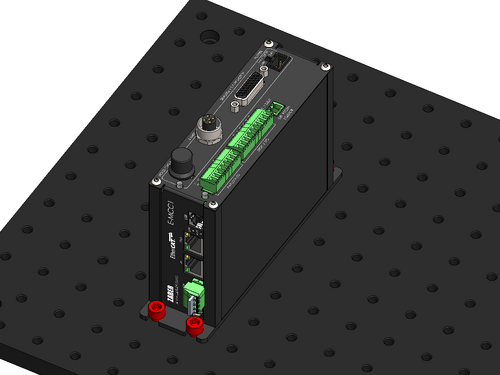
The E-MCC is designed to mount directly to 25mm or 1" pitch optical breadboards using M6 or 1/4" screws. These mounting holes can also be used to mount the controller to a custom panel.
NOTE: The E-MCC can be safely mounted in any orientation.
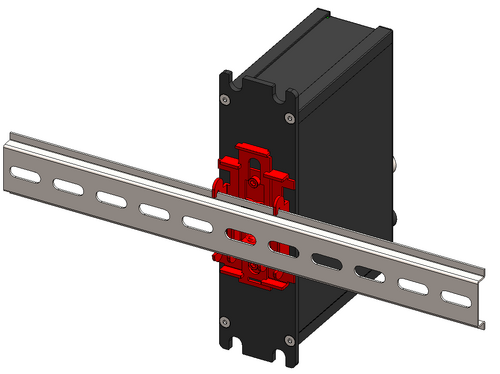
The E-MCC can also be mounted to 35 mm DIN rails with the AB269 accessory. Refer to the accessory drawing for detailed installation instructions.
Electrical Connection
- Connect one or more peripherals to the E-MCC controller using the recommended cables. See the Quick Tutorial section for more information.
- NOTE: For most peripherals, the 6 Amp motor connector is not required. See 6 Amp Motor Interface for more information.
- Connect the power plug of your 24 - 48 Vdc power supply to the power connector of the device. The green LED should light up indicating the device has power.
- Connect the E-MCC via the communication interface of your choice.
For EtherCAT Communication:
- Connect the E-MCC to a CiA402 compatible EtherCAT master of your choice.
- Connect the E-MCC to any additional EtherCAT slaves.
CAUTION: EtherCAT requires shielded Cat5e or newer Ethernet cables.
For USB Communication:
- Connect the controller to the computer with a USB cable (U-DC06).
- You may need to use a cable extension to reach your computer.
- Install the appropriate USB driver. See Appendix B for instructions.
- There is no need to power down or reboot the computer.
NOTE: Both the USB and EtherCAT interfaces can be connected simultaneously. See Local and Remote Control Modes.
I/O Usage and Examples
The E-MCC features various digital and analog I/O that can be controlled from the USB or EtherCAT connections.
NOTE: Device outputs can only be controlled from a single communication interface at one time. See Local and Remote Control Modes.
To control I/O from the USB connection, use the Zaber Launcher Basic Controls app as shown below.
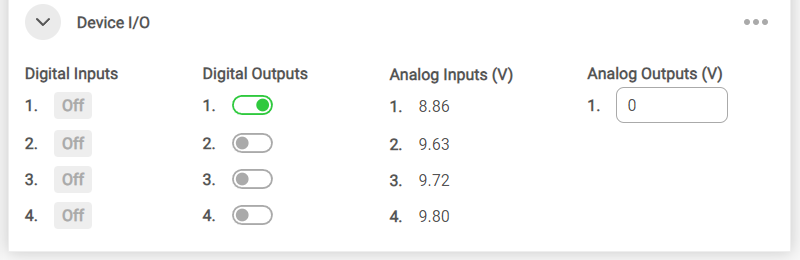
To control I/O from EtherCAT, use the following objects:
To minimize the number of power supplies needed, the on-board +5 V and GND connections can be used as non-isolated power supplies for I/O circuitry as long as the current draw remains below 200 mA.
Digital Inputs
The digital inputs on the E-MCC are fully opto-isolated and bi-directional, giving added flexibility when interfacing to external equipment. The two examples below demonstrate how the common line can be connected to a power rail or to ground, depending on the application.
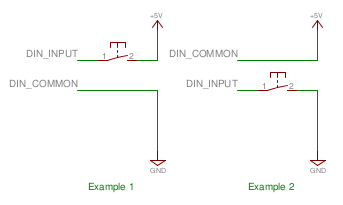
Each digital input contains an internal current limiting resistor of 442 ohms. While this value is suitable for driving the inputs with 5 V (as shown in the circuit above), higher voltages will require the addition of a series resistor. A list of recommended values for the external resistor and example circuit are shown below.
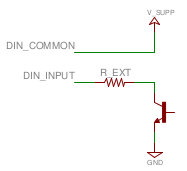
| V_SUPP (V) | R_EXT (Ohms) | Power (mW) |
|---|---|---|
| 0 - 8 | 0 | n/a |
| 8 - 15 | 500 | 125 |
| 15 - 24 | 1500 | 250 |
The circuit above also shows how to interface with an open collector output from another device.
NOTE: Depending on whether your common line is connected to ground or a positive voltage, "on" might mean a high or a low voltage level.
Digital Outputs
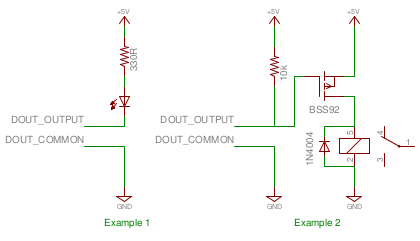
All digital outputs on the E-MCC are fully opto-isolated and capable of sinking a minimum of 3 mA at up to 50 V. The first example circuit below shows how to drive an LED from one of the digital outputs. In order to switch loads with a higher current draw, for example a relay, an external switching transistor is required, as shown in example 2.
TTL Outputs
Additional circuitry is required to get TTL signal levels from the E-MCC, as shown below.
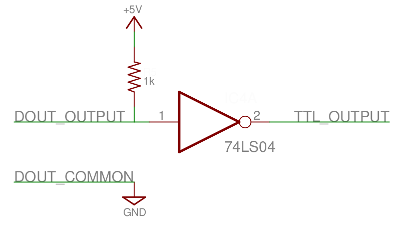
The 74LS04 contains 6 inverters so it is possible to convert all of the digital outputs with one IC. In order to maintain isolation, it is recommended that the 5 V and GND supply connections come from the device requiring the TTL signaling. It is, however, possible to use the 5 V and GND connections from the Analog Output connector on the E-MCC to power the external device, as long as the current limits are adhered to.
Analog Inputs
The analog inputs on the E-MCC accept and display voltages in the range of 0 – 10 V. Note that sensors or transducers typically provide low voltage signals, and therefore may require an amplifier and buffer circuit to interface with the E-MCC.
The reference circuit below demonstrates how to connect a wheatstone bridge to one of the analog inputs on the E-MCC. Various instruments are configured in a wheatstone bridge arrangement, including load-cells and strain gauges.
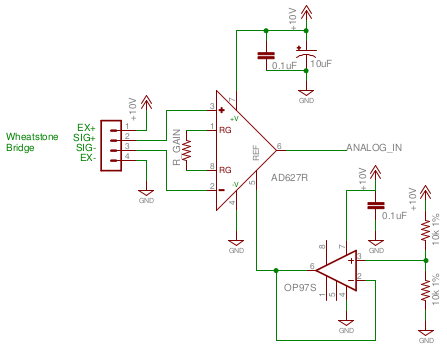
R_GAIN's value should be chosen so that a positive full scale of the instrument produces 10 V at the analog input of the E-MCC and a negative full scale produces 0 V. The OP97 op-amp provides an offset of 5 V to the amplified value so that no load on the instrument produces an output of 5 V.
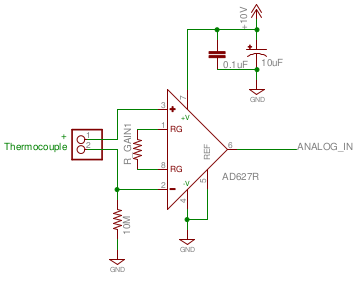
The reference circuit below demonstrates interfacing a thermocouple to the E-MCC. Depending on the application, an offset voltage may need to be provided.
Analog Output
The analog output channel on the E-MCC is non-isolated, and has a range of 0 to 10 V. The output impedance of the line is 100 Ω.
The nominal analog output resolution is 2.49755859 mV, and the requested value should be specified in Volts with up to three decimal places. The actual output will be set to the nearest resolution increment, rounded down.
Emergency Stop
The E-MCC is equipped with an optional 4 pin Emergency Stop input.
A voltage between 12-48 V must always be applied to the two E-stop power inputs. When the E-stop input is de-energized, the E-MCC produces a Safe Torque Off (STO) response on all motion axes and transitions the CiA402 state machine into the fault state. See CiA402 State Machine for more information. STO is characterized by removing power from the motor (ie. disabling the driver) and allowing the positioner to coast to an uncontrolled stop. The controller will maintain logic power in this state and remain responsive to queries and commands.
To re-enable motor power after an E-Stop event:
- Re-energize the E-stop input.
- Manually re-enable the driver:
- Over EtherCAT, the fault state can be reset with object 0x6040 ControlWord.
- Over USB, press the
Driver Enablebutton in the Zaber LaunchBasic Controlsapp.
WARNING: Safe Torque Off is not recommended for all usage cases since an uncontrolled, unpowered stop may result in unsafe behavior.
WARNING: It is the user’s responsibility to evaluate the safety of their overall application and put in place the correct safety features. For example, applications with high speeds or heavy loads or vertical motion may require an external braking system to ensure that the load is safely stopped during an E-stop event. All safety features must be tested in controlled, non-dangerous situations to ensure they will work properly during a real E-stop event.
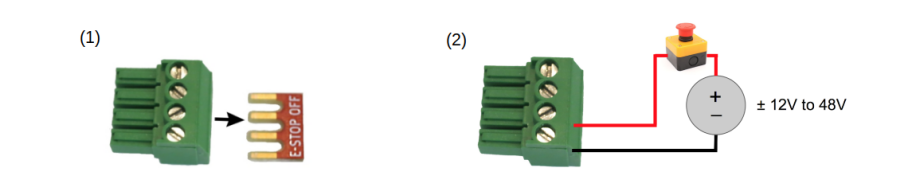
The E-MCC ships with a shorting bar across all four interface pins to disable the E-stop by default and allow normal motor operation. To use the E-stop circuit, first remove the shorting bar and then wire a DC power supply with a voltage of between 12 V and 48 V in series with a normally closed switch as shown below. The signal can be wired in either polarity. Opening the switch will cause the E-stop to engage.
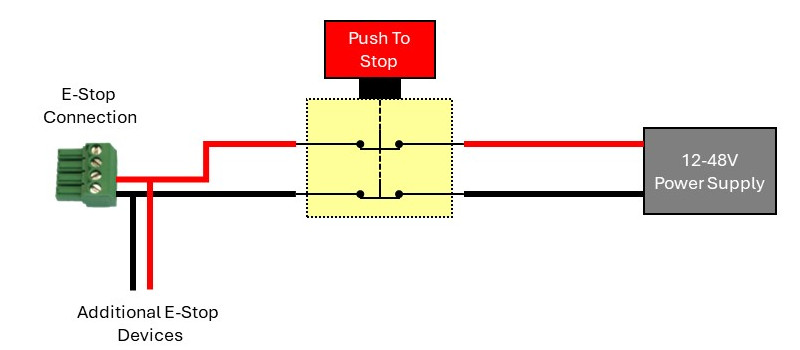
Shown below is a straightforward circuit to integrate the E-MCC and additional devices with a 2 circuit normally closed (NC) switch, similar to Zaber’s ES01 accessory. The E-Stop will be activated when the switch is pressed, opening the circuit.
Power-Off Brake Control
The E-MCC supports power-off brake control. See Sensor and 3 Amp Motor Interface for details on connecting the brake outputs.
Brake Behavior
Brake engagement is directly linked to the respective axis’ motor driver power. By default, the brake will disengage when driver power is enabled, and vice versa. Axis stalls, displacements, and faults will automatically disable the driver and thus engage the brake. The state of brake engagement can be queried with the brake.state setting.
Brake engagement can also be controlled manually when the driver is enabled with the brake.mode setting.
CAUTION: Repeatedly engaging the brake while the device is in motion may reduce the lifetime of the brake.
CAUTION: Do not attempt to issue movement commands to an axis with the brake engaged. This may damage the brake or cause the axis to stall.
Encoder Outputs
The E-MCC is optionally available with encoder outputs. Encoder outputs are available to work with all Zaber encoder types, with options for either a single-ended output or differential output, depending on the application's requirements. There are four options for encoder output on the E-MCC, which can be selected based on what type of encoder the peripheral has and the desired output.
| Output Option | Peripheral Encoder Type | Digital Output Signal Type |
|---|---|---|
| T7 | Single-Ended Shaft Encoder (-E) | Single-ended quadrature |
| T8 | Analog Differential Encoder (-AE) | Differential quadrature, configurable resolution |
| T15 | Digital Differential Encoder (-DE) | Differential quadrature, fixed resolution |
| T16 | Single-Ended Shaft Encoder (-E) | Differential quadrature, fixed resolution |
Typical applications for encoder output access include line cameras, 3D scanners using lasers, and line printing. These outputs can also be used with quadrature encoder readers to synchronize encoder data with other data acquisition.
Part Number Information
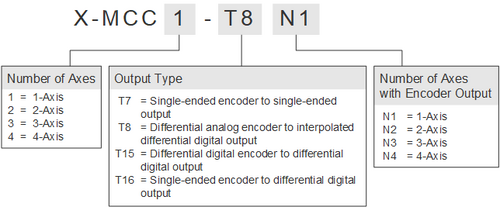
Outputs are installed starting on the highest numbered axes. For example, on an X-MCC4-T7N2, single-ended shaft encoder outputs are made available on axes 4 and 3.
Signals and Wiring
Output Signals
- The A and B channels are digital quadrature signals driven at 5 V. The two channels are out of phase by 90 degrees, allowing both position and direction to be determined. In some encoder output variants, these signals are made differential and are labeled as A+, A-, B+, and B-.
- The index signals (Index+/-) give a single count per length of encoder travel (cycle length), and operate on 0-5 V. The Index+ signal will output a HIGH (+5 V) signal when passing over an index mark internal to the device, and the Index- signal will go LOW (0 V). This signal can be used to count revolutions, for homing, and more.
Differential Pair Termination
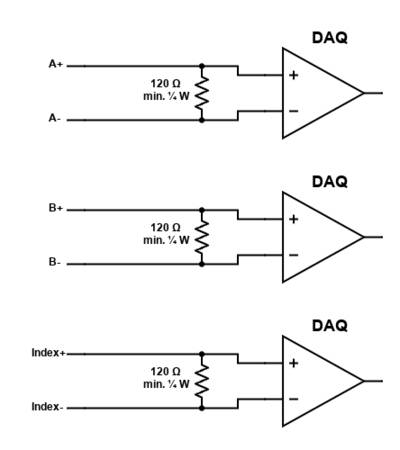
All differential pairs should be terminated with a 120 resistor between the + and - channels to achieve the lowest noise signals. The resistor should be sized to handle a minimum of 0.25 W. This resistor should be connected close to the acquisition device for optimal performance.
If the encoder count reader/acquisition device uses a single-ended input, the termination resistor should still be connected across the differential signals, and the positive channel should be connected to the single-ended input.
Single-ended Encoder to Single-ended Output (T7)
T7 outputs are available on Zaber devices that use single-ended shaft encoders (labeled -E). Devices with T7 outputs produce a single-ended digital output via a 4-pin M5 connector on the E-MCC.
Single-ended Encoder to Differential Digital Output (T16)
T16 outputs are available on Zaber devices that use single-ended shaft encoders (labeled -E). Devices with T16 outputs produce a differential digital output via an 8-pin M8 connector on the E-MCC. These differential outputs are communicated via RS-422.
Differential Digital Encoder to Differential Digital Output (T15)
T15 outputs are available on Zaber devices that use differential digital encoders (labeled -DE), and produce a differential digital output. Devices with T15 outputs produce a differential digital output via an 8-pin M8 connector on the E-MCC. These differential outputs are communicated via RS-422. These outputs are non-configurable, and output encoder counts at a fixed rate of 10 MHz. Encoder counts must be read at a minimum of 10 MHz, regardless of the speed of axis movement. Encoder counts will be missed, and drift will occur (even when the axis is stationary) if attempting to read at less than 10 MHz.
Differential Analog Encoder to Interpolated Differential Digital Output (T8)
T8 outputs are available on Zaber devices that use differential analog encoders (labeled -AE), and produce an interpolated differential digital output, allowing for position resolution from 5 µm down to 4.88 nm. These differential outputs are communicated via RS-422.
The output interpolation factor and minimum output time are configurable on the E-MCC via user commands (refer to the Zaber ASCII Protocol Manual). See Selecting Interpolation Parameters below for details on how to select parameters for your application.
Selecting Interpolation Parameters
There are three important parameters to consider when configuring interpolation on T8 devices. Maximum desired axis speed, interpolation factor, and minimum output time width are related by the following equation:
Note: the “maximum axis speed” defined here is not the same speed as the axis’ absolute maximum speed setting (maxspeed) on the device. The axis may be able to exceed this speed, but encoder outputs will not be correctly generated above the maximum axis speed.
The cycle length for all Zaber -AE devices is 20 µm, but the maximum axis speed, interpolation factor, and minimum output time width can be set according to the application’s needs by the user.
The interpolation factor determines the resolution of the encoder output, and the minimum output time width determines the frequency at which encoder counts must be able to be read at by the user sampling system (i.e., a DAQ). Encoder count read frequency and minimum output time width are inversely proportional. Thus, if the minimum output time is set to 1000 ns, encoder counts must be able to be read at a frequency of 1 MHz. If encoder counts can not be read at this frequency, counts will be missed and there may be drift in the count, even when the axis is at rest.
The plot below shows the relationship between these parameters. For a full list of the allowable values for these parameters on Zaber devices, refer to the Zaber ASCII Protocol Manual. More detailed information about how to select these parameters can be found below.
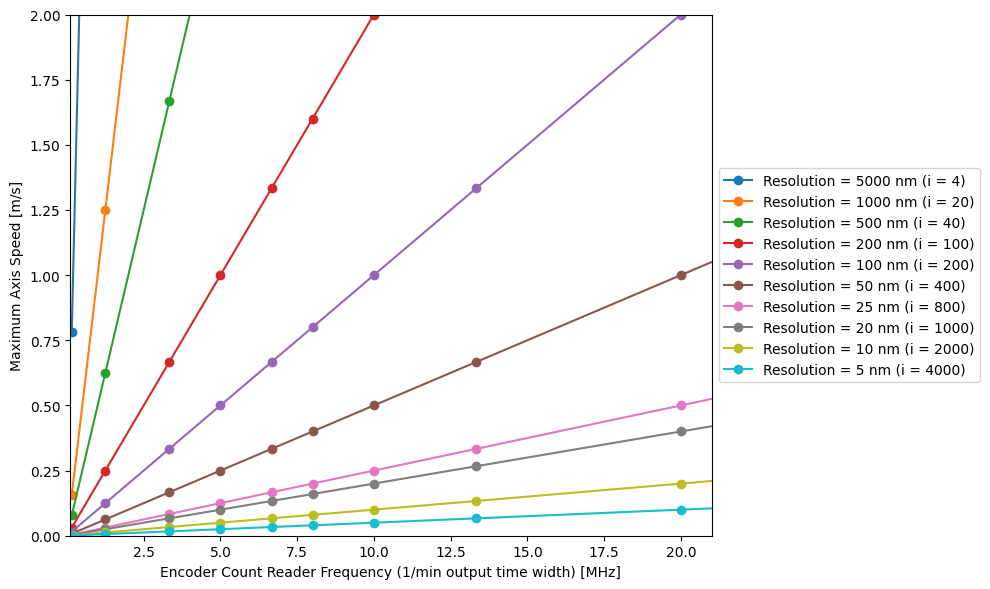
Plot of relationship between maximum speed, resolution (interpolation factor), and encoder count reader frequency (1/minimum output time width). Note as you increase the encoder count read frequency, the maximum axis speed increases. Note also that with higher resolution, maximum speed is decreased.
- The interpolation factor is the number of quadrature counts (quarter cycles) generated at the output per full cycle of the analog encoder. For example, a value of i = 4 performs no interpolation, merely digitizing the analog encoder signal; this generates one full cycle (four counts) of output per full cycle of the analog encoder. Larger values increase the output resolution by interpolating the analog levels to generate additional counts.
- The minimum output time width is the time in nanoseconds between a transition on either of the A or B interpolated analog encoder output signals (as shown below) and the next transition on either of those signals. For example, a value of 25 means that, after any transition appears on either the A or B output, at least 25 ns will pass before any more transitions appear on either A or B output. A transition on either of these channels indicates an encoder count increment or decrement.
- The interpolation factor and minimum output time define the maximum speed at which the axis can move at such that no encoder counts will be missed. For example, with an interpolation rate of i = 8 and a minimum output time of w = 3200 ns, the stage will have a maximum allowable speed of
Note: All Zaber -AE devices have a cycle length of 20 µm
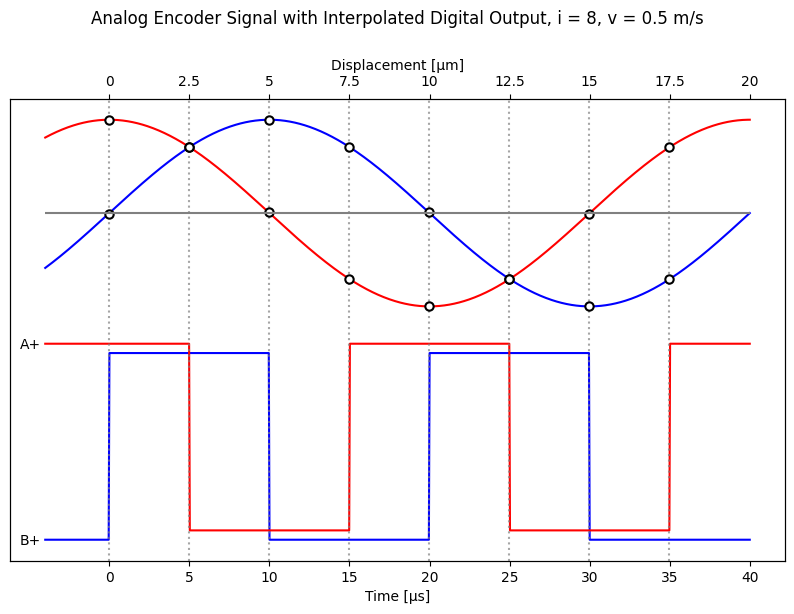
Analog input and interpolated digital output waveforms in a T8 device. A state transition in either of the two interpolated outputs (A or B) generates a quadrature encoder count. Note there are 8 total transitions between the A and B channels, since the interpolation factor in this example is 8. A- and B- signals not shown here.
Missed Encoder Counts
- Referring to the example above, if the maximum axis speed of 0.78 m/s is exceeded, a transition will occur in the interpolated output before the interpolator is ready for the next encoder count, thus missing an encoder count. This behaviour is shown in the plot below, where the speed of the stage is doubled from 0.5 m/s to 1 m/s. This doubles the frequency of the analog encoder input and of the interpolated digital output. The minimum output time width is set to 3.2 µs, but a transition occurs in 2.5 µs. Thus, an encoder count is missed.
- The ERROR pin is driven by an open-drain driver with an internal pull-up resistor. The ERROR signal is set LOW (0 V) if an encoder count is missed, indicating the maximum output speed has been exceeded. The ERROR pin will stay active (LOW) for at least 50 ms upon a missed encoder count.
- In addition to ensuring axis speed is below the maximum, the encoder count reader that reads this digital signal must be able to read as fast as encoder counts are generated. For this example, since at the maximum axis speed an encoder count is generated every 3200 ns, the counter must be able to read at 1/3200 ns = 312.5 kHz.
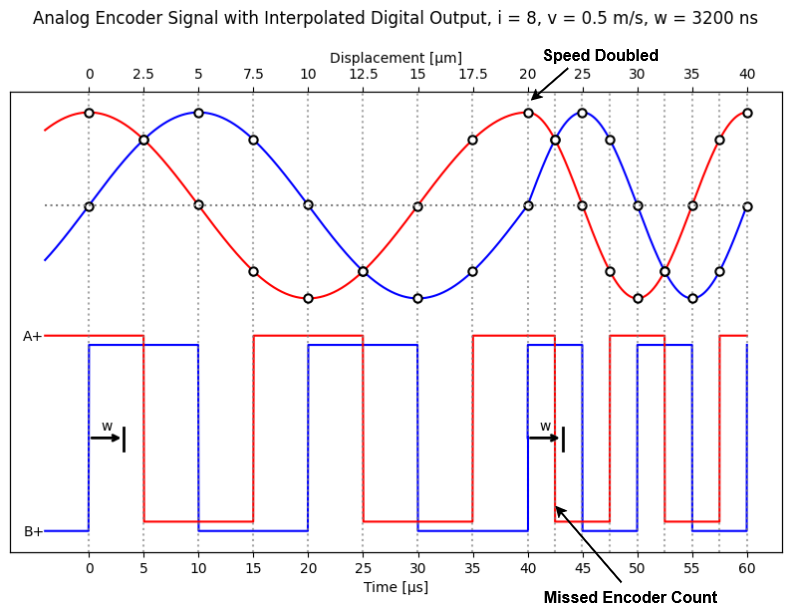
Behaviour leading to missed encoder count. Note that the axis speed is doubled from 0.5 m/s to 1 m/s at time = 20 µs. This causes a transition in the “A” channel before the minimum output time width has elapsed. Thus, this encoder count is not generated, and the ERROR pin will be set LOW.
Non-Zaber Peripheral Support
In firmware versions 7.45 and up, the E-MCC is capable of supporting a wide range of third party stepper motor peripherals. This includes:
- linear or rotary products
- up to three limit sensors
- up to one position encoder
Use the Advanced Hardware Setup application in Zaber Launcher to configure a non-Zaber peripheral.
Motors
The bipolar stepper motor driver can drive 2-phase bipolar and unipolar stepper motors at up to 48 V. Unipolar motors are driven in a bipolar configuration with the winding center taps disconnected.
Limit Sensors
Each sensor can be active high or active low but must use either 3.3 - 5 V TTL/CMOS logic, be open collector, or switch to ground.
Encoders
A wide range of position encoder features are supported, including:
- single-ended or differential signaling
- digital or analog signaling
- up to one index mark
- up to one fault signal
- digital filtering and/or interpolation
The differential encoder inputs have a 120 ohm impedance. Single-ended encoders must use 3.3 - 5 V logic, digital differential encoders must be RS422 compatible, and analog differential encoders should have a nominal voltage of 1 Vpp (maximum 1.35 Vpp).
Troubleshooting E-Series Motion Devices
The following sections contain tips for troubleshooting common problems.
Warnings and Errors
If your device is encountering problems, it is recommended to first check the device for any errors. Basic error information can be obtained from the EtherCAT connection using the following objects:
See Error Mechanisms for more information on errors reported over EtherCAT.
To obtain fully detailed error information, use the USB connection and Zaber Launcher. Active warning flags (errors) can be displayed using the warnings command. See Warnings Flags for complete descriptions of each error.
If your device has active error codes or warning flags, it is recommended to clear them and determine under what conditions the errors reappear. To clear errors:
- Over EtherCAT, perform a fault reset with object 0x6040 ControlWord.
- Over USB, use the warnings clear command.
Factory Reset
If the device is unable to communicate, and it is operating erratically, a manual factory reset can be performed on most devices using the following steps. Note that this will reset most settings.
- Power off the device
- Push and hold the manual control knob for the first axis (if applicable)
- Power on the device
- Continue to hold the knob in (for ~5 seconds) until one or more LEDs are fading or the blue LED is lit, then release.
- The device has been returned to its factory defaults and can be configured as per the steps in Initial setup.
Warranty and Repair
For Zaber's policies on warranty and repair, please refer to the Ordering Policies.
Standard products
Standard products are any part numbers that do not contain the suffix ENG followed by a 4 digit number. Most, but not all, standard products are listed for sale on our website. All standard Zaber products are backed by a one-month satisfaction guarantee. If you are not satisfied with your purchase, we will refund your payment minus any shipping charges. Goods must be in brand new saleable condition with no marks. Zaber products are guaranteed for one year. During this period Zaber will repair any products with faults due to manufacturing defects, free of charge.
Custom products
Custom products are any part numbers containing the suffix ENG followed by a 4 digit number. Each of these products has been designed for a custom application for a particular customer. Custom products are guaranteed for one year, unless explicitly stated otherwise. During this period Zaber will repair any products with faults due to manufacturing defects, free of charge.
How to return products
Customers with devices in need of return or repair should contact Zaber to obtain an RMA form which must be filled out and sent back to us to receive an RMA number. The RMA form contains instructions for packing and returning the device. The specified RMA number must be included on the shipment to ensure timely processing.
Email Updates
If you would like to receive our periodic email newsletter including product updates and promotions.
Contact Information
Contact Zaber Technologies Inc by any of the following methods:
| Phone | 1-604-569-3780 (direct) 1-888-276-8033 (toll free in North America) |
|---|---|
| Fax | 1-604-648-8033 |
| #2 - 605 West Kent Ave. N., Vancouver, British Columbia, Canada, V6P 6T7 | |
| Web | www.zaber.com |
| Please visit our website for up to date email contact information. |
The original instructions for this product are available at https://www.zaber.com/manuals/E-MCC.
Appendix A - Available Communications Ports
The following instructions outline how to find installed serial ports on your computer.
Windows
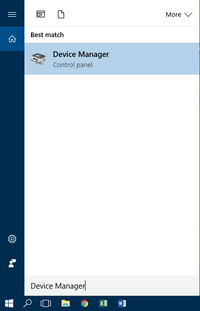
- Open Search or Run from the Start Menu or Taskbar, type "Device Manager" and press enter.
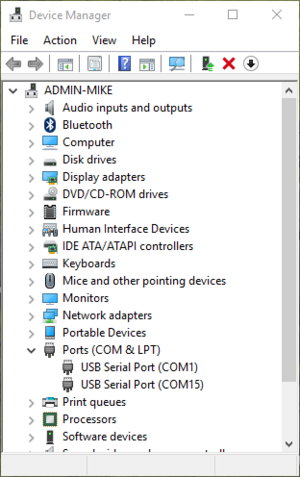
- Expand the Ports (COM & LPT) category.
- In this example there are two serial ports available (COM1 and COM15), which are both USB adaptors.
Linux
- Finding devices
- Open a terminal and execute the following command:
- dmesg | grep -E ttyU\?S↵
- The response will be similar to the following:
[ 2.029214] serial8250: ttyS0 at I/O 0x3f8 (irq = 4) is a 16550A
[ 2.432572] 00:07: ttyS0 at I/O 0x3f8 (irq = 4) is a 16550A
[ 2.468149] 0000:00:03.3: ttyS4 at I/O 0xec98 (irq = 17) is a 16550A
[ 13.514432] usb 7-2: FTDI USB Serial Device converter now attached to ttyUSB0 - This shows that there are 3 serial ports available: ttyS0, ttyS4 and ttyUSB0 (a USB adaptor)
- Checking port permissions
- Using the ports found above, execute the following command
- ls -l /dev/tty{S0, S4, USB0}↵
- The permissions, given below, show that a user has to be root or a member of the dialout group to be able to access these devices
crw-rw---- 1 root dialout 4, 64 Oct 31 06:44 /dev/ttyS0
crw-rw---- 1 root dialout 4, 68 Oct 31 06:45 /dev/ttyS4
crw-rw---- 1 root dialout 188, 0 Oct 31 07:58 /dev/ttyUSB0
- Checking group membership
- groups↵
- The output will be similar to the following:
adm cdrom sudo dip plugdev users lpadmin sambashare
Notice that dialout is not in the list - A user can be added to the dialout group with the following command
- sudo adduser $USER dialout↵
- Group membership will not take effect until the next logon.
OSX
- Finding devices
- Open a terminal and execute the following command:
- ls /dev/cu.*serial*
- The response will be similar to the following:
/dev/cu.usbserial-FTB3QAET
/dev/cu.usbserial-FTEJJ1YW - This shows that there are two serial ports available, both of which happen to be USB adaptors.
- There may be other devices that match this query, such as keyboards or some web cameras. To determine which one corresponds to your USB serial cable, try repeating the command with and without the cable connected to the computer, to see which one appears and disappears.
Appendix B - USB Driver Installation
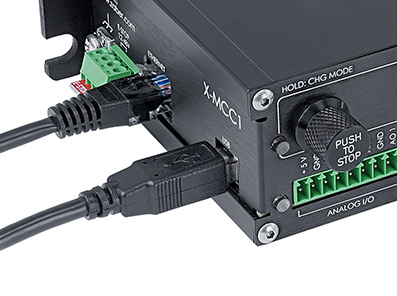
Integrated USB on a Zaber Controller
Compatible Devices
The following Zaber controllers include a USB 2.0 Type-B port:
- E-MCC Series
- X-MCC Series
- X-MCB Series
- A-MCB Series
When connected and configured following the instructions on this page, they will create a virtual serial (COM) port on your computer for communication.
If you are trying to connect one of Zaber's X-USBDC, T-USBDC, or T-USB serial to USB adaptors, go to the Software page Troubleshooting section for instructions.
Windows
Prior to Windows 10, a driver was required for the USB connection to operate correctly. With Windows 10, installing the driver is not necessary but can be done so that the name of the controller is identified alongside the COM port.
Download
- Download the driver here: Zaber Integrated USB Driver.
- Extract the files to a handy location: Downloads, My Documents or the Desktop are good places.
- Connect power to the controller and connect the USB cable from the controller to the computer.
- Follow the additional steps for your version of Windows.
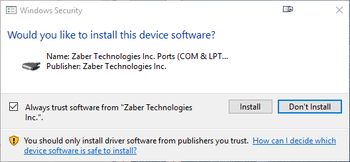
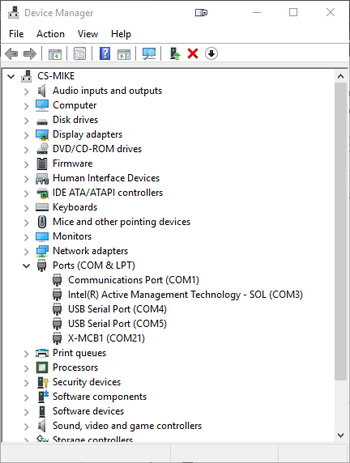
Windows 10
- Right click on the Start button and select Device Manager.
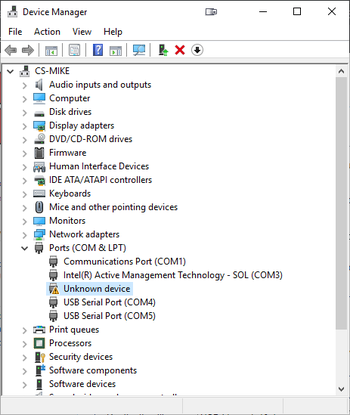
- Under 'Ports (COM & LPT)', you should see an entry with the name 'Unknown device'.
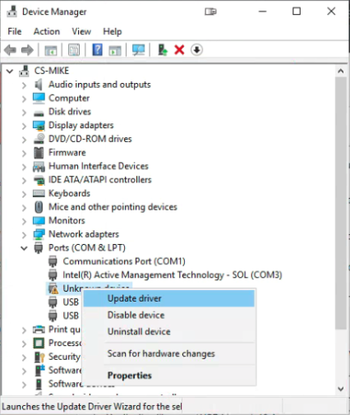
- Right click on this entry and select 'Update Driver'.
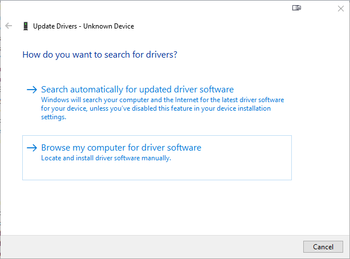
- Choose 'Browse my computer for driver software'.
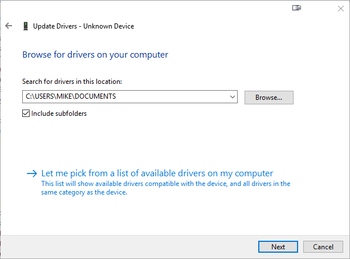
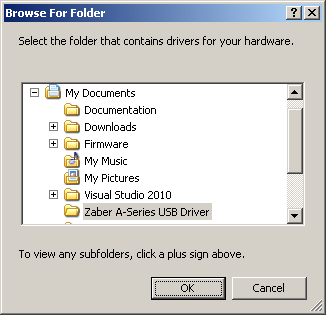
- Click the Browse button and select the location where you extracted the driver to.
- Click Next.
- Click Install.
- Click Close. Your controller is now available and should appear in the 'Ports (COM & LPT)' section of the Device Manager.
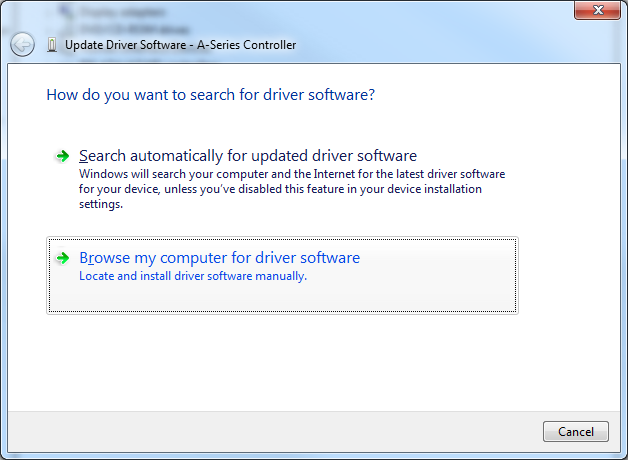
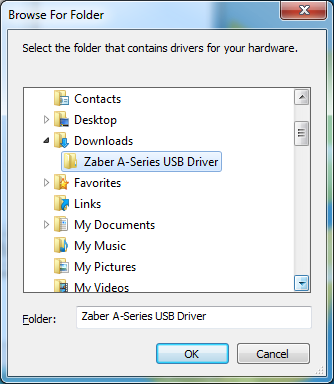
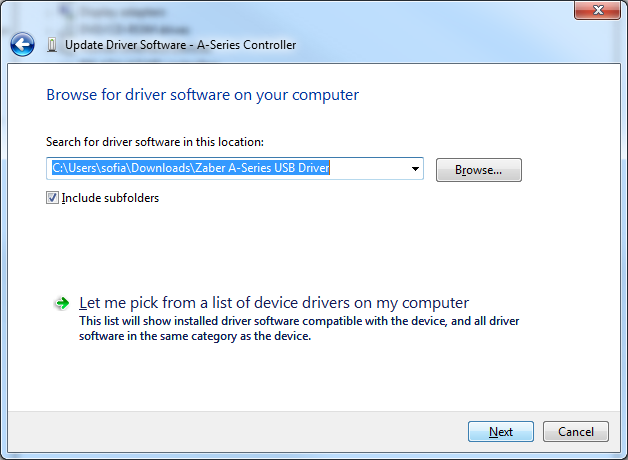
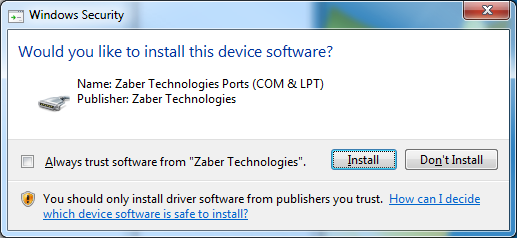
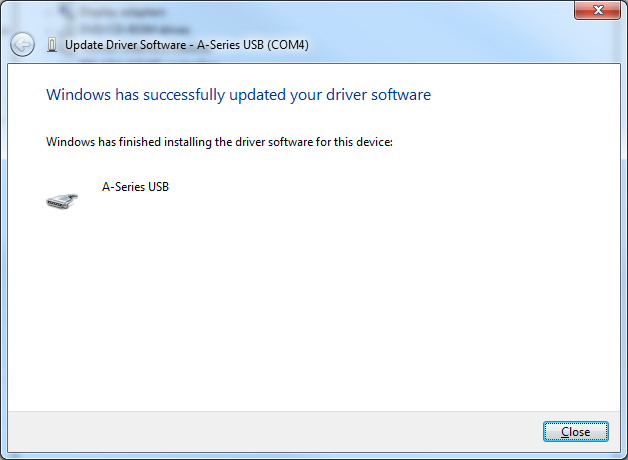
Windows Vista, 7 & 8
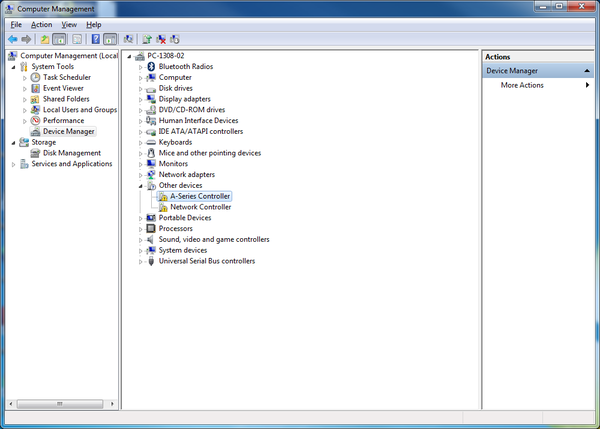
- Windows will detect the device connection and attempt to automatically install drivers. After a minute or so this will fail with a message that the device is not working correctly. Continue on with the steps below.
- Right click on My Computer and select Manage.
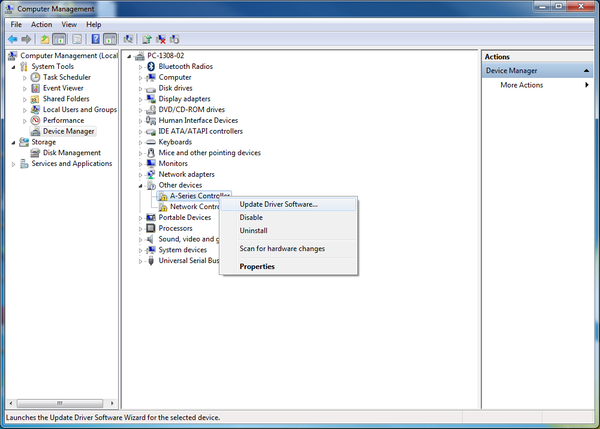
- Select Device Manager from the list on the left. Under 'Other devices', you should see an entry with the name of the Zaber controller that is connected.
- Right click on this entry and select 'Update Driver Software...'
- Choose 'Browse my computer for driver software'.
- Click the Browse button and select the location where you extracted the driver to.
- Click Next.
- Click Install.
- Click Close. Your controller is now available and should appear in the Ports (COM & LPT) section of the Device Manager.
Windows XP
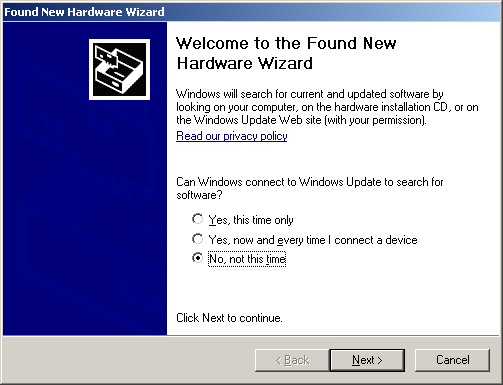
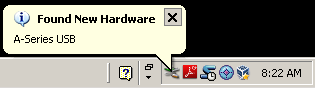
- Windows will automatically detect the connection of the controller.
- Once the New Hardware Found wizard starts, select 'No, not this time' and click next.
- If the wizard doesn't start:
- Right click on My Computer and select Manage.
- Select Device Manager from the list on the left.
- Under 'Unknown Devices', you should see an entry with the name of the Zaber controller that is connected.
- Right click on this entry and select 'Update Driver'.
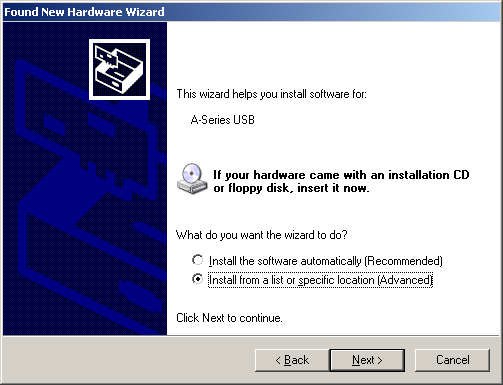
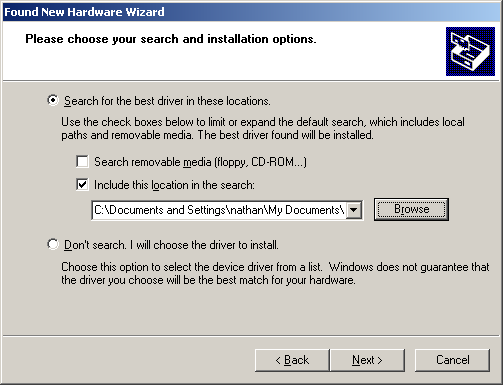
- Select 'Install from a specific location' and click Next.
- Click the Browse button and select the location where you extracted the driver to.
- Click Next.
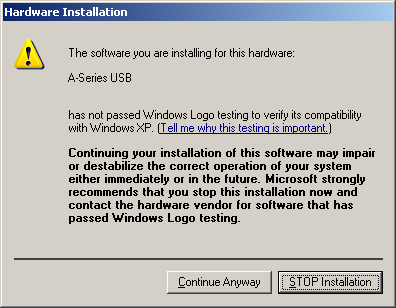
- Select Continue Anyway.
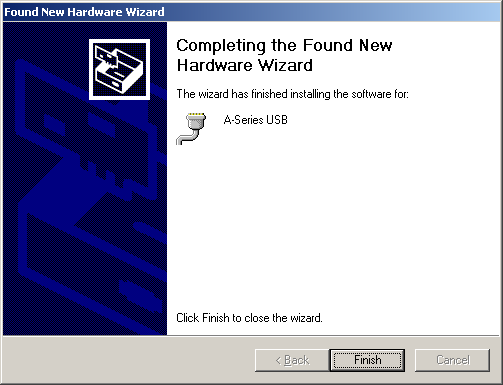
- Click Finish. Your controller is now available and should appear in the Ports (COM & LPT) section of the Device Manager.
Linux
USB Communications Device Class (CDC) devices are supported in kernel 2.4 and above through the cdc_acm module. No special configuration or drivers are needed.
The controller will appear as a ttyACMx device. The kernel log (available through dmesg) details the device detection and the assigned device, in this case /dev/ttyACM0
[94929.668171] usb 3-4.1.3: new full-speed USB device number 92 using xhci_hcd

[94929.686563] usb 3-4.1.3: New USB device found, idVendor=2939, idProduct=cafe

[94929.686572] usb 3-4.1.3: New USB device strings: Mfr=1, Product=2, SerialNumber=3

[94929.686577] usb 3-4.1.3: Product: X-MCB2

[94929.686581] usb 3-4.1.3: Manufacturer: Zaber Technologies Inc.

[94929.686585] usb 3-4.1.3: SerialNumber: 1

[94929.687436] cdc_acm 3-4.1.3:1.0: This device cannot do calls on its own. It is not a modem.

[94929.687471] cdc_acm 3-4.1.3:1.0: ttyACM0: USB ACM device
If the device does not appear in the /dev directory when connected, the device may need to be manually attached. To do this, enter the commands below corresponding to your controller:
| E-MCC3 | echo "0x2939 0x49e3" > /sys/bus/usb/drivers/cdc_acm/new_id |
| E-MCC2 | echo "0x2939 0x49e2" > /sys/bus/usb/drivers/cdc_acm/new_id |
| E-MCC1 | echo "0x2939 0x49e1" > /sys/bus/usb/drivers/cdc_acm/new_id |
| X-MCC4 | echo "0x2939 0x49c4" > /sys/bus/usb/drivers/cdc_acm/new_id |
| X-MCC3 | echo "0x2939 0x49c3" > /sys/bus/usb/drivers/cdc_acm/new_id |
| X-MCC2 | echo "0x2939 0x49c2" > /sys/bus/usb/drivers/cdc_acm/new_id |
| X-MCC1 | echo "0x2939 0x49c1" > /sys/bus/usb/drivers/cdc_acm/new_id |
| X-MCB2 (FW7) | echo "0x2939 0x49b2" > /sys/bus/usb/drivers/cdc_acm/new_id |
| X-MCB1 (FW7) | echo "0x2939 0x49b1" > /sys/bus/usb/drivers/cdc_acm/new_id |
| X-MCB2 (FW6) | echo "0x2939 0x495b" > /sys/bus/usb/drivers/cdc_acm/new_id |
| X-MCB1 (FW6) | echo "0x2939 0x495a" > /sys/bus/usb/drivers/cdc_acm/new_id |
| A-MCB2 | echo "0x2939 0x459" > /sys/bus/usb/drivers/cdc_acm/new_id |
Note: In some configurations, modem manager will try to query the device when it is connected. This won't affect device operation but can cause the port to be unavailable for several seconds.
OS X
USB Communications Device Class (CDC) devices are supported in 10.5 and above. No special configuration or drivers are needed.
The controller will appear as a tty.usbmodem device. The kernel log (available through dmesg) details the device detection and the assigned device, in this case /dev/tty.usbmodem1421
AppleUSBCDCACMData: Version number - 4.1.23, Input buffers 8, Output buffers 16

AppleUSBCDC: Version number - 4.1.23

$ ls /dev/tty.usb*

/dev/tty.usbmodem1421
Product Drawings
Specifications
Comparison
| Part Number | Axes of Motion | Weight | Encoder Output Axes | Encoder Output Type |
|---|---|---|---|---|
| E-MCC1 | 1 | 0.5 kg (1.102 lb) | 0 | None |
| E-MCC1-T15N1 | 1 | 0.5 kg (1.102 lb) | 1 | T15 - RS422 Encoder Output From -DE Peripherals |
| E-MCC1-T16N1 | 1 | 0.5 kg (1.102 lb) | 1 | T16 - RS422 Encoder Output From -E Peripherals |
| E-MCC1-T7N1 | 1 | 0.5 kg (1.102 lb) | 1 | T7 - TTL Encoder Output From -E Peripherals |
| E-MCC2 | 2 | 0.7 kg (1.543 lb) | 0 | None |
| E-MCC2-T15N1 | 2 | 0.7 kg (1.543 lb) | 1 | T15 - RS422 Encoder Output From -DE Peripherals |
| E-MCC2-T15N2 | 2 | 0.7 kg (1.543 lb) | 2 | T15 - RS422 Encoder Output From -DE Peripherals |
| E-MCC2-T16N1 | 2 | 0.7 kg (1.543 lb) | 1 | T16 - RS422 Encoder Output From -E Peripherals |
| E-MCC2-T16N2 | 2 | 0.7 kg (1.543 lb) | 2 | T16 - RS422 Encoder Output From -E Peripherals |
| E-MCC2-T7N1 | 2 | 0.7 kg (1.543 lb) | 1 | T7 - TTL Encoder Output From -E Peripherals |
| E-MCC2-T7N2 | 2 | 0.7 kg (1.543 lb) | 2 | T7 - TTL Encoder Output From -E Peripherals |
| E-MCC3 | 3 | 0.9 kg (1.984 lb) | 0 | None |
| E-MCC3-T15N1 | 3 | 0.9 kg (1.984 lb) | 1 | T15 - RS422 Encoder Output From -DE Peripherals |
| E-MCC3-T15N2 | 3 | 0.9 kg (1.984 lb) | 2 | T15 - RS422 Encoder Output From -DE Peripherals |
| E-MCC3-T15N3 | 3 | 0.9 kg (1.984 lb) | 3 | T15 - RS422 Encoder Output From -DE Peripherals |
| E-MCC3-T16N1 | 3 | 0.9 kg (1.984 lb) | 1 | T16 - RS422 Encoder Output From -E Peripherals |
| E-MCC3-T16N2 | 3 | 0.9 kg (1.984 lb) | 2 | T16 - RS422 Encoder Output From -E Peripherals |
| E-MCC3-T16N3 | 3 | 0.9 kg (1.984 lb) | 3 | T16 - RS422 Encoder Output From -E Peripherals |
| E-MCC3-T7N1 | 3 | 0.9 kg (1.984 lb) | 1 | T7 - TTL Encoder Output From -E Peripherals |
| E-MCC3-T7N2 | 3 | 0.9 kg (1.984 lb) | 2 | T7 - TTL Encoder Output From -E Peripherals |
| E-MCC3-T7N3 | 3 | 0.9 kg (1.984 lb) | 3 | T7 - TTL Encoder Output From -E Peripherals |
Product Change Notices
Click here to view the current product change notices and subscribe to future change notifications.
This product uses the FreeRTOS kernel. FreeRTOS is © 2026 Amazon.com, Inc. or its affiliates and is governed by the following license:
All rights reserved.
Permission is hereby granted, free of charge, to any person obtaining a copy of this software and associated documentation files (the "Software"), to deal in the Software without restriction, including without limitation the rights to use, copy, modify, merge, publish, distribute, sublicense, and/or sell copies of the Software, and to permit persons to whom the Software is furnished to do so, subject to the following conditions:
The above copyright notice and this permission notice shall be included in all copies or substantial portions of the Software.
THE SOFTWARE IS PROVIDED "AS IS", WITHOUT WARRANTY OF ANY KIND, EXPRESS OR IMPLIED, INCLUDING BUT NOT LIMITED TO THE WARRANTIES OF MERCHANTABILITY, FITNESS FOR A PARTICULAR PURPOSE AND NONINFRINGEMENT. IN NO EVENT SHALL THE AUTHORS OR COPYRIGHT HOLDERS BE LIABLE FOR ANY CLAIM, DAMAGES OR OTHER LIABILITY, WHETHER IN AN ACTION OF CONTRACT, TORT OR OTHERWISE, ARISING FROM, OUT OF OR IN CONNECTION WITH THE SOFTWARE OR THE USE OR OTHER DEALINGS IN THE SOFTWARE.
This product uses the LZ4 compression library. LZ4 is © 2011-2016 Yann Collet and is governed by the following license:
All rights reserved.
Redistribution and use in source and binary forms, with or without modification, are permitted provided that the following conditions are met:
- Redistributions of source code must retain the above copyright notice, this list of conditions and the following disclaimer.
- Redistributions in binary form must reproduce the above copyright notice, this list of conditions and the following disclaimer in the documentation and/or other materials provided with the distribution.
THIS SOFTWARE IS PROVIDED BY THE COPYRIGHT HOLDERS AND CONTRIBUTORS "AS IS" AND ANY EXPRESS OR IMPLIED WARRANTIES, INCLUDING, BUT NOT LIMITED TO, THE IMPLIED WARRANTIES OF MERCHANTABILITY AND FITNESS FOR A PARTICULAR PURPOSE ARE DISCLAIMED. IN NO EVENT SHALL THE COPYRIGHT HOLDER OR CONTRIBUTORS BE LIABLE FOR ANY DIRECT, INDIRECT, INCIDENTAL, SPECIAL, EXEMPLARY, OR CONSEQUENTIAL DAMAGES (INCLUDING, BUT NOT LIMITED TO, PROCUREMENT OF SUBSTITUTE GOODS OR SERVICES; LOSS OF USE, DATA, OR PROFITS; OR BUSINESS INTERRUPTION) HOWEVER CAUSED AND ON ANY THEORY OF LIABILITY, WHETHER IN CONTRACT, STRICT LIABILITY, OR TORT (INCLUDING NEGLIGENCE OR OTHERWISE) ARISING IN ANY WAY OUT OF THE USE OF THIS SOFTWARE, EVEN IF ADVISED OF THE POSSIBILITY OF SUCH DAMAGE.