
Raspberry PI Touch Screen Device Control
 Source Code
By Martin Zak
Published on Jun. 02, 2023
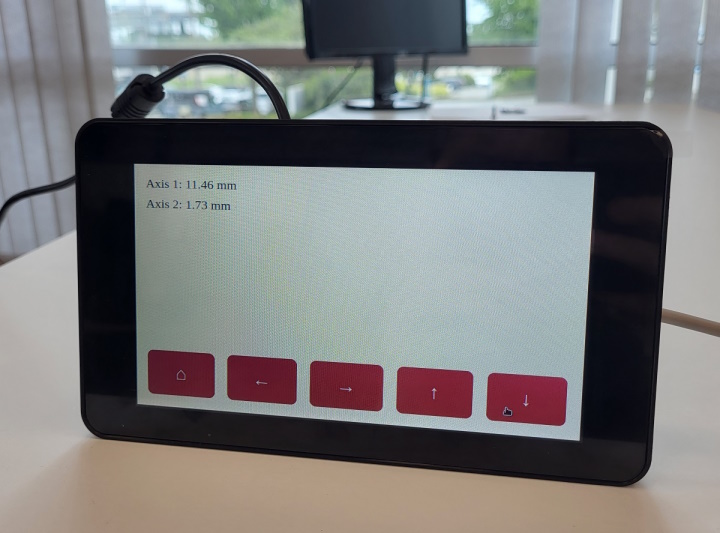
The example demonstrates a simple user interface for Raspberry PI with a touch screen that controls a Zaber device.
The application consists of two parts: A web server written in Python using Flask library (main.py)
and a single HTML/CSS/JavaScript webpage (index.html).
Requirements
The example is intended for Raspberry PI with the original 7-inch touchscreen but likely works on any computer, regardless of the operating system or hardware.
The application expects a single 2-axis controller with linear peripherals. You can modify the code if you have a different setup (e.g. an integrated single-axis device).
To run the server, you'll need Python 3.9 (the default at the time of writing) and pipenv.
You can remove the Python version requirement from Pipfile if you want to use a different Python version.
Running
Before running for the first time, install the required packages:
python3 -m pipenv install
Then, open a terminal and start the server.
Set the PORT environment variable to your serial port or change the default in main.py.
export PORT=/dev/ttyUSB0
python3 -m pipenv run python main.py
Then open a web browser and navigate to http://localhost:8080. Alternatively, you can use the following command:
chromium-browser --app=http://localhost:8080
Home your axes and start moving.
Development
We designed the example to allow for easy modifications.
You can copy and paste functions in main.py and buttons in index.html to add new functionalities.
For example, add a button that moves one axis by 1 mm:
@app.post("/move-1mm")
def move_1mm() -> flask.ResponseReturnValue:
    """Move by 1 mm."""
    device.get_axis(HORIZONTAL_AXIS).move_relative(1, "mm")
    return ("", 204)
<button onpointerdown="action('move-1mm')">Move 1 mm</button>
Remember to restart the server and reload the page to apply your changes.
Extra: Add to the menu
You may find it helpful to start your application from the Raspbian menu using just the touch screen.
To enable that, create two files in the ~/.local/share/applications/ directory called move_client.desktop
and move_server.desktop.
Add the following content to move_client.desktop:
[Desktop Entry]
Encoding=UTF-8
Version=1.0
Type=Application
Terminal=false
Exec=/usr/bin/chromium-browser --app=http://localhost:8080 --start-fullscreen
Name=Move Client
And add this content to move_server.desktop.
You must change the Path=/home/zaber/code/gui_raspberrypi_touch line to your directory.
[Desktop Entry]
Encoding=UTF-8
Version=1.0
Type=Application
Terminal=true
Exec=python3 -m pipenv run python main.py
Path=/home/zaber/code/gui_raspberrypi_touch
Name=Move Server
Now, you can find your applications under the Other directory in Raspbian's menu.