
GUI PyQt6
 Source Code
By Nathan Paolini
Published on Jun. 01, 2023
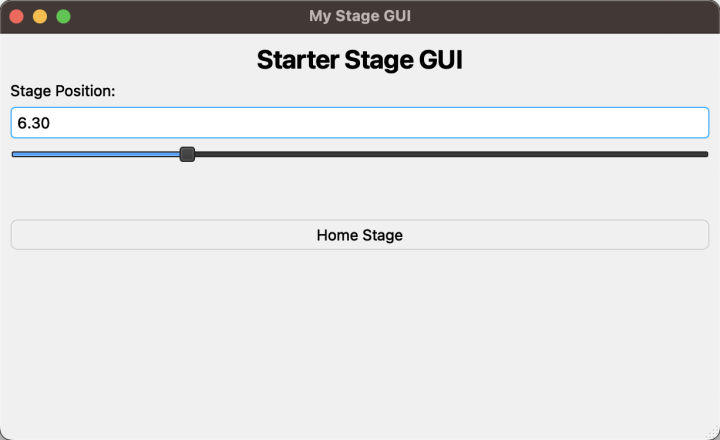
This basic GUI allows the user to control and monitor stage position
Dependencies / Software Requirements / Prerequisites
The script uses pdm to manage virtual environment and dependencies:
Instructions on how to install it can be found on the official pdm project page here.
The dependencies are listed in pyproject.toml.
Configuration
Edit the following constants in the script to fit your setup before running the script:
SERIAL_PORT: the serial port that your device is connected to.
For more information on how to identify the serial port,
see Find the right serial port name.AXIS_NUM: the axis number of your stage.
Running the Script
Connect a stage first.
Running the Script
Once everything has been configured, you can run the example:
cd examples/gui_pyqt6/
pdm install
pdm run example
Editing the GUI
The GUI can be editted using QT Designer, which is included with the PyQt6-tools package.
To launch QT Designer, which can be used to modify the ui_raw.ui file, run this command:
Windows:
.venv\Scripts\pyqt6-tools.exe designerLinux/MacOS:
.venv/bin/pyqt6-tools designerAfter modifying the ui_raw.ui file, the first time the GUI is run the ui_raw.ui file will
be compared to the ui_raw_compare.ui file, the script will see differences, and it will then
generate a new ui.py file by running UI_py_convert.bat (this process will need modifications for Linux/Mac).
The benefit of this setup compared to just using the ui_raw.ui file directly is that the generated ui.py file
provides correct type hints for PyQt objects.
Script Purpose
This script launches a GUI that provides live output of a stage's position and allow the user to move the stage.
This is meant to be a starter GUI that functionality can be added to.