Manuals/A-MCA
Disclaimer
Zaber’s devices are not intended for use in any critical medical, aviation, or military applications or situations where a product's use or failure could cause personal injury, death, or damage to property. Zaber disclaims any and all liability for injury or other damages resulting from the use of our products.
Precautions
The A-MCA series stepper motor controllers are intended to drive a wide variety of motors. It is not possible to choose factory default settings that will work with every motor that may be connected. Therefore, you will need to change some of the settings from the default values to match the motor you are driving. For a Zaber peripheral device, a complete settings adjustment can be accomplished by sending the Set Peripheral Id (Cmd 66) command with the peripheral ID of the device as the data value. See the detailed command reference section for more information on how to modify the settings, particularly for non-Zaber peripherals. Damage to the actuator may result if the recommended settings are set improperly.
WARNING: Serious damage can occur to stepper motor products when operated with significantly higher than rated current. The A-MCA controller can provide up to 2.5A of current. BEFORE CONNECTING A NEW ZABER DEVICE to the A-MCA controller, it is important to send a Set Peripheral Id (Cmd 66) command with the peripheral ID of the device as the data value. Please check the rated current for any peripheral device before changing the current settings on the A-MCA from the default values set by the Set Peripheral Id or Restore Settings commands. To put the A-MCA controller into safe-mode (low current) settings, send a Set Peripheral Id (Cmd 66) command with 0 as the data value. If you have any questions, please contact Zaber Technical Support
Initial Setup
If you are unfamiliar with Zaber motorized devices, you may wish to perform a few simple steps to familiarize yourself with their operation. First you will need a power supply. If you ordered one with your device, you shouldn’t have any problem. If not, you will require a power supply with output voltage between 24 and 48VDC. 48V will provide the fastest speed and the most power at high speeds. Power is not daisy chained through the data cables, so every A-Series device will require its own power supply.
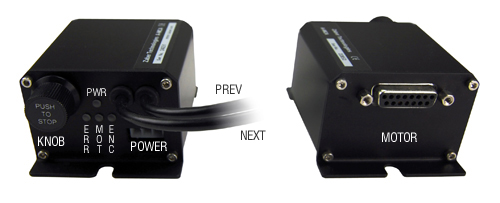
Once you have a working power supply, you can test the operation of your device. Try turning the manual control knob counterclockwise to move the device towards its home position. The device is homed when it is first retracted completely. You must home the device every time you connect the power. You will not be able to achieve the maximum travel until you have homed the device. After the device retracts completely, it will stop and you can turn the knob clockwise to extend the device.
If you have not purchased a power supply with your Zaber device, you will have been shipped a PMF3 power plug to connect to your own supply. The wiring diagram below shows the power connector pinouts as seen looking into the connector on the device.
Pinout for Molex Mini-fit Jr. 3 pin (24-48V device power connector)
| Molex mini-fit jr. 3pin |
|---|
|
Pinout for D-sub 15 Connectors (A-MCA and peripherals)
| A-MCA (female) |
|
|---|---|
| T3 Peripheral (male) |
|
| T4 Peripheral (male) |
|
| Pin # | Function |
|---|---|
| 1 | +5V |
| 2 | reserved |
| 3 | reserved |
| 4 | reserved |
| 5 | Home Sensor |
| 6 | Ground |
| 7 | Motor B1 |
| 8 | Motor A1 |
| 9 | +5V |
| 10 | Encoder A * |
| 11 | Encoder B * |
| 12 | Encoder Index * |
| 13 | Ground |
| 14 | Motor B2 |
| 15 | Motor A2 |
* encoder embedded peripherals only
Installation
Connection to a Computer
Connect the device to a computer as follows:
- Plug the Mini-DIN to D-Sub serial adaptor (T-DSUB9) into your computer’s serial port and plug the device’s data cable into the adaptor (figure 1). You may need to use a cable extension to reach your computer. There is no need to power-down or reboot the computer. USB-to-RS232 converters are available if you have no RS232 serial port.
- Connect the power plug of your power supply to the power connector of the device (figure 2). The green LED should light up indicating the device has power.
- Additional devices can simply be daisy-chained to the first (figure 3). A power supply should be connected to each device in the chain. A Renumber (Cmd 2) command needs to be issued after a new device is connected, so that the computer can control each device independently.
- Install software from http://www.zaber.com/wiki/Software (figure 4). We recommend installing the Zaber Console to get started. As a simple first test, try entering these instructions:
Renumber all devices - Device: 0, Cmd: 2, Data: 0 Home device 1 - Device: 1, Cmd: 1, Data: 0 Move device 1 to 10,000 microsteps - Device: 1, Cmd: 20, Data: 10000
To see the microstep distance (resolution) for your device, see the specs page for that device on the respective product page.
| Figure 1 | Figure 2 | Figure 3 | Figure 4 |
Grounding
To prevent damage to the device due to static buildup, the device should be properly grounded.
Failure to ground the unit may result in the unit shutting down unexpectedly or ceasing to communicate with the computer. This problem can be minimized by not touching the unit during operation. If the unit fails due to static discharge, unplugging it and plugging it back in or sending a Restore Settings command will usually fix the problem.
Most Zaber devices are grounded via the shield wire of the data cables. This should normally provide a path to ground via the computer. For units which are being used without a computer, a ground lead should be connected to the shield of one of the data cables.
Note: Encoder embedded devices are sensitive to electrically noisy environments. Static discharges can affect position calibration and cause unstable behaviour. If the device is behaving strangely, verify that the device is properly grounded, reset the device (either by the Reset (Cmd 0) command or by disconnecting then reconnecting power), then re-initialize the device with the Home (Cmd 1) command.
Quick Tutorial
Follow the steps below to familiarize yourself with common commands used to control a motorized device using A-MCA.
Setting Up the First Time
Follow these steps when setting up Zaber products the first time.
| Step | Command to send | Description | ||
|---|---|---|---|---|
| Device# | Command | Data | ||
| 1 | - | - | - | Ensure that the motorized peripheral is unplugged from the A-MCA controller.
Unless the A-MCA controller is previously configured with the appropriate Peripheral Id or put into Safe-Mode. By connecting a motorized peripheral before the controller is properly configured, you may risk damaging the motor product. |
| 2 | - | - | - | Power up the devices and open the communication port in the Zaber Console. |
| 3 | 0 | Renumber (2) | 0 | If more than one devices are connected together, use this command to automatically assign device# to each device.
First device in the chain is assigned device# 1, second device #2, and so on. |
| 4 | 1 | Set Peripheral Id (66) | Peripheral Id | Assign Peripheral Id to the A-MCA controller. The controller will then load the default settings for the peripheral specified. In this example, the A-MCA controller is device #1. Select only the device # that matches your A-MCA when sending this command.
If you ordered the A-MCA together with a peripheral , the Id for the purchased peripheral may have been assigned to the A-MCA at the factory for your convenience. You may verify this by observing the Device Type column in the Zaber Console. The Peripheral Id can be found on the label of the peripheral. The full list of Peripheral Ids can be found at http://www.zaber.com/support/?tab=Peripheral%20IDs&version=6. |
| 5 | - | - | - | Connect the motorized peripheral to the A-MCA controller. |
Device Initialization
Follow these steps every time you power up your devices.
| Step | Command to send | Description | ||
|---|---|---|---|---|
| Device# | Command | Data | ||
| 6 | 1 | Home (1) | - | Initialize device position by sending a Home command. The device will move to its home location and reset its Current Position. The Current Position value is now valid. |
Using the Device
Below are several commonly used motion commands. Please refer to the command reference sections for a full list of available commands.
| Step | Command to send | Description | ||
|---|---|---|---|---|
| Device# | Command | Data | ||
| 7 | 1 | Return Current Position (60) | - | Query the position of device #1. (This is equivalent to issuing a Return Setting (53) command with a data value of 45 (Set Current Position)) |
| 8 | 1 | Move Absolute (20) | 10000 | Move device #1 to position 10000 microsteps |
| 9 | 2 | Move Relative (21) | -12800 | Move device #2 in the negative direction by 12800 microsteps |
| 10 | 0 | Move at Constant Speed (22) | 153600 | Move ALL devices in the positive direction at the speed 153600 |
| 11 | 0 | Stop (23) | - | Decelerate and stop ALL devices. (If you send a second Stop command immediately, devices will not decelerate and will instead perform an "emergency" stop) |
Reading, Writing and Restoring Device Settings
Here are some examples if you would like to customize particular device settings. Refer to the command reference section for detailed descriptions of each command.
| Step | Command to send | Description | ||
|---|---|---|---|---|
| Device# | Command | Data | ||
| 1 | Set Target Speed (42) | 100000 | Set movement speed of device #1 to 100000 | |
| 1 | Return Setting (53) | 42 | Query the Target Speed of device #1. The data value is the command number of the settings to be queried (42 is command # of Set Target Speed).
Querying of most "Set..." commands are supported. | |
| 1 | Restore Settings (36) | 0 | Restore all settings to default. If a Peripheral Id has been assigned with Set Peripheral Id command, default settings for the assigned peripheral will be loaded.
Note: Data value of 0 must be used. | |
Manual Control
Without connecting to a computer, Zaber's motion products can be manually controlled via a knob. A-Series products are integrated with a depressible knob with 20 detents per revolution.
There are two manual movement modes available. You can toggle between the two modes by holding down the knob for 1 sec or via Set Knob Movement Mode (Cmd 109).
- Velocity Mode
- Turn the knob clockwise to move the device in the positive direction (extend), counter-clockwise for negative direction (retract).
- Each detent of the knob increases the speed of the carriage.
- There are 16 speeds in each direction. The velocity profile and maximum speed can be configured via Set Knob Velocity Profile (Cmd 112) and Set Knob Velocity Scale (Cmd 111).
- The device stops and resets the knob upon arriving at the end of travel.
- Displacement Mode
- Turn the knob clockwise to move the device in the positive direction (extend), counter-clockwise for negative direction (retract).
- Each detent of the knob moves the device a fixed number of microsteps, specified by Set Knob Jog Size (Cmd 110).
- The device moves at the speed specified by Set Target Speed (Cmd 42), or the slower of Target Speed and Home Speed if the device has not been homed.
- The device stops at the end of travel if the number of microsteps left in the set range is less than the requested number.
Summary of knob functionality:
- Turning the knob
- Moves the device in the direction of knob turn
- Pressing the knob
- Decelerates and stops the device (identical to a Stop command)
- Instantly stops the device, if the device is already decelerating
- Pressing and holding the knob for 1 sec
- Toggle between Velocity Mode and Displacement Mode
Requirements for using Manual Control without a Computer
After each power up, you must retract the device completely to home the device. You will not be able to extend the device past the power up position unless you have first retracted it completely to set the home position.
LED functions
- A-Series Device LED Layout
| G | ||
| R | Y | B |
- Green - Power
- On: Device is operational
- Flashing at 2Hz: Power supply voltage or temperature is out of range
- Fading in and out slowly: Device is Parked. See Set Park State (Cmd 65)
- Yellow - Communication/Busy
- On: Device is moving, or traffic packets are being transferred on RS232 communication lines.
- Blinking: Device is under manual control via the knob (in Velocity mode). Blinking rate is proportional to movement speed.
- Blue - Slip/Stall
- On: Device is slipping
- 2 short flashes every 1 sec: The stationary device has been forced out of position
- On-Off cycle every 2 sec: The device has stalled and stopped
- Red - Error
- On/flashing: Device has lost its settings, or an error has occurred. Please contact technical support.
Trajectory Control and Behaviour
This section describes the behaviour of the device trajectory when a movement command is issued.
Software Position Limits
The travel range of the device is confined by the Minimum Position and Maximum Position settings. The factory settings of the devices are configured to match the physical travel range. If a customized range is desired they can be changed via Set Minimum Position (Cmd 106) and Set Maximum Position (Cmd 44).
- Minimum Position
- When Current Position is less than the Minimum Position value, the device cannot move in the negative direction (towards the motor).
- Maximum Position
- When Current Position is greater than the Maximum Position value, the device cannot move in the positive direction (away from the motor).
Movement Speed
The movement speed of the device depends on device status and various speed settings. If the device has not been initialized by the Home (Cmd 1) command or moving towards the home end of the device, movement speed will be constrained to fail-safe values.
The home status of the device can be determined by sending the Return Setting (Cmd 53) command with a data value of 103 (command number for Set Home Status (Cmd 103)).
Movement speed of the device is specified below:
- Move At Constant Speed (Cmd 22)
- The device will move at the specified speed regardless of home status.
- Knob manual movement in Velocity Mode
- The device will move at the specified speed regardless of home status.
- The speed is specified by Set Knob Velocity Profile (Cmd 112) and Set Knob Velocity Scale (Cmd 111).
- Other movement commands - When device has not been homed
- The device will move at the slower of Target Speed and Home Speed.
- Other movement commands - When device has been homed
- The device will move at the speed specified by Target Speed.
Control Through The RS-232 Serial Port
All Zaber devices use the same RS232 communications protocol. The yellow LED will light when there is activity on the RS232 lines. You may use this feature to determine which COM port you are connected to. We recommend using the Zaber Console that you can download from our web site. The source code is also available for you to use as an example for writing your own custom code. See the troubleshooting section later in this manual if you have trouble communicating with the device.
- Serial Port Configuration - 9600/8-N-1
- Baudrate: 9600 bits/s
- Data bits: 8
- Parity bit: None
- Stop bit: 1
- Handshake/Flow control: None
Important: The first time you connect a device to your computer you must issue a renumber instruction to assign each device a unique identifier. This should be done after all the devices in the daisy-chain are powered up. The device number is stored in non-volatile memory and will persist after powerdown, so you need only issue the renumber instruction when you add new devices to the chain, or rearrange the order of the devices, however it does no harm to issue the renumber instruction after every powerup. You must not transmit any instructions while the chain is renumbering or the renumbering routine may be corrupted. Renumbering takes less than a second, after which you may start issuing instructions over the RS232 connection.
All instructions consist of a group of 6 bytes. They must be transmitted with less than 10 ms between each byte. If the device has received less than 6 bytes and then a period longer than 10 ms passes, it ignores the bytes already received. We recommend that your software behave similarly when receiving data from the devices, especially in a noisy environment like a pulsed laser lab.
The following table shows the instruction format:
- Byte 1 - Device #
- Byte 2 - Command #
- Byte 3 - Data - Least Significant Byte (LSB)
- Byte 4 - Data
- Byte 5 - Data
- Byte 6 - Data - Most Significant Byte (MSB)
The first byte is the device number in the daisy-chain. Device number 1 is the closest device to the computer and device number 2 is next and so on. If the number 0 is used, all the devices in the chain will process the accompanying command simultaneously.
The second byte is the command number. Bytes 3, 4, 5, and 6 are data in long integer, 2’s complement format with the least significant byte transmitted first. How the command data are interpreted depends on the command. Complete details are given in the command reference on the following page.
Examples
- All devices renumber: 0, 2, 0, 0, 0, 0
- All devices home: 0, 1, 0, 0, 0, 0
- All devices return firmware version: 0, 51, 0, 0, 0, 0
- Device 1 move to an absolute position (command 20) of 257 microsteps: 1, 20, 1, 1, 0, 0
- Device 2 move to a relative position (command 21) of -1 microstep: 2, 21, 255, 255, 255, 255
If you are using Zaber’s demo software, you will only see 3 entry fields: Device#, Command#, and Data. The Device# and Command# fields accept unsigned integer values while the value you enter into the Data field can be signed. The value in the data field is converted by the software to 4 separate bytes and then gets sent to the device.
Most instructions cause the device to reply with a return code. It is also a group of 6 bytes. The first byte is the device #. Byte #2 is the instruction just completed or 255 (0xFF) if an error occurs. Bytes 3, 4, 5 and 6 are data bytes in the same format as the instruction command data.
Data Conversion Algorithms
If you are writing software to control Zaber products, you'll likely need to generate data bytes 3 through 6 from a single data value, or vise versa. The following pseudo-code can be used as a model.
Converting command data into command bytes to send to Zaber products
If Cmd_Data < 0 then Cmd_Data = 256^4 + Cmd_Data 'Handles negative data Cmd_Byte_6 = Cmd_Data / 256^3 Cmd_Data = Cmd_Data - 256^3 * Cmd_Byte_6 Cmd_Byte_5 = Cmd_Data / 256^2 Cmd_Data = Cmd_Data - 256^2 * Cmd_Byte_5 Cmd_Byte_4 = Cmd_Data / 256 Cmd_Data = Cmd_Data - 256 * Cmd_Byte_4 Cmd_Byte 3 = Cmd_Data
Converting reply bytes into a single reply data value
Reply_Data = 256^3 * Rpl_Byte 6 + 256^2 * Rpl_Byte_5 + 256 * Rpl_Byte_4 + Rpl_Byte_3 If Rpl_Byte_6 > 127 then Reply_Data = Reply_Data - 256^4 'Handles negative data
Data cable wiring diagram
| Pin# | Minidin 6 Female (to next device) |
Minidin 6 Male (to previous device) |
Color Set 1 | Color Set 2 |
|---|---|---|---|---|
|
|
|
|
|
| 1 | - | - | - | - |
| 2 | Receive (from next device) | Transmit (toward computer) | Red | Brown |
| 3 | Ground | Ground | Orange | Red |
| 4 | +12-16 Vdc * | +12-16 Vdc * | Yellow | Orange |
| 5 | - | - | - | - |
| 6 | Transmit (to next device) | Receive (from computer) | Black | Green |
| nc | - | - | Brown, Green | Black, Yellow |
| * T-Series 12-16V devices only (all T-series devices, except T-LSQ, T-LST, T-MCA) | ||||
Note that multiple color sets are shown in the table above because multiple cable suppliers have been used over the years, each implementing different color codes. As of January 2008 most cables use color set 2. Rather than relying on this table, it is recommended that users perform a continuity test to determine which wires are connected to which pins on their own device.
To connect a Zaber device to a computer serial port requires a T-DSUB9 adaptor. It looks similar to an old PS/2 serial mouse adaptor, but it has different wiring.
Sample Waveforms
If you are designing hardware to interface with Zaber products, it may be useful to see some sample waveforms.
Quick Command Reference
The following table offers a quick command reference for A-MCA running firmware version 6.xx. For convenience, you may sort the table below by instruction name, command number, or reply number. Follow the links to view a detailed description of each instruction.
| Instruction Name | Command# | Command Data | Command Type | Reply Data |
|---|---|---|---|---|
| Reset | 0 | Ignored | Command | None |
| Home | 1 | Ignored | Command | Final position (in this case 0) |
| Renumber* | 2 | Ignored | Command | Device Id |
| Read Register | 5 | Register Address | Command | Data |
| Set Active Register | 6 | Register Address | Setting | Register Address |
| Write Register | 7 | Data | Command | Data |
| Move Tracking | 8 | n/a | Reply | Tracking Position |
| Limit Active | 9 | n/a | Reply | Final Position |
| Manual Move Tracking | 10 | n/a | Reply | Tracking Position |
| Manual Move | 11 | n/a | Reply | Final Position |
| Slip Tracking | 12 | n/a | Reply | Tracking Position |
| Unexpected Position | 13 | n/a | Reply | Final Position |
| Store Current Position* | 16 | Address | Command | Address |
| Return Stored Position | 17 | Address | Command | Stored Position |
| Move To Stored Position | 18 | Address | Command | Final Position |
| Move Absolute | 20 | Absolute Position | Command | Final Position |
| Move Relative | 21 | Relative Position | Command | Final Position |
| Move At Constant Speed | 22 | Speed | Command | Speed |
| Stop | 23 | Ignored | Command | Final Position |
| Restore Settings* | 36 | Peripheral Id | Command | Peripheral Id |
| Set Microstep Resolution* | 37 | Microsteps | Setting | Microsteps |
| Set Running Current* | 38 | Value | Setting | Value |
| Set Hold Current* | 39 | Value | Setting | Value |
| Set Device Mode* | 40 | Mode | Setting | Mode |
| Set Target Speed* | 42 | Speed | Setting | Speed |
| Set Acceleration* | 43 | Acceleration | Setting | Acceleration |
| Set Maximum Position* | 44 | Range | Setting | Range |
| Set Current Position | 45 | New Position | Setting | New Position |
| Set Home Offset* | 47 | Offset | Setting | Offset |
| Set Alias Number* | 48 | Alias Number | Setting | Alias Number |
| Return Device Id | 50 | Ignored | Read-Only Setting | Device Id |
| Return Firmware Version | 51 | Ignored | Read-Only Setting | Version |
| Return Power Supply Voltage | 52 | Ignored | Read-Only Setting | Voltage |
| Return Setting | 53 | Setting Number | Command | Setting Value |
| Return Status | 54 | Ignored | Read-Only Setting | Status |
| Echo Data | 55 | Data | Command | Data |
| Set Peripheral Id* | 66 | Peripheral Id | Setting | Peripheral Id |
| Return Current Position | 60 | Ignored | Read-Only Setting | Position |
| Set Park State* | 65 | Park State | Setting | Position |
| Set Auto-Reply Disabled Mode* | 101 | Auto-Reply Mode | Setting | Auto-Reply Mode |
| Set Message Id Mode* | 102 | Message Id Mode | Setting | Message Id Mode |
| Set Home Status | 103 | Home Status | Setting | Home Status |
| Set Home Sensor Type* | 104 | Home Sensor Type | Setting | Home Sensor Type |
| Set Auto-Home Disabled Mode* | 105 | Auto-Home Disabled Mode | Setting | Auto-Home Disabled Mode |
| Set Minimum Position* | 106 | Minimum Position | Setting | Minimum Position |
| Set Knob Disabled Mode* | 107 | Knob Disabled Mode | Setting | Knob Disabled Mode |
| Set Knob Direction* | 108 | Direction | Setting | Direction |
| Set Knob Movement Mode* | 109 | Movement Mode | Setting | Movement Mode |
| Set Knob Jog Size* | 110 | Jog Size | Setting | Jog Size |
| Set Knob Velocity Scale* | 111 | Velocity Scale | Setting | Velocity Scale |
| Set Knob Velocity Profile* | 112 | Velocity Profile | Setting | Velocity Profile |
| Set Acceleration Only* | 113 | Acceleration | Setting | Acceleration |
| Set Deceleration Only* | 114 | Deceleration | Setting | Deceleration |
| Set Move Tracking Mode* | 115 | Tracking Mode | Setting | Tracking Mode |
| Set Manual Move Tracking Disabled Mode* | 116 | Tracking Mode | Setting | Tracking Mode |
| Set Move Tracking Period* | 117 | Tracking Period | Setting | Tracking Period |
| Set Closed-Loop Mode* | 118 | Closed-Loop Mode | Setting | Closed-Loop Mode |
| Set Slip Tracking Period* | 119 | Tracking Period | Setting | Tracking Period |
| Set Stall Timeout* | 120 | Timeout | Setting | Timeout |
| Set Device Direction* | 121 | Direction | Setting | Direction |
| Error | 255 | n/a | Reply | Error Code |
* The settings for these commands are saved in non-volatile memory, i.e. the setting persists even if the device is powered down. To restore all settings to factory default, use command 36.
Detailed Command Reference
This command reference applies only to firmware version 6.00 and up to the most recent version. The version of firmware installed on any Zaber A-Series and T-Series device can be determined by issuing command #51. A three-digit number will be returned. Assume 2 decimal places. (e.g. a reply of 601 indicates firmware version 6.01).
Reset - Cmd 0
| Instruction Name | Reset |
|---|---|
| Applies to | All Zaber devices |
| Firmware Version | 5.00 and up |
| Command Number | 0 |
| Command Type | Command |
| Command Data | Ignored |
| Reply Data | None |
| Safe to retry? | Yes |
| Returns Current Position? | No |
| Persistence | n/a |
| Summary | Sets the device to its power-up condition. |
This has the same effect as unplugging and restarting the device.
Special Note
The position of the device will be lost upon reset. If it is important to keep the same position, Park the stage before resetting/powering down and Unpark the stage afterwards to recover the position settings (See Set Park State (Cmd 65) command).
All non-volatile settings (i.e. Device Number, Target Velocity, etc.) are saved and are not affected by reset or power-down.
Home - Cmd 1
| Instruction Name | Home |
|---|---|
| Applies to | A-Series motorized devices |
| Firmware Version | 6.xx |
| Command Number | 1 |
| Command Type | Command |
| Command Data | Ignored |
| Reply Data | Final Position |
| Safe to retry? | Yes |
| Returns Current Position? | Yes |
| Persistence | n/a |
| Summary | Moves to the home position and resets the device's internal position. |
Upon receiving this instruction, the device will retract until its internal home sensor is triggered. It will then move forward several steps to avoid accidentally re-triggering the home sensor during use. Its internal position is then reset (to 0 for most devices). If a home offset has been specified with the Set Home Offset (cmd 47) instruction, the device will move forward for the specific offset, then reset the internal position.
The device will attempt to home for an extended amount of time. If Closed-Loop Mode is enabled for an encoder-embedded device, the device will report any slip or stall incident.
NOTE: The device will attempt to move towards the home sensor regardless of the Minimum Position and Home Offset settings. Set Minimum Position (Cmd 106) does not prevent the device from moving pass the Minimum Position during Homing. If you need to initialize the device without homing it, Park the stage before power down and Unpark the stage when power is restored. See Set Park State (Cmd 65) for details.
Renumber - Cmd 2
| Instruction Name | Renumber |
|---|---|
| Applies to | All Zaber devices |
| Firmware Version | 5.00 and up |
| Command Number | 2 |
| Command Type | Command |
| Command Data | New Number |
| Reply Data | Device Id |
| Safe to retry? | Yes |
| Returns Current Position? | No |
| Persistence | Non-Volatile |
| Summary | Assigns new numbers to all the devices in the order in which they are connected. |
This command is usually sent to device number 0. When it is, the command data is ignored and all devices will renumber. The device closest to the computer becomes device number 1. The next device becomes number 2 and so on.
If sent to a device number other than 0, then that device will reassign itself the device number in the command data.
Note: Renumbering takes about 1/2 a second during which time the computer must not send any further data. The device number is stored in non-volatile memory so you can renumber once and not worry about issuing the renumber instruction again after each power-up.
Read Register - Cmd 5
| Instruction Name | Read Register |
|---|---|
| Applies to | A-Series devices |
| Firmware Version | 6.xx |
| Command Number | 5 |
| Command Type | Command |
| Command Data | Register Address |
| Reply Data | Data |
| Safe to retry? | Yes |
| Returns Current Position? | No |
| Persistence | n/a |
| Summary | Reads from a register. |
This command reads the data value from a register location.
NOTE: This command is meant for Zaber's internal use. Do not use this command unless directed to by Zaber technical support.
Set Active Register - Cmd 6
| Instruction Name | Set Active Register |
|---|---|
| Applies to | A-Series devices |
| Firmware Version | 6.xx |
| Command Number | 6 |
| Command Type | Setting |
| Command Data | Register Address |
| Reply Data | Register Address |
| Safe to retry? | Yes |
| Returns Current Position? | No |
| Persistence | n/a |
| Summary | Sets the active register. |
This command sets the address of the active register. When a device receives a Write Register (Cmd 7) command, data is written to the active register.
NOTE: This command is meant for Zaber's internal use. Do not use this command unless directed to by Zaber technical support.
Write Register - Cmd 7
| Instruction Name | Write Register |
|---|---|
| Applies to | A-Series devices |
| Firmware Version | 6.xx |
| Command Number | 7 |
| Command Type | Command |
| Command Data | Data |
| Reply Data | Data |
| Safe to retry? | Yes |
| Returns Current Position? | No |
| Persistence | n/a |
| Summary | Writes to a register. |
This command writes the data to the active register. The active register is specified by Set Active Register (Cmd 6).
NOTE: This command is meant for Zaber's internal use. Do not use this command unless directed to by Zaber technical support.
Store Current Position - Cmd 16
| Instruction Name | Store Current Position |
|---|---|
| Applies to | All motorized devices |
| Firmware Version | 5.04 and up |
| Command Number | 16 |
| Command Type | Command |
| Command Data | Address |
| Reply Data | Address |
| Safe to retry? | Yes |
| Returns Current Position? | No |
| Persistence | Non-Volatile |
| Summary | Saves the current absolute position of the device. |
Valid Address values are 0 through 15 specifying one of 16 possible registers in which to store the position. This command can only be executed when the device has been homed. This command is used in conjunction with the Return Stored Position (Command #17) and Move To Stored Position (Command #18) instructions. The positions stored in the position registers are non-volatile and will persist after power-down or reset. All position registers are cleared by the Restore Settings (Command #36) instruction.
Return Stored Position - Cmd 17
| Instruction Name | Return Stored Position |
|---|---|
| Applies to | All motorized devices |
| Firmware Version | 5.04 and up |
| Command Number | 17 |
| Command Type | Command |
| Command Data | Address |
| Reply Data | Stored Position |
| Safe to retry? | Yes |
| Returns Current Position? | No |
| Persistence | n/a |
| Summary | Returns the position stored in one of the 16 position registers for the device. |
Valid command data values are 0 through 15, specifying one of 16 possible registers from which to retrieve the position. This command is used in conjunction with the Store Current Position (#16) and Move To Stored Position (#18) commands. Positions stored in the position registers are non-volatile and will persist after power-down or reset. All position registers are cleared by the Restore Settings (#36) command.
Move To Stored Position - Cmd 18
| Instruction Name | Move To Stored Position |
|---|---|
| Applies to | All motorized devices |
| Firmware Version | 5.04 and up |
| Command Number | 18 |
| Command Type | Command |
| Command Data | Address |
| Reply Data | Final Position |
| Safe to retry? | Yes |
| Returns Current Position? | Yes |
| Persistence | n/a |
| Summary | Moves the device to the stored position specified by the Command Data. |
Valid address values are 0 through 15, specifying one of 16 possible positions. This command is used in conjunction with the Store Current Position (#16) and Return Stored Position (#17) commands. This command does not send a response until the move has finished. All move commands are pre-emptive. If a new move command is issued before the previous move command is finished, the device will immediately move to the new position.
The target speed and acceleration during a move absolute instruction can be specified using Set Target Speed (Cmd 42) and Set Acceleration (Cmd 43) respectively.
This command may pre-empt, or be pre-empted by Move to Stored Position (Cmd 18), Move Absolute (Cmd 20), Move Relative (Cmd 21), Move at Constant Speed (Cmd 22) and Stop (Cmd 23).
Move Absolute - Cmd 20
| Instruction Name | Move Absolute |
|---|---|
| Applies to | A-Series motorized devices |
| Firmware Version | 6.xx |
| Command Number | 20 |
| Command Type | Command |
| Command Data | Absolute Position |
| Reply Data | Final position |
| Safe to retry? | Yes |
| Returns Current Position? | Yes |
| Persistence | n/a |
| Summary | Moves the device to the position specified in the Command Data in microsteps. |
The device begins to move immediately, and sends a response when the move has finished. The position must be between Minimum and Maximum Position (specified by Set Minimum Position (Cmd 106) and Set Maximum Position (cmd 44)), or an error code will be returned.
The target speed and acceleration during a move absolute instruction can be specified using Set Target Speed (Cmd 42), Set Acceleration (Cmd 43), Set Acceleration Only (Cmd 113) and Set Deceleration Only (Cmd 114).
All move commands are pre-emptive. If a new move command is issued before the previous move command is finished, the device will immediately move to the new position. This command may pre-empt, or be pre-empted by Move to Stored Position (Cmd 18), Move Absolute (Cmd 20), Move Relative (Cmd 21), Move at Constant Speed (Cmd 22) and Stop (Cmd 23).
Move Relative - Cmd 21
| Instruction Name | Move Relative |
|---|---|
| Applies to | A-Series motorized devices |
| Firmware Version | 6.xx |
| Command Number | 21 |
| Command Type | Command |
| Command Data | Relative Position |
| Reply Data | Final Position |
| Safe to retry? | No |
| Returns Current Position? | Yes |
| Persistence | n/a |
| Summary | Moves the device by the positive or negative number of microsteps specified in the Command Data. |
The device moves to a position given by its current position plus the value specified in the command data. The relative move command data in microsteps can be positive or negative. The final position must be between Minimum and Maximum Position (specified by Set Minimum Position (Cmd 106) and Set Maximum Position (cmd 44)), or an error code will be returned. The device begins to move immediately, and sends a response when the move has finished.
The target speed and acceleration during a move absolute instruction can be specified using Set Target Speed (Cmd 42), Set Acceleration (Cmd 43), Set Acceleration Only (Cmd 113) and Set Deceleration Only (Cmd 114).
All move commands are pre-emptive. If a new move command is issued before the previous move command is finished, the device will immediately move to the new position. If a Move Relative command is issued while the device is currently moving due to a previous command, the device will immediately set a new target position equal to the current position (at the instant the command was received) plus the specified relative position.
This command may pre-empt, or be pre-empted by Move to Stored Position (Cmd 18), Move Absolute (Cmd 20), Move Relative (Cmd 21), Move at Constant Speed (Cmd 22) and Stop (Cmd 23).
Move At Constant Speed - Cmd 22
| Instruction Name | Move At Constant Speed |
|---|---|
| Applies to | A-Series motorized devices |
| Firmware Version | 6.xx |
| Command Number | 22 |
| Command Type | Command |
| Command Data | Speed |
| Reply Data | Speed |
| Safe to retry? | Yes |
| Returns Current Position? | No |
| Persistence | n/a |
| Summary | Moves the device at a constant speed based on the value specified in the Command Data. |
This instruction specifies a direction and a speed to move, rather than a target position. When this instruction is issued the device will accelerate to the speed specified by the instruction data. The device will continue moving at this speed until a limit is reached or a pre-empting instruction is issued. Negative speeds cause retraction while positive speeds cause extension. Unlike the other movement commands, this command sends a response immediately without waiting for the move to finish.
If the device reaches minimum or maximum position (specified by Set Minimum Position (Cmd 106) and Set Maximum Position (cmd 44)), the device stops and the new position is returned via reply-only command Limit Active (Cmd 9).
The device accelerates/decelerates at a rate specified by Set Acceleration (Cmd 43), Set Acceleration Only (Cmd 113) and Set Deceleration Only (Cmd 114).
The device may be set to return its position continually during the move using Set Move Tracking Mode (Cmd 115).
This command may pre-empt, or be pre-empted by Move to Stored Position (Cmd 18), Move Absolute (Cmd 20), Move Relative (Cmd 21), Move at Constant Speed (Cmd 22) and Stop (Cmd 23).
For a spreadsheet that can be used to calculate speed setting values for any product see http://www.zaber.com/documents/ZaberSpeedSetting.xls. Alternatively you may use the formulas below.
Actual Speed
- = Data / 1.6384 * M mm/s or deg/s
- = Data / 1.6384 microsteps/s
- = Data / 1.6384 / R steps/s
- = Data / 1.6384 / (R x S) * 60 revolutions/min Motor rpm
- = Data / 1.6384 * L / (R x S) mm/s Linear devices only
where:
- Data is the value of the command data
- R (microsteps/step) is the microstep resolution (command 37)
- S (steps/revolution) is the number of steps per motor revolution
- M (mm or deg) is the microstep size
- L (mm or deg) is the distance of linear motion per motor revolution
Valid data values are from 1 to (16384*R). Note that the maximum speed possible is independent of the resolution.
Refer to product specifications for the distance corresponding to a single microstep or revolution.
For example, if a motor has 200 steps per revolution (S = 200), used with default resolution (R = 64), and Data is 153600, then the motor will move at a speed of 720 revolutions per minute.
Stop - Cmd 23
| Instruction Name | Stop |
|---|---|
| Applies to | A-Series motorized devices |
| Firmware Version | 6.xx |
| Command Number | 23 |
| Command Type | Command |
| Command Data | Ignored |
| Reply Data | Final Position |
| Safe to retry? | Yes |
| Returns Current Position? | Yes |
| Persistence | n/a |
| Summary | Stops the device from moving by preempting any move instruction. |
This instruction can be used to pre-empt any move instruction. The device will decelerate to a stop. The reply data is the absolute position after stopping.
Rate of deceleration can be specified by either Set Acceleration (Cmd 43) (sets both Acceleration and Deceleration) or Set Deceleration Only (Cmd 114) (sets Deceleration only).
Depressing the manual control knob also gives the same effect as this command.
If another Stop is issued during deceleration (either by this command or depressing the manual control knob), the device will instantly stop.
This command may pre-empt, or be pre-empted by Move to Stored Position (Cmd 18), Move Absolute (Cmd 20), Move Relative (Cmd 21), Move at Constant Speed (Cmd 22) and Stop (Cmd 23).
Restore Settings - Cmd 36
| Instruction Name | Restore Settings |
|---|---|
| Applies to | A-MCA |
| Firmware Version | 6.xx |
| Command Number | 36 |
| Command Type | Command |
| Command Data | 0 or Peripheral Id |
| Reply Data | 0 or Peripheral Id |
| Safe to retry? | Yes |
| Returns Current Position? | No |
| Persistence | Non-Volatile |
| Summary | Restores the device settings to the factory defaults. |
If command data of 0 is given, this command restores device to default settings for the assigned Peripheral Id. If a Peripheral ID is given, this command assigns the given Peripheral Id to the controller and loads the default settings for the assigned Peripheral Id. To load safe-mode settings, use Set Peripheral Id (Cmd 66) with command data 0 instead.
This instruction is very useful for troubleshooting. If the device does not appear to function properly, it may be because some of the settings have been changed. This instruction will restore the settings to default values. All settings affected by this instruction are stored in non-volatile memory and will persist after power-down or reset.
Note: When used with a Peripheral Id, this command is equivalent to sending Set Peripheral Id (Cmd 66) with a peripheral Id value. However, Set Peripheral Id with data 0 puts controller into safe-mode settings, whereas Restore Settings with data 0 causes the controller to load default values for the assigned peripheral Id.
Set Microstep Resolution - Cmd 37
| Instruction Name | Set Microstep Resolution |
|---|---|
| Applies to | A-Series motorized devices |
| Firmware Version | 6.xx |
| Command Number | 37 |
| Command Type | Setting |
| Command Data | Microsteps |
| Reply Data | Microsteps |
| Safe to retry? | Yes |
| Returns Current Position? | No |
| Persistence | Non-Volatile |
| Summary | Changes the number of microsteps per step. |
This command sets the microstep resolution of a device.
This setting is stored in non-volatile memory and will persist after power-down or reset. Use Restore Settings (Cmd 36) to restore all non-volatile settings to factory default.
The default value on most devices is 64. Available microstep resolutions are:
- 1, 2, 4, 8, 16, 32, 64, 128, 256
- 3, 6, 12, 24, 48, 96, 192
- 5, 10, 20, 40, 80, 160
- 9, 18, 36, 72, 144
- 15, 30, 60, 120, 240
- 25, 50, 100, 200
- 27, 54, 108, 216
- 45, 90, 180
All position related settings are in units of microsteps. When you change the microstep resolution, microstep related settings are automatically restored to their default values and then adjusted to match the scale of the new resolution.
If you have previously changed any settings, you will need to reconfigure them after setting a new microstep resolution. The device should be homed after assigning a new microstep resolution.
The following example shows affected settings when resolution is changed from 64 to 32:
| Setting | Default | Before | After |
| Microstep Resolution * | 64 | 64 | 32 |
| Current Position | n/a | 10501 ** | 5250 ** |
| Target Speed * | 153600 | ignored | 76800 |
| Knob Velocity Scale * | 153600 | ignored | 76800 |
| Home Speed * | 50000 | ignored | 25000 |
| Maximum Position * | 280000 | ignored | 140000 |
| Minimum Position * | 0 | ignored | 0 |
| Home Offset * | 0 | ignored | 0 |
| Acceleration * | 205 ** | ignored | 102 ** |
| Deceleration * | 205 ** | ignored | 102 ** |
* The settings for these commands are saved in non-volatile memory.
** Note that if a number is divided by two, it is rounded down to the nearest whole number.
Set Running Current - Cmd 38
| Instruction Name | Set Running Current |
|---|---|
| Applies to | T-LSQ, T-LST, T-MCA, A-series motorized devices |
| Firmware Version | 5.00 and up |
| Command Number | 38 |
| Command Type | Setting |
| Command Data | Value |
| Reply Data | Value |
| Safe to retry? | Yes |
| Returns Current Position? | No |
| Persistence | Non-Volatile |
| Summary | Sets the desired current to be used when the device is moving. |
If your application does not require high torque, it is best to decrease the driving current to reduce power consumption, vibration, and motor heating. Trial and error should suggest an appropriate setting. If higher torque is required, it is generally safe to overdrive motors as long as they are not operated continuously. Motor temperature is typically the best indication of the degree to which overdriving can be employed. If the motor gets too hot to touch (>75°C), you should reduce the running current.
The current is related to the data by the formula:
- Current = CurrentCapacity * CommandData / 100
The Command Data can be a value from 0 (no current) to 100 (max). CurrentCapacity is the hardware's maximum capability of output current.
To prevent damage, some devices limit the maximum output current to a lower value. In that case the valid range is 0 - Limit. Current limits are listed under the device specifications.
Some devices limit the voltage rather than the current. In this case the same formula can be used by replacing Current and CurrentCapacity with Voltage and PowerSupplyVoltage.
For example, the T-MCA has a CurrentCapacity of 2.5A. To apply a current of 0.5A to a motor, reverse the formula:
CommandData
- = Current / CurrentCapacity * 100
- = 0.5A / 2.5A * 100
- = 20
Therefore CommandData = 20.
Set Hold Current - Cmd 39
| Instruction Name | Set Hold Current |
|---|---|
| Applies to | T-LSQ, T-LST, T-MCA, A-series motorized devices |
| Firmware Version | 5.00 and up |
| Command Number | 39 |
| Command Type | Setting |
| Command Data | Value |
| Reply Data | Value |
| Safe to retry? | Yes |
| Returns Current Position? | No |
| Persistence | Non-Volatile |
| Summary | Sets the desired current to be used when the device is holding its position. |
It is typical to run stepper motors at their rated current only during moves (for highest torque) and reduce the current when idle just to hold the position.
Typically the hold current can be set to around 25 - 50% of the running current. In some applications, the friction of the drive system alone is sufficient to hold the microstep position of the motor, and the hold current can be turned off completely. The hold current can be turned off by issuing the "Set Hold Current" instruction with data of 0.
When the device is moving, it applies running current to the motor. When the device stops moving, running current is applied for an additional 0.1 second before hold current is applied.
The current is related to the data by the formula:
- Current = CurrentCapacity * CommandData / 100
The Command Data can be a value from 0 (no current) to 100 (max). CurrentCapacity is the hardware's maximum capability of output current.
To prevent damage, some devices limit the maximum output current to a lower value. In that case the valid range is 0 - Limit. Current limits are listed under the device specifications.
Some devices limit the voltage rather than the current. In this case the same formula can be used by replacing Current and CurrentCapacity with Voltage and PowerSupplyVoltage.
For example, the T-MCA has a CurrentCapacity of 2.5A. To apply a current of 0.5A to a motor, reverse the formula:
CommandData
- = Current / CurrentCapacity * 100
- = 0.5A / 2.5A * 100
- = 20
Therefore CommandData = 20.
Set Device Mode - Cmd 40
| Instruction Name | Set Device Mode |
|---|---|
| Applies to | A-Series motor controllers |
| Firmware Version | 6.xx |
| Command Number | 40 |
| Command Type | Setting |
| Command Data | Mode |
| Reply Data | Mode |
| Safe to retry? | Yes |
| Returns Current Position? | No |
| Persistence | Non-Volatile |
| Summary | Sets the Device Mode for the given device. |
This command allows setting several options, each controlled by a single bit within the command data. In A-Series devices, this command is replaced by individual setting commands. This command is deprecated but is supported for backward compatibility.
To determine what decimal value to use, the command data may be considered as a single 32-bit binary value. The least significant bit is bit_0, the next is bit_1, the next is bit_2, and so on up to the most significant bit_31. Each bit may have a value of either 1 or 0. Any unused or reserved bits should be left as 0.
The corresponding decimal representation of this 32-bit data is given by:
- Decimal value = (bit_0 * 1) + (bit_1 * 2) + … + (bit_n * 2^n) + … + (bit_31 * 2^31)
For example, suppose you want all mode bits to be 0 except for bit_3 (disable knob) and bit_6 (enable message Ids). The Set Device Mode instruction should be sent with data calculated as follows:
- Command Data
- = 2^3 + 2^6
- = 8 + 64
- = 72
Note that each instance of the Set Device Mode command overwrites ALL previous mode bits. Repeated commands do not have a cumulative effect. For example, suppose you send a Set Device Mode command with data of 8 to disable the knob. If you then send another Set Device Mode command with data of 64 to enable message IDs, you will re-enable the knob since bit_3 in the 2nd instruction is 0.
Most devices have a default mode setting of 0 (all bits are 0).
| Bit_n | 2^n | Description
|
| bit_0 | 1 | Disable Auto-reply A value of 1 disables ALL replies except those to “return” commands. The default value is 0. |
| bit_1 | 2 | Reserved |
| bit_2 | 4 | Reserved |
| bit_3 | 8 | Disable Knob A value of 1 disables knob functionality. All knob turns and depresses are ignored. The default value is 0. |
| bit_4 | 16 | Enable Move Tracking A value of 1 enables the Move Tracking response during move commands. The device will return its position periodically when a move command is executed. The Disable Auto-Reply option above takes precedence over this option. The default value is 0. |
| bit_5 | 32 | Disable Manual Move Tracking A value of 1 disables the Manual Move Tracking response during manual moves. The Disable Auto-Reply option above takes precedence over this option. The default value is 0. |
| bit_6 | 64 | Enable Message Ids A value of 1 enables Message Ids. When message id is enabled, only bytes 3 through 5 in the command requests and responses are used for data. Byte 6 is used as an id byte that the user can set to any value they wish. When the device receives a command request with a certain id byte, it will reply with a command response containing the same id byte. This allows the user application to monitor communication packets individually to implement error detection and recovery. The default value is 0. |
| bit_7 | 128 | Home Status This value indicates whether a device has been homed and has a valid position reference. This bit is set to 0 automatically on power-up or reset. It is set automatically when the device is homed or when the position is set using command #45. |
| bit_8 | 256 | Disable Auto-Home A value of 1 prevents the home sensor from triggering a homing procedure during a movement command. This allows rotational devices to move multiple revolutions without re-triggering the homing mechanism. |
| bit_9 | 512 | Reverse Knob A value of 1 reverses the direction of the travel when the knob is turned. The default value is 0. |
| bit_10 | 1,024 | Reserved |
| bit_11 | 2,048 | Reserved |
| bit_12 | 4,096 | Set Home Switch Logic A value of 1 indicates that the peripheral is installed with an active high home sensor. Most Zaber peripherals have active low home sensors. For peripherals installed with active high home sensors, this bit must be changed from the default setting in order for the home sensor to function correctly. Damage to the home sensor or actuator may result if this bit is set improperly. |
| bit_13 | 8,192 | Reserved |
| bit_14 | 16,384 | Reserved |
| bit_15 | 32,768 | Reserved |
Set Home Speed - Cmd 41
| Instruction Name | Set Home Speed |
|---|---|
| Applies to | A-Series motorized devices |
| Firmware Version | 6.xx |
| Command Number | 41 |
| Command Type | Setting |
| Command Data | Speed |
| Reply Data | Speed |
| Safe to retry? | Yes |
| Returns Current Position? | No |
| Persistence | Non-Volatile |
| Summary | Sets the speed at which the device moves when using the "Home" command. |
When a home instruction is issued, the device will accelerate at a rate determined by the acceleration setting up to the speed determined by this command. The home speed can be set independently of target speed (command 42) so that for stages that move very fast, issuing the home command would use a slower home speed and prevent the stage from crashing into the home position.
For a spreadsheet that can be used to calculate speed setting values for any product see http://www.zaber.com/documents/ZaberSpeedSetting.xls. Alternatively you may use the formulas below.
Actual Speed
- = Data / 1.6384 * M mm/s or deg/s
- = Data / 1.6384 microsteps/s
- = Data / 1.6384 / R steps/s
- = Data / 1.6384 / (R x S) * 60 revolutions/min Motor rpm
- = Data / 1.6384 * L / (R x S) mm/s Linear devices only
where:
- Data is the value of the command data
- R (microsteps/step) is the microstep resolution (command 37)
- S (steps/revolution) is the number of steps per motor revolution
- M (mm or deg) is the microstep size
- L (mm or deg) is the distance of linear motion per motor revolution
Valid data values are from 1 to (16384*R). Note that the maximum speed possible is independent of the resolution.
Refer to product specifications for the distance corresponding to a single microstep or revolution.
For example, if a motor has 200 steps per revolution (S = 200), used with default resolution (R = 64), and Data is 153600, then the motor will move at a speed of 720 revolutions per minute.
Set Target Speed - Cmd 42
| Instruction Name | Set Target Speed |
|---|---|
| Applies to | A-Series motorized devices |
| Firmware Version | 6.xx |
| Command Number | 42 |
| Command Type | Setting |
| Command Data | Speed |
| Reply Data | Speed |
| Safe to retry? | Yes |
| Returns Current Position? | No |
| Persistence | Non-Volatile |
| Summary | Sets the speed at which the device moves when using the "Move Absolute" or "Move Relative" commands. |
When a move absolute or move relative instruction is issued, the device will accelerate at a rate determined by the acceleration setting up to the speed determined by this command.
The target velocity may be changed on-the-fly even when the device is in the middle of a move. The device will automatically adjust the velocity, but still target the final position specified in the original move.
For a spreadsheet that can be used to calculate speed setting values for any product see http://www.zaber.com/documents/ZaberSpeedSetting.xls. Alternatively you may use the formulas below.
Actual Speed
- = Data / 1.6384 * M mm/s or deg/s
- = Data / 1.6384 microsteps/s
- = Data / 1.6384 / R steps/s
- = Data / 1.6384 / (R x S) * 60 revolutions/min Motor rpm
- = Data / 1.6384 * L / (R x S) mm/s Linear devices only
where:
- Data is the value of the command data
- R (microsteps/step) is the microstep resolution (command 37)
- S (steps/revolution) is the number of steps per motor revolution
- M (mm or deg) is the microstep size
- L (mm or deg) is the distance of linear motion per motor revolution
Valid data values are from 1 to (16384*R). Note that the maximum speed possible is independent of the resolution.
Refer to product specifications for the distance corresponding to a single microstep or revolution.
For example, if a motor has 200 steps per revolution (S = 200), used with default resolution (R = 64), and Data is 153600, then the motor will move at a speed of 720 revolutions per minute.
Set Acceleration - Cmd 43
| Instruction Name | Set Acceleration |
|---|---|
| Applies to | A-Series motorized devices |
| Firmware Version | 6.xx |
| Command Number | 43 |
| Command Type | Setting |
| Command Data | Acceleration |
| Reply Data | Acceleration |
| Safe to retry? | Yes |
| Returns Current Position? | No |
| Persistence | Non-Volatile |
| Summary | Sets the acceleration used by the movement commands. |
When a movement command is issued, the device will accelerate and decelerate at a rate determined by this command. The acceleration may be changed on-the-fly even when the device is in the middle of a move.
It is possible to set acceleration and deceleration separately in A-Series devices. In which case, use Set Acceleration Only (Cmd 113) and Set Deceleration Only (Cmd 114) instead. When acceleration and deceleration values are different, Return Setting(Data = Set Acceleration) returns the acceleration value only.
To determine the acceleration that will result from a given data value, the following formulas may be used:
- Actual Acceleration
- = 10000 * Data * M / 1.6384 mm/s^2 or deg/s^2
- = 10000 * Data / 1.6384 microsteps/s^2
- = 10000 * Data / R / 1.6384 steps/s^2
Where:
- Data is the value specified in the Command Data
- M (mm or deg) is the microstep size
- R is the microstep resolution set in command #37 (microsteps/step)
The maximum value is 32767.
Set Maximum Position - Cmd 44
| Instruction Name | Set Maximum Position |
|---|---|
| Applies to | A-Series motorized devices |
| Firmware Version | 6.xx |
| Command Number | 44 |
| Command Type | Setting |
| Command Data | Range |
| Reply Data | Range |
| Safe to retry? | Yes |
| Returns Current Position? | No |
| Persistence | Non-Volatile |
| Summary | Sets the maximum position the device is allowed to travel to. |
Use this command to limit the range of travel to a value other than the default. Exercise caution when using this command, since it is possible to set the range to a value greater than the physical limits of the device.
A device within range of travel is not allowed to move above its Maximum Position. If the device Current Position is out of range and above Maximum Position, the device is not allowed to move in the positive direction.
The default Maximum Position is the full travel length of the device. Valid values can be any number from -1000000000 to 1000000000.
This setting is stored in non-volatile memory and will persist after power-down or reset.
Set Current Position - Cmd 45
| Instruction Name | Set Current Position |
|---|---|
| Applies to | A-Series motorized devices |
| Firmware Version | 6.xx |
| Command Number | 45 |
| Command Type | Setting |
| Command Data | New Position |
| Reply Data | New Position |
| Safe to retry? | Yes |
| Returns Current Position? | Yes |
| Persistence | Volatile |
| Summary | Sets the device internal position counter. |
This command override the internal position counter with a new position value specified by the user. The position data is volatile and will not persist after power-down or reset.
Stepper motor phase remains unchanged when position is updated.
Do not use this command to preserve the position counter over power cycles. To restore the position counter without homing the device, Park the stage before power down and Unpark the stage when power is restored. See Set Park State (Cmd 65) for details.
Set Home Offset - Cmd 47
| Instruction Name | Set Home Offset |
|---|---|
| Applies to | A-Series motorized devices |
| Firmware Version | 6.xx |
| Command Number | 47 |
| Command Type | Setting |
| Command Data | Offset |
| Reply Data | Offset |
| Safe to retry? | Yes |
| Returns Current Position? | No |
| Persistence | Non-Volatile |
| Summary | Sets the the new "Home" position which can then be used when the Home command is issued. |
When the home command is issued, the device will retract until the home sensor is triggered, then move forward until the home sensor is no longer triggered, then move forward by the Home Offset value (in microsteps) and resets the internal position (to 0 for most devices).
Note that the home offset command also changes the range settings of the device. For example, if the initial Home Offset is 0 and the Minimum and Maximum Position are 0 and 500,000 respectively, and the user changes the Home Offset to 70,000, then the Minimum and Maximum Position are automatically adjusted to -70,000 and 430,000 respectively. However, changing the Minimum/Maximum Position does not affect the home offset.
When a new Home Offset is specified, Minimum and Maximum Positions are adjusted to provide the same range. The device is able to move in the same travel range as before.
This setting is stored in non-volatile memory and will persist after power-down or reset.
Set Alias Number - Cmd 48
| Instruction Name | Set Alias Number |
|---|---|
| Applies to | All Zaber devices |
| Firmware Version | 5.00 and up |
| Command Number | 48 |
| Command Type | Setting |
| Command Data | Alias Number |
| Reply Data | Alias Number |
| Safe to retry? | Yes |
| Returns Current Position? | No |
| Persistence | Non-Volatile |
| Summary | Sets an alternate device number for a device. |
This setting specifies an alternate device number for a device (in addition to its actual device number). By setting several devices to the same alias number, you can control a group of devices with a single instruction. When you send an instruction to an alias number, all devices with that alias number will execute the instruction and reply using their actual device numbers. To remove an alias, simply set the device's alias number to zero. Valid alias numbers are between 0 and 254. To avoid confusion, it is best to choose an alias greater than the number of devices connected.
This setting is stored in non-volatile memory and will persist after power-down or reset.
Return Device Id - Cmd 50
| Instruction Name | Return Device Id |
|---|---|
| Applies to | All Zaber devices |
| Firmware Version | 5.00 and up |
| Command Number | 50 |
| Command Type | Read-Only Setting |
| Command Data | Ignored |
| Reply Data | Device Id |
| Safe to retry? | Yes |
| Returns Current Position? | No |
| Persistence | n/a |
| Summary | Returns the id number for the type of device connected. |
See the Zaber support web site for a table of device ids for all Zaber products.
Return Firmware Version - Cmd 51
| Instruction Name | Return Firmware Version |
|---|---|
| Applies to | All Zaber devices |
| Firmware Version | 5.00 and up |
| Command Number | 51 |
| Command Type | Read-Only Setting |
| Command Data | Ignored |
| Reply Data | Version |
| Safe to retry? | Yes |
| Returns Current Position? | No |
| Persistence | n/a |
| Summary | Returns the firmware version installed on the device. |
A decimal is assumed before the last two digits. For example, 502 indicates firmware version 5.02.
Return Power Supply Voltage - Cmd 52
| Instruction Name | Return Power Supply Voltage |
|---|---|
| Applies to | All Zaber devices |
| Firmware Version | 5.00 and up |
| Command Number | 52 |
| Command Type | Read-Only Setting |
| Command Data | Ignored |
| Reply Data | Voltage |
| Safe to retry? | Yes |
| Returns Current Position? | No |
| Persistence | n/a |
| Summary | Returns the voltage level of the device's power supply. |
A decimal is assumed before the last digit. For example, a value of 127 indicates 12.7 V. Note that the internal voltage measurement is not very accurate. Don't be alarmed if the indicated voltage is slightly different from your measurements.
Return Setting - Cmd 53
| Instruction Name | Return Setting |
|---|---|
| Applies to | All Zaber devices |
| Firmware Version | 5.00 and up |
| Command Number | 53 |
| Command Type | Command |
| Command Data | Setting Number |
| Reply Data | Setting Value |
| Safe to retry? | Yes |
| Returns Current Position? | No |
| Persistence | n/a |
| Summary | Returns the current value of the setting specified in the Command Data. |
Valid command data values are the command numbers of any "Set..." instruction. The device will reply using the command number of the specified setting (as if a command to change the setting had just been issued) but the setting will not be changed.
For example, command #48 is the "Set Alias" instruction. Therefore if you wish to return the current value of the alias number, simply send the Return Setting instruction with data of 48. The device will reply with command #48 and data equal to the setting value.
Since firmware version 5.21, this command also accepts the command numbers of any "Return..." instruction, such as command #50 "Return Device Id".
Return Status - Cmd 54
| Instruction Name | Return Status |
|---|---|
| Applies to | A-Series motorized devices |
| Firmware Version | 6.xx |
| Command Number | 54 |
| Command Type | Read-Only Setting |
| Command Data | Ignored |
| Reply Data | Status |
| Safe to retry? | Yes |
| Returns Current Position? | No |
| Persistence | n/a |
| Summary | Returns the current status of the device. |
Possible status codes are as follows:
- 0 - idle, not currently executing any instructions
- 1 - executing a home instruction
- 10 - executing a manual move in Velocity Mode (i.e. the manual control knob is turned)
- 11 - executing a manual move in Displacement Mode (i.e. the manual control knob is turned)
- 20 - executing a move absolute instruction
- 21 - executing a move relative instruction
- 22 - executing a move at constant speed instruction
- 23 - executing a stop instruction (i.e. decelerating)
- 65 - device is parked (FW 6.02 and up only. FW 6.01 returns 0 when parked)
Echo Data - Cmd 55
| Instruction Name | Echo Data |
|---|---|
| Applies to | All Zaber devices |
| Firmware Version | 5.04 and up |
| Command Number | 55 |
| Command Type | Command |
| Command Data | Data |
| Reply Data | Data |
| Safe to retry? | Yes |
| Returns Current Position? | No |
| Persistence | n/a |
| Summary | Echoes back the same Command Data that was sent. |
This command is useful for testing communication, similar to a network "ping".
Return Current Position - Cmd 60
| Instruction Name | Return Current Position |
|---|---|
| Applies to | All motorized devices |
| Firmware Version | 5.00 and up |
| Command Number | 60 |
| Command Type | Read-Only Setting |
| Command Data | Ignored |
| Reply Data | Position |
| Safe to retry? | Yes |
| Returns Current Position? | Yes |
| Persistence | n/a |
| Summary | Returns the current absolute position of the device in microsteps. |
This is equivalent to issuing a Return Setting (#53) command with a command data value of 45 (Set Current Position).
Set Park State - Cmd 65
| Instruction Name | Set Park State |
|---|---|
| Applies to | A-Series motorized devices |
| Firmware Version | 6.xx |
| Command Number | 65 |
| Command Type | Setting |
| Command Data | Park State |
| Reply Data | Park State |
| Safe to retry? | Yes |
| Returns Current Position? | No |
| Persistence | Non-Volatile |
| Summary | Park or unpark the device. |
This command allows a device to maintain its position reference over a power cycle without requiring homing. This feature is useful when a device needs to be powered down but a Home procedure is not desired at next power up.
- Parking
- To Park the device, issue command 65 with data value of 1. Device will store its internal position settings and shut off all current to the motor. Device can now be powered down.
- Unparking
- To Unpark the device, issue command 65 with data value of 0. Device will resume its previous internal settings and enable current to the motor. Current Position is now set to that when device was parked.
- When a device is parked, no current is applied to the motor. Any movement command except Home results in an error response.
- A parked device can be identified by its power LED (green) fading in and out slowly.
- A parked device returns 65 upon Return Status (Cmd 54).
- Exception: Firmware version 6.01 returns 0.
- A parked device becomes unparked when one of the following commands is received:
- If the device is displaced while parked, the device should be parked again before powering down.
- If the device is displaced since last parked or during powered off, a Homing procedure is required at the next start up. Unparking a displaced device will not resume correct settings.
- If a device is not parked, an unpark command has no effect on the device.
Set Peripheral Id - Cmd 66
| Instruction Name | Set Peripheral Id |
|---|---|
| Applies to | A-Series motor controllers |
| Firmware Version | 6.xx |
| Command Number | 66 |
| Command Type | Setting |
| Command Data | Peripheral Id |
| Reply Data | Peripheral Id |
| Safe to retry? | Yes |
| Returns Current Position? | No |
| Persistence | Non-Volatile |
| Summary | Set default values for a specific peripheral device. |
This command assigns the given Peripheral ID to the controller and loads the default settings for the assigned Peripheral Id. Once a Peripheral Id is assigned, Restore Settings (Cmd 36) with command data 0 can be issued to restore to default settings of the assigned Peripheral Id without needing to specify the Id.
If 0 is given instead of a Peripheral Id, the controller will restore to its safe-mode settings. At safe mode, the A-MCA device will be set to 10% maximum running current and no hold current. Any previously stored Peripheral Id will be erased. This is a relatively safe setting that prevents damage to any motor connected to the A-MCA, but as a result, you may not be able to run a motor with the A-MCA set to this condition. You can either issue the Set Peripheral Id instruction with one of the Peripheral Ids, or you can adjust each relevant setting independently.
The A-MCA motor controller is designed to control many different motors and actuators. The Set Peripheral Id instruction should initially be issued with a Peripheral Id corresponding to the specific motor or motorized device connected. This will set the A-MCA motor controller to the factory default settings for the motorized peripheral in question. For example, if a A-MCA device is connected to an LSA10A-T4, the user can issue the Set Peripheral Id instruction with a Peripheral Id of 48402. This will automatically set all non-volatile parameters (range, mode, running and hold currents, etc) to values that will work with the LSA10A-T4. For a list of Peripheral Ids and their corresponding settings, see http://www.zaber.com/support/?tab=Peripheral%20ids.
Note: Sending Set Peripheral Id with a peripheral Id value is equivalent to sending Restore Settings (Cmd 36) with a peripheral Id value. However, Set Peripheral Id with data 0 puts controller into safe-mode settings, whereas Restore Settings with data 0 causes the controller to load default values for the assigned peripheral Id.
Set Auto-Reply Disabled Mode - Cmd 101
| Instruction Name | Set Auto-Reply Disabled Mode |
|---|---|
| Applies to | A-Series motorized devices |
| Firmware Version | 6.xx |
| Command Number | 101 |
| Command Type | Setting |
| Command Data | Auto-Reply Disabled Mode |
| Reply Data | Auto-Reply Disabled Mode |
| Safe to retry? | Yes |
| Returns Current Position? | No |
| Persistence | Non-Volatile |
| Summary | Disables all command auto-replies from the device. |
Use this command to disable auto-reply. When the auto-reply is disabled, device will only reply to “Return” commands.
- 0 - Auto-Reply Enabled (Default)
- Device replies to all commands
- 1 - Auto-Reply Disabled
- Device only replies to "Return" commands
This setting is identical to bit 0 of Set Device Mode (Cmd 40). Changes to either this setting or the device mode will be reflected in the other.
This setting is stored in non-volatile memory and will persist after power-down or reset.
Set Message Id Mode - Cmd 102
| Instruction Name | Set Message Id Mode |
|---|---|
| Applies to | A-Series devices |
| Firmware Version | 6.xx |
| Command Number | 102 |
| Command Type | Setting |
| Command Data | Message Id Mode |
| Reply Data | Message Id Mode |
| Safe to retry? | Yes |
| Returns Current Position? | No |
| Persistence | Non-Volatile |
| Summary | Enable message ids in device communication. |
When message id is enabled, only bytes 3 through 5 in the command requests and responses are used for data. Byte 6 is used as an id byte that the user can set to any value they wish. When the device receives a command request with a certain id byte, it will reply with a command response containing the same id byte. This allows the user application to monitor communication packets individually to implement error detection and recovery.
- 0 - Message Id Disabled (Default)
- All 4 data bytes are used for data
- 1 - Message Id Enabled
- Only bytes 3 through 5 are used for data. Byte 6 is used as an id byte. Device always responds with a message id corresponding to that in the command request.
- A device will not reply with the same message id more than once, unless user issues two commands with identical message id.
- For any reply that is not a result of a user request, message id 0 is used. (e.g. Manual Move Tracking)
- NOTE: When message id is enabled, data range is limited to 3 bytes (24 bits). Thus, commands with data value more than 24 bit range might not behave properly.
This setting is identical to bit 6 of Set Device Mode (Cmd 40). Changes to either this setting or the device mode will be reflected in the other.
This setting is stored in non-volatile memory and will persist after power-down or reset.
- Example
- requests -> (id 01) Move Absolute 10000 [device starts to move]
- requests -> (id 02) Return Status [request device status]
- <- responds (id 02) Return Status ( 20 ) [device replies with message id corresponding to the request (id 02)]
- <- responds (id 01) Move Absolute 10000 [when movement is completed, device replies with id 01 which corresponds to the request.]
Set Home Status - Cmd 103
| Instruction Name | Set Home Status |
|---|---|
| Applies to | A-Series motorized devices |
| Firmware Version | 6.xx |
| Command Number | 103 |
| Command Type | Setting |
| Command Data | Home Status |
| Reply Data | Home Status |
| Safe to retry? | Yes |
| Returns Current Position? | No |
| Persistence | n/a |
| Summary | Sets whether a device has been homed. |
This value indicates whether a device has been homed and has a valid position reference.
- This value is set to 0 automatically on power-up or reset
- This value is set to 1 automatically when the device is homed or when the position is set using command #45
This setting is identical to bit 7 of Set Device Mode (Cmd 40). Changes to either this setting or the device mode will be reflected in the other.
Set Home Sensor Type - Cmd 104
| Instruction Name | Set Home Sensor Type |
|---|---|
| Applies to | A-Series motor controllers |
| Firmware Version | 6.xx |
| Command Number | 104 |
| Command Type | Setting |
| Command Data | Home Sensor Type |
| Reply Data | Home Sensor Type |
| Safe to retry? | Yes |
| Returns Current Position? | No |
| Persistence | Non-Volatile |
| Summary | Configures the home sensor type of the device. |
Use this command to select the home sensor output level the firmware should interpret as a home sensor trigger. Most Zaber peripherals have active low home sensors. For peripherals installed with active high home sensors, this setting must be changed from the default value in order for the home sensor to function correctly. Damage to the home sensor or actuator may result if this value is set improperly.
- 0 - Active low home sensor (Default)
- Home sensor outputs low voltage level when triggered
- 1 - Active high home sensor
- Home sensor outputs high voltage level when triggered
This setting is identical to bit 12 of Set Device Mode (Cmd 40). Changes to either this setting or the device mode will be reflected in the other.
This setting is stored in non-volatile memory and will persist after power-down or reset.
Set Auto-Home Disabled Mode - Cmd 105
| Instruction Name | Set Auto-Home Disabled Mode |
|---|---|
| Applies to | A-Series motor controllers |
| Firmware Version | 6.xx |
| Command Number | 105 |
| Command Type | Setting |
| Command Data | Auto-Home Disabled Mode |
| Reply Data | Auto-Home Disabled Mode |
| Safe to retry? | Yes |
| Returns Current Position? | No |
| Persistence | Non-Volatile |
| Summary | Prevents home sensor from triggering a homing procedure during movement commands. |
Use this command to disable auto-home. During a movement command with auto-home enabled, a device homes itself whenever the home sensor is triggered. The home sensor is ignored if auto-home is disabled. This allows rotational devices to move multiple revolutions without re-triggering the homing mechanism.
- 0 - Auto-Home Enabled (Default)
- Device runs homing procedure whenever home sensor is triggered
- 1 - Auto-Home Disabled
- Device responses to home sensor only during a Home command
This setting is identical to bit 8 of Set Device Mode (Cmd 40). Changes to either this setting or the device mode will be reflected in the other.
This setting is stored in non-volatile memory and will persist after power-down or reset.
Set Minimum Position - Cmd 106
| Instruction Name | Set Minimum Position |
|---|---|
| Applies to | A-Series motorized devices |
| Firmware Version | 6.xx |
| Command Number | 106 |
| Command Type | Setting |
| Command Data | Minimum Position |
| Reply Data | Minimum Position |
| Safe to retry? | Yes |
| Returns Current Position? | No |
| Persistence | Non-Volatile |
| Summary | Sets the minimum position the device is allowed to reach. |
A device within range of travel is not allowed to move below its Minimum Position. If the device Current Position is out of range and below Minimum Position, the device is not allowed to move in the negative direction. The default Minimum Position in most devices is 0.
Use this command to limit the range of travel to a value other than the default. Exercise caution when using this command, since it is possible to set the range to a value greater than the physical limits of the device.
Valid values can be any number from -1000000000 to 1000000000.
This setting is stored in non-volatile memory and will persist after power-down or reset.
Set Knob Disabled Mode - Cmd 107
| Instruction Name | Set Knob Disabled Mode |
|---|---|
| Applies to | A-Series motorized devices |
| Firmware Version | 6.xx |
| Command Number | 107 |
| Command Type | Setting |
| Command Data | Knob Disabled Mode |
| Reply Data | Knob Disabled Mode |
| Safe to retry? | Yes |
| Returns Current Position? | No |
| Persistence | Non-Volatile |
| Summary | Enables or disables manual movement control. |
Use this command to disable knob functionality. When the knob is disabled, all knob turns and depresses are ignored.
- 0 - Knob Enabled (Default)
- Knob functions normally.
- 1 - Knob Disabled
- Knob interaction is ignored.
This setting is identical to bit 3 of Set Device Mode (Cmd 40). Changes to either this setting or the device mode will be reflected in the other.
This setting is stored in non-volatile memory and will persist after power-down or reset.
Set Knob Direction - Cmd 108
| Instruction Name | Set Knob Direction |
|---|---|
| Applies to | A-Series motorized devices |
| Firmware Version | 6.xx |
| Command Number | 108 |
| Command Type | Setting |
| Command Data | Knob Direction |
| Reply Data | Knob Direction |
| Safe to retry? | Yes |
| Returns Current Position? | No |
| Persistence | Non-Volatile |
| Summary | Changes direction of movement when knob is turned. |
Use this command to reverse the device movement direction when the knob is turned.
- 0 - Normal (Default)
- Clockwise knob turn results in movement in the positive direction.
- 1 - Reversed
- Clockwise knob turn results in movement in the negative direction.
This setting is identical to bit 9 of Set Device Mode (Cmd 40). Changes to either this setting or the device mode will be reflected in the other.
This setting is stored in non-volatile memory and will persist after power-down or reset.
Set Knob Movement Mode - Cmd 109
| Instruction Name | Set Knob Movement Mode |
|---|---|
| Applies to | A-Series motorized devices |
| Firmware Version | 6.xx |
| Command Number | 109 |
| Command Type | Setting |
| Command Data | Movement Mode |
| Reply Data | Movement Mode |
| Safe to retry? | Yes |
| Returns Current Position? | No |
| Persistence | Non-Volatile |
| Summary | Sets the movement mode used when the manual knob is turned. |
Use this command to set the desired manual movement mode.
- 0 - Velocity Mode (Default)
- Each detent of a knob turn moves the device at an increasing speed. There are 16 speeds in each direction. The velocity profile and the maximum speed can be set via Set Knob Velocity Profile (Cmd 112) and Set Knob Velocity Scale (Cmd 111).
- 1 - Displacement Mode
- Each detent of a knob turn moves the device for a fixed number of microsteps. The device stops if the number of microsteps left in the maximum range is less than the requested move command number. The number of microsteps per knob detent can be set via Set Knob Jog Size (Cmd 110).
NOTE: User can also quickly toggle between the two modes by depressing and holding the knob for 1 second.
This setting is stored in non-volatile memory and will persist after power-down or reset.
Set Knob Jog Size - Cmd 110
| Instruction Name | Set Knob Jog Size |
|---|---|
| Applies to | A-Series motorized devices |
| Firmware Version | 6.xx |
| Command Number | 110 |
| Command Type | Setting |
| Command Data | Jog Size |
| Reply Data | Jog Size |
| Safe to retry? | Yes |
| Returns Current Position? | No |
| Persistence | Non-Volatile |
| Summary | Sets the distance to travel for knob manual movement in displacement mode. |
Use this command to set the number of microsteps per knob detent when the knob is turned in displacement mode.
Each detent of a knob turn moves the device for a fixed number of microsteps. The device stops if the number of microsteps left in the max/min range is less than the requested move command number.
The default setting for most devices sets a value such that one full cycle of the knob will result in one revolution of the stepper motor.
This setting is stored in non-volatile memory and will persist after power-down or reset.
Set Knob Velocity Scale - Cmd 111
| Instruction Name | Set Knob Velocity Scale |
|---|---|
| Applies to | A-Series motorized devices |
| Firmware Version | 6.xx |
| Command Number | 111 |
| Command Type | Setting |
| Command Data | Maximum Speed |
| Reply Data | Maximum Speed |
| Safe to retry? | Yes |
| Returns Current Position? | No |
| Persistence | Non-Volatile |
| Summary | Sets the maximum speed for knob manual movement in velocity mode. |
Use this command to set the desired maximum speed for a knob manual move in velocity mode. This speed corresponds to the 16th detent on the knob. Intermediate speeds are determined by the velocity profile (See Set Knob Velocity Profile (Cmd 112)).
This value only applies when the device has been homed. Before homing, the maximum speed when using a knob manual move in velocity mode is the Home Speed (See Set Home Speed (Cmd 41)).
The default velocity scale is identical to that of Set Target Speed (Cmd 42).
This setting is stored in non-volatile memory and will persist after power-down or reset.
Set Knob Velocity Profile - Cmd 112
| Instruction Name | Set Knob Velocity Profile |
|---|---|
| Applies to | A-Series motorized devices |
| Firmware Version | 6.xx |
| Command Number | 112 |
| Command Type | Setting |
| Command Data | Profile Number |
| Reply Data | Profile Number |
| Safe to retry? | Yes |
| Returns Current Position? | No |
| Persistence | Non-Volatile |
| Summary | Sets the relationship between knob turn and the velocity of the device for knob manual movement in velocity mode. |
Use this command to set how device speed should vary when the knob is turned in velocity mode. There are 16 knob detents for 16 speeds in each direction. The 16th detents are scaled relative to the maximum speed set by Set Knob Velocity Scale (Cmd 111).
Three velocity profiles are available:
- 1 – Linear
- 2 – Quadratic (Default)
- 3 – Cubic
This setting is stored in non-volatile memory and will persist after power-down or reset.
Set Acceleration Only - Cmd 113
| Instruction Name | Set Acceleration Only |
|---|---|
| Applies to | A-Series motorized devices |
| Firmware Version | 6.xx |
| Command Number | 113 |
| Command Type | Setting |
| Command Data | Acceleration |
| Reply Data | Acceleration |
| Safe to retry? | Yes |
| Returns Current Position? | No |
| Persistence | Non-Volatile |
| Summary | Sets only the acceleration used by the movement commands, leaving deceleration value unchanged. |
When a movement command is issued, the device will accelerate at a rate determined by this command up to a maximum speed determined by the target velocity.
This command only changes the acceleration value but not the deceleration value. Use Set Deceleration Only (Cmd 114) to change only the deceleration value, or use Set Acceleration (Cmd 43) to set both acceleration and deceleration at the same time.
This setting is stored in non-volatile memory and will persist after power-down or reset.
Set Deceleration Only - Cmd 114
| Instruction Name | Set Deceleration Only |
|---|---|
| Applies to | A-Series motorized devices |
| Firmware Version | 6.xx |
| Command Number | 114 |
| Command Type | Setting |
| Command Data | Deceleration |
| Reply Data | Deceleration |
| Safe to retry? | Yes |
| Returns Current Position? | No |
| Persistence | Non-Volatile |
| Summary | Sets only the deceleration used by the movement commands, leaving acceleration value unchanged. |
When a movement command is issued, the device will decelerate to a stop at a rate determined by this command.
This command only changes the deceleration value but not the acceleration value. Use Set Acceleration Only (Cmd 113) to change only the acceleration value, or use Set Acceleration (Cmd 43) to set both acceleration and deceleration at the same time.
This setting is stored in non-volatile memory and will persist after power-down or reset.
Set Move Tracking Mode - Cmd 115
| Instruction Name | Set Move Tracking Mode |
|---|---|
| Applies to | A-Series motorized devices |
| Firmware Version | 6.xx |
| Command Number | 115 |
| Command Type | Setting |
| Command Data | Move Tracking Mode |
| Reply Data | Move Tracking Mode |
| Safe to retry? | Yes |
| Returns Current Position? | No |
| Persistence | Non-Volatile |
| Summary | Enable Move Tracking messages. |
Enable Move Tracking to receive position responses during move commands. The device will return its position periodically when a move command is executed.
- The response interval can be configured via Set Move Tracking Period (Cmd 117).
- This setting applies to all move commands except manual movements by the knob in Velocity mode. See Set Manual Move Tracking Disabled Mode (Cmd 116).
- The Disable Auto-Reply option above takes precedence over this option. See Set Auto-Reply Disabled Mode (Cmd 101).
- 0 - Move Tracking Disabled (Default)
- Device does not send Move Tracking messages while executing a move command.
- 1 - Move Tracking Enabled
- Device sends Move Tracking responses periodically while executing a move command.
This setting is identical to bit 4 of Set Device Mode (Cmd 40). Changes to either this setting or the device mode will be reflected in the other.
This setting is stored in non-volatile memory and will persist after power-down or reset.
- Example
Move Tracking Disabled
- requests -> Move Absolute 100000
- <- responds Move Absolute 100000 [ Device arrives at target position ]
Move Tracking Enabled
- requests -> Move Absolute 100000
- <- responds Move Tracking (Position 19892)
- <- responds Move Tracking (Position 43320)
- <- responds Move Tracking (Position 66767)
- <- responds Move Tracking (Position 90195)
- <- responds Move Absolute 100000 [ Device arrives at target position ]
Set Manual Move Tracking Disabled Mode - Cmd 116
| Instruction Name | Set Manual Move Tracking Disabled Mode |
|---|---|
| Applies to | A-Series motorized devices |
| Firmware Version | 6.xx |
| Command Number | 116 |
| Command Type | Setting |
| Command Data | Manual Move Tracking Disabled Mode |
| Reply Data | Manual Move Tracking Disabled Mode |
| Safe to retry? | Yes |
| Returns Current Position? | No |
| Persistence | Non-Volatile |
| Summary | Disable Manual Move Tracking messages. |
Disable Move Tracking to inhibit position responses during manual movements when using the knob in velocity mode. When manual move tracking is enabled, the device will return its position periodically when a manual move command is executed.
- The response interval can be configured via Set Move Tracking Period (Cmd 117).
- This setting applies only to manual movements by the knob in Velocity mode. For disabling/enabling move tracking when sending move commands via a computer see Set Move Tracking Mode (Cmd 115).
- The Disable Auto-Reply option above takes precedence over this option. See Set Auto-Reply Disabled Mode (Cmd 101).
- 0 - Manual Move Tracking Enabled (Default)
- Device sends Manual Move Tracking messages periodically when knob is used in Velocity mode.
- 1 - Manual Move Tracking Disabled
- Device does not send Manual Move Tracking response.
This setting is identical to bit 5 of Set Device Mode (Cmd 40). Changes to either this setting or the device mode will be reflected in the other.
This setting is stored in non-volatile memory and will persist after power-down or reset.
- Example
Manual Move Tracking Enabled
- *** Knob in Velocity Mode ***
- *** Knob turned *** [ Device begins to move ]
- <- responds Manual Move Tracking (Position 19892)
- <- responds Manual Move Tracking (Position 43320)
- <- responds Manual Move Tracking (Position 66767)
- *** Knob turned to Stop position ***
- <- responds Manual Move Tracking (Position 90195) [ Device stopped ]
Manual Move Tracking Disabled
- *** Knob in Velocity Mode ***
- *** Knob turned *** [ Device begins to move ]
- *** Knob turned to Stop position ***
- <- responds Manual Move Tracking (Position 90195) [ Device stopped ]
Set Move Tracking Period - Cmd 117
| Instruction Name | Set Move Tracking Period |
|---|---|
| Applies to | A-Series motorized devices |
| Firmware Version | 6.xx |
| Command Number | 117 |
| Command Type | Setting |
| Command Data | Tracking Period in ms |
| Reply Data | Tracking Period in ms |
| Safe to retry? | Yes |
| Returns Current Position? | No |
| Persistence | Non-Volatile |
| Summary | Sets the update interval between Move Tracking and Manual Move Tracking messages. |
Use this command to configure the interval between each Move Tracking or Manual Move Tracking responses. The value is specified in milliseconds and the default setting is 250ms.
This setting is stored in non-volatile memory and will persist after power-down or reset.
Set Closed-Loop Mode - Cmd 118
| Instruction Name | Set Closed-Loop Mode |
|---|---|
| Applies to | A-Series motorized closed-loop devices |
| Firmware Version | 6.xx |
| Command Number | 118 |
| Command Type | Setting |
| Command Data | Closed-Loop Mode |
| Reply Data | Closed-Loop Mode |
| Safe to retry? | Yes |
| Returns Current Position? | No |
| Persistence | Non-Volatile |
| Summary | Sets the closed-loop mode for encoder embedded devices. |
This command configures the behaviour of a closed-loop device.
- 0 - Disabled
- Encoder input is ignored. Device behaves identically to other open-loop devices.
- 1 - Passive
- Device sends Slip responses whenever slipping is detected.
- No adjustment or correction is made.
- 2 - Stall Detection
- Device sends Slip responses whenever slipping is detected.
- If stalling is detected, device will stop after a stall timeout. See Set Stall Timeout (Cmd 120).
- No adjustment or correction is made.
- 3 - Position Correction (Default)
- Device sends Slip responses whenever slipping is detected.
- Current Position is updated to actual location whenever a slip is detected.
- If stalling is detected, device will stop after a stall timeout. See Set Stall Timeout (Cmd 120).
- 4 - Stall Recovery
- Device sends Slip responses whenever slipping is detected.
- Current Position is updated to actual location whenever a slip is detected.
- If stalling is detected, device will stop and resume after a stall timeout. See Set Stall Timeout (Cmd 120).
- 5 - Stall and Displace Recovery
- Device sends Slip responses whenever slipping is detected.
- Current Position is updated to actual location whenever a slip is detected.
- If stalling is detected, device will stop and resume after a stall timeout. See Set Stall Timeout (Cmd 120).
- When a stationary device is forced out of position, device will restore to original location after a timeout. See Set Stall Timeout (Cmd 120).
- 6 - Low Tolerance Stall and Displacement Recovery (Experimental mode - potentially unstable)
- This mode is identical to Mode 5, but device sensitivity is tuned up to lower stall occurrence and to boost operating thrust.
- WARNING: This is an experimental mode and is potentially unstable. Do not use this mode when mounting sensitive equipment to your Zaber product. Use at your own risk. Zaber is not responsible for any damage resulting from this closed-loop mode.
| Mode | 0 | 1 | 2 | 3 (Default) | 4 | 5 |
|---|---|---|---|---|---|---|
| Name | Disabled | Passive | Stall Detection | Position Correction | Stall Recovery | Stall and Displace Recovery |
| Send responses while slipping* | Cmd 12* | Cmd 12* | Cmd 12* | Cmd 12* | Cmd 12* | |
| Always update Current Position to actual location | Y | Y | Y | |||
| Stall: When device is stalling... | Stop** | Stop** | Stop & Resume** | Stop & Resume** | ||
| Send response after device has stopped | Cmd 13 | Cmd 13 | ||||
| Displaced: When a stationary device is forced out of position... | Restore** | |||||
| Send responses while being displaced* | Cmd 13* | Cmd 13* | Cmd 13* | Cmd 13* | Cmd 12* | |
| Send response after location is recovered | Cmd 13 | |||||
| *Response period can be adjusted or turned off via Set Slip Tracking Period (Cmd 119) | ||||||
| **Duration before action is taken can be configured via Set Stall Timeout (Cmd 120) | ||||||
This setting is stored in non-volatile memory and will persist after power-down or reset.
Set Slip Tracking Period - Cmd 119
| Instruction Name | Set Slip Tracking Period |
|---|---|
| Applies to | A-Series motorized closed-loop devices |
| Firmware Version | 6.xx |
| Command Number | 119 |
| Command Type | Setting |
| Command Data | Tracking Period in ms |
| Reply Data | Tracking Period in ms |
| Safe to retry? | Yes |
| Returns Current Position? | No |
| Persistence | Non-Volatile |
| Summary | Sets the update interval between Slip Tracking messages. |
Use this command to configure the interval between each Slip Tracking responses.
- 0 - Slip Tracking Disabled
- Set to 0 to turn off slip tracking
- 1 to 65535 - Slip Tracking Enabled
- Interval between Slip Tracking messages, in units of ms.
This setting is stored in non-volatile memory and will persist after power-down or reset.
Set Stall Timeout - Cmd 120
| Instruction Name | Set Stall Timeout |
|---|---|
| Applies to | A-Series motorized closed-loop devices |
| Firmware Version | 6.xx |
| Command Number | 120 |
| Command Type | Setting |
| Command Data | Stall Timeout in ms |
| Reply Data | Stall Timeout in ms |
| Safe to retry? | Yes |
| Returns Current Position? | No |
| Persistence | Non-Volatile |
| Summary | Sets the timeout for stall and forced displacement conditions in closed-loop modes. |
Use this command to configure the duration before an action is taken when a stall or forced displacement occurs. The value is specified in ms and the default is 500 ms.
This setting is stored in non-volatile memory and will persist after power-down or reset.
Set Device Direction - Cmd 121
| Instruction Name | Set Device Direction |
|---|---|
| Applies to | A-Series motor controllers |
| Firmware Version | 6.xx |
| Command Number | 121 |
| Command Type | Setting |
| Command Data | Device Direction |
| Reply Data | Device Direction |
| Safe to retry? | Yes |
| Returns Current Position? | No |
| Persistence | Non-Volatile |
| Summary | Changes direction of device movement. |
Use this command to reverse the device movement direction if the device is homing in the wrong direction. When set to reversed mode, motor output and encoder input will increment in the opposite direction. This is equivalent to swapping the phases on motor and encoder cables, or attaching a motor at the opposite end of the stage. Improperly setting this value may result in damage to the home sensor or actuator.
- 0 - Normal (Default)
- Device operates in normal direction.
- 1 - Reversed
- Device operates in reversed direction.
This setting is stored in non-volatile memory and will persist after power-down or reset.
Reply-Only Reference
In general, a Zaber device will reply to an instruction using the same command number as the instruction itself. However, there are occasions (such as when the user turns a manual control knob) when the device may transmit data without first receiving a request from the controlling computer. This type of reply may be considered to be a triggered reply as opposed to a requested reply. In this case the device uses a “reply-only” command number to distinguish the reply from those requested by the controlling computer. The meanings of these replies and their corresponding data are given below.
Move Tracking - Cmd 8
| Instruction Name | Move Tracking |
|---|---|
| Applies to | A-Series motorized devices |
| Firmware Version | 6.xx |
| Command Number | 8 |
| Command Type | Reply |
| Command Data | n/a |
| Reply Data | Position |
| Safe to retry? | Yes |
| Returns Current Position? | Yes |
| Persistence | n/a |
| Summary | Indicates to the user that the device has been set to a position tracking mode and given a move instruction. |
Move Tracking has been enabled (see Set Move Tracking Mode (Cmd 115)) and device has been given a move instruction. In this mode, the device sends this reply at a regular interval updating the current absolute position (in microsteps) during any move. The default interval is 250ms and can be configured with Set Move Tracking Period (Cmd 117).
Limit Active - Cmd 9
| Instruction Name | Limit Active |
|---|---|
| Applies to | All motorized devices |
| Firmware Version | 5.00 and up |
| Command Number | 9 |
| Command Type | Reply |
| Command Data | n/a |
| Reply Data | Position |
| Safe to retry? | Yes |
| Returns Current Position? | Yes |
| Persistence | n/a |
| Summary | Indicates to the user that the device has reached one of the limits of travel. |
This response from a device indicates that it reached one of the limits of travel (either the minimum position or maximum position). For example, if a device is sent a “move at constant speed” instruction, and it reaches the maximum range of travel then the device will reply with this command number and the maximum position reached as data.
Manual Move Tracking - Cmd 10
| Instruction Name | Manual Move Tracking |
|---|---|
| Applies to | A-Series motorized devices |
| Firmware Version | 6.xx |
| Command Number | 10 |
| Command Type | Reply |
| Command Data | n/a |
| Reply Data | Position |
| Safe to retry? | Yes |
| Returns Current Position? | Yes |
| Persistence | n/a |
| Summary | A reply that is sent when the manual control knob is turned. |
Manual Move Tracking has been enabled (see Set Manual Move Tracking Disabled Mode (Cmd 116)) and the device has been moved manually (the knob is turned). In this mode, the device sends this reply at a regular interval updating the current absolute position (in microsteps) during any move. The default interval is 250ms and can be configured with Set Move Tracking Period (Cmd 117).
Manual Move - Cmd 11
| Instruction Name | Manual Move |
|---|---|
| Applies to | A-Series motorized devices |
| Firmware Version | 6.xx |
| Command Number | 11 |
| Command Type | Reply |
| Command Data | n/a |
| Reply Data | Position |
| Safe to retry? | Yes |
| Returns Current Position? | Yes |
| Persistence | n/a |
| Summary | A knob manual move in Displacement mode has completed. |
The device has been moved manually (the knob is turned).
Slip Tracking - Cmd 12
| Instruction Name | Slip Tracking |
|---|---|
| Applies to | A-Series motorized closed-loop devices |
| Firmware Version | 6.xx |
| Command Number | 12 |
| Command Type | Reply |
| Command Data | n/a |
| Reply Data | Position |
| Safe to retry? | Yes |
| Returns Current Position? | Yes |
| Persistence | n/a |
| Summary | A reply that is sent when the device is slipping. |
If slip tracking is enabled in the selected Closed Loop Mode (Cmd 118) and the device begins slipping, a reply will be sent. The device sends this reply at regular intervals until device is no longer slipping. Use Set Slip Tracking Period (Cmd 119) to configure the period that this reply is sent with or to disable the replies.
Unexpected Position - Cmd 13
| Instruction Name | Unexpected Position |
|---|---|
| Applies to | A-Series motorized closed-loop devices |
| Firmware Version | 6.xx |
| Command Number | 13 |
| Command Type | Reply |
| Command Data | n/a |
| Reply Data | Position |
| Safe to retry? | Yes |
| Returns Current Position? | Yes |
| Persistence | n/a |
| Summary | A reply that is sent when the device stops at a position different from the requested location. |
This message is received in one of the following scenarios:
- The device has stalled and stopped (Closed-loop mode 2-3)
- The stationary device is being forced out of position (Closed-loop mode 1-4)
- The stationary device is forced out of position and has recovered to its original location (Closed-loop mode 5)
This command indicates that no further closed-loop action (stop/resume/restore) will be taken. It is sent only when the device is at rest (Return Status = 0). See Set Closed-Loop Mode (Cmd 118) for more details.
Error - Cmd 255
| Instruction Name | Error |
|---|---|
| Applies to | A-Series controllers |
| Firmware Version | 6.xx |
| Command Number | 255 |
| Command Type | Reply |
| Command Data | n/a |
| Reply Data | Error Code |
| Safe to retry? | Yes |
| Returns Current Position? | No |
| Persistence | n/a |
| Summary | Indicates to the user that an error has occurred. |
This reply indicates that an error has occurred. The error code returned in the data indicates the type of error. The device may send an error code as a reply to an invalid instruction, or it may autonomously send an error code as a triggered reply (i.e. not in response to an instruction). The error code is typically the command number of the instruction that caused the error, but not always.
Error Codes
| Code | Name | Description |
|---|---|---|
| 1 | Cannot Home | Home - Device has traveled a long distance without triggering the home sensor. Device may be stalling or slipping. |
| 2 | Device Number Invalid | Renumbering data out of range. Data (Device number) must be between 1 and 254 inclusive. |
| 5 | Address Invalid | Read Register - Register address invalid. |
| 14 | Voltage Low | Power supply voltage too low. |
| 15 | Voltage High | Power supply voltage too high. |
| 18 | Stored Position Invalid | The position stored in the requested register is no longer valid. This is probably because the maximum range was reduced. |
| 20 | Absolute Position Invalid | Move Absolute - Target position out of range. |
| 21 | Relative Position Invalid | Move Relative - Target position out of range. |
| 22 | Velocity Invalid | Constant velocity move. Velocity out of range. |
| 36 | Peripheral Id Invalid | Restore Settings - Data must be 0 to restore settings. |
| 37 | Resolution Invalid | Invalid microstep resolution. See command 37 for allowable values. |
| 38 | Run Current Invalid | Run current out of range. Valid range is 0 to 100. |
| 39 | Hold Current Invalid | Hold current out of range. Valid range is 0 to 100. |
| 40 | Mode Invalid | Set Device Mode - one or more of the mode bits is invalid. |
| 41 | Home Speed Invalid | Home speed out of range. The range of home speed is determined by the resolution. |
| 42 | Speed Invalid | Target speed out of range. The range of target speed is determined by the resolution. |
| 43 | Acceleration Invalid | Target acceleration out of range. Valid range is 0 to 32767. |
| 44 | Maximum Position Invalid | Maximum position out of range. Valid range is -1000000000 to 1000000000. |
| 45 | Current Position Invalid | Current position out of range. Valid range is -1000000000 to 1000000000. |
| 47 | Offset Invalid | Home offset out of range. Home offset must be between 0 and maximum position. |
| 48 | Alias Invalid | Alias out of range. Alias must be between 0 and 254 inclusive. |
| 50 | Device Id Unknown | The device id is not included in the firmware's list. |
| 53 | Setting Invalid | Return Setting - data entered is not a valid setting command number. Valid data are the command numbers of any "Set..." or "Return..." instructions. |
| 64 | Command Invalid | Command number not valid in this firmware version. |
| 65 | Park State Invalid | Set Park State - State must be 0 or 1, or device cannot park because it is in motion. |
| 67 | Temperature High | High temperature is detected inside device. Device may be overheating. |
| 101 | Auto Reply Disabled Mode Invalid | Mode must be 0 or 1. |
| 102 | Message Id Mode Invalid | Mode must be 0 or 1. |
| 103 | Home Status Invalid | Status must be 0 or 1. |
| 104 | Home Sensor Type Invalid | Type must be 0 or 1. |
| 105 | Auto-Home Disabled Mode Invalid | Mode must be 0 or 1. |
| 106 | Minimum Position Invalid | Minimum position out of range. |
| 107 | Knob Disabled Mode Invalid | Mode must be 0 or 1. |
| 108 | Knob Direction Invalid | Direction must be 0 or 1. |
| 109 | Knob Movement Mode Invalid | Mode must be 0 or 1. |
| 111 | Knob Velocity Scale Invalid | Maximum knob speed out of range. The range of valid speed is determined by the resolution. |
| 112 | Knob Velocity Profile Invalid | Profile must be 1 (Linear), 2 (Quadratic), or 3 (Cubic). |
| 113 | Acceleration Only Invalid | Acceleration out of range. |
| 114 | Deceleration Only Invalid | Deceleration out of range. |
| 115 | Move Tracking Mode Invalid | Mode must be 0 or 1. |
| 116 | Manual Move Tracking Disabled Mode Invalid | Mode must be 0 or 1. |
| 117 | Move Tracking Period Invalid | Valid range is 10 - 65535. |
| 118 | Closed-Loop Mode Invalid | Valid modes are 0-6. |
| 119 | Slip Tracking Period Invalid | Valid range is 0(Off), 10 - 65535. |
| 120 | Stall Timeout Invalid | Valid range is 0 - 65535. |
| 121 | Device Direction Invalid | Direction must be 0 or 1. |
| 255 | Busy | Another command is executing and cannot be pre-empted. Either stop the previous command or wait until it finishes before trying again. |
| 701 | Register Address Invalid | Write Register - Register address invalid. |
| 702 | Register Value Invalid | Write Register - Value out of range. |
| 1600 | Save Position Invalid | Save Current Position register out of range (must be 0-15). |
| 1601 | Save Position Not Homed | Save Current Position is not allowed unless the device has been homed. |
| 1700 | Return Position Invalid | Return Stored Position register out of range (must be 0-15). |
| 1800 | Move Position Invalid | Move to Stored Position register out of range (must be 0-15). |
| 1801 | Move Position Not Homed | Move to Stored Position is not allowed unless the device has been homed. |
| 4001 | Bit 1 Invalid | Set Device Mode - bit 1 is reserved in this device and must be 0. |
| 4002 | Bit 2 Invalid | Set Device Mode - bit 2 is reserved in this device and must be 0. |
| 4010 | Bit 10 Invalid | Set Device Mode - bit 10 is reserved in this device and must be 0. |
| 4011 | Bit 11 Invalid | Set Device Mode - bit 11 is reserved in this device and must be 0. |
| 4013 | Bit 13 Invalid | Set Device Mode - bit 13 is reserved in this device and must be 0. |
| 4014 | Bit 14 Invalid | Set Device Mode - bit 14 is reserved in this device and must be 0. |
| 4015 | Bit 15 Invalid | Set Device Mode - bit 15 is reserved in this device and must be 0. |
| 6501 | Device Parked | Device is currently parked. Use Set Park State or Home to unpark device before requesting a move. |
Troubleshooting A-Series Closed-Loop Motion Devices
| Symptom | Check |
|---|---|
| Nothing happens when I turn the knob either way. | Manual control may have been disabled. Issue the Restore Settings (Cmd 36) command or enable the knob using Set Knob Disabled Mode (Cmd 107) with data 0. |
| Nothing happens when I send a move instruction. | The device needs to be "homed" first. You must issue the Home (Cmd 1) command after power up to initialize the device. |
| Device does not move when sending an instruction or turning the knob. | Check whether the green LED is fading in and out slowly. If so, the device is Parked. Send Set Park State (Cmd 65) with data 0 to unpark the device, or Home (Cmd 1) the device. |
| The device can move smoothly, but only moves for a short time then stops. Blue LED is flashing. | If the blue LED is flashing and Slip Tracking or Unexpected Position responses are received, but the device is not actually slipping or stalling, the internal encoder counter may need to be re-initialized. Reset the device by power cycling it or sending Reset (Cmd 0) command, then re-initialize it with the Home (Cmd 1) command. Ground the device and avoid operating it under statically noisy environment. |
| The device is moving on its own, and is running against the ends of travel. | The internal encoder counter may need to be re-initialized. Reset the device by power cycling it or sending Reset (Cmd 0) command, then re-initialize it with the Home (Cmd 1) command. Ground the device and avoid operating it under statically noisy environment. |
| Stall condition: The device makes noise but does not move. Blue LED is flashing. | Try removing all external loads. If the device now extends and retracts normally, the problem is excessive load. Try to reduce the load and ensure the load is less than the maximum thrust. You can achieve higher thrust or torque by lowering the speed of the device using the Set Target Speed Instruction (command 42). If a device is stalled with no external load then it requires servicing. |
| There is no communication between the computer and my Zaber device, the yellow light does not come on or flash. | There are several things you should check:
|
| My device is behaving strangely. It responds to some commands as expected but not to others. |
|
| The device is moving very slowly. It used to behave differently. | The speed settings may have been changed inadvertently. Send a Restore Settings Instruction (command 36). |
| Green LED does not come on | Check the A/C wall plug, the voltage adaptor and its connection to the device. If the power is coming over the data cable, check the mini din connector for bent or broken pins. |
| Green LED flashes at 2Hz | The power supply voltage or temperature is out of range. It may either be too low or too high. |
| Green LED fades in and out slowly.
Device does not move when sending an instruction or turning the knob. |
The device is Parked. Send Set Park State (Cmd 65) with data 0 to unpark the device, or Home (Cmd 1) the device. |
| The yellow light comes on briefly when sending a command, but the device does not move and does not return codes. | Check baud rate, hand shaking, parity, stop bit, etc. Make sure that your software does not transmit any control characters like line feed, spaces or something else. The device numbers may not be what you think they are. Issue a renumber command, make sure that the computer does not transmit anything else while the devices renumber. Check that you transmit 6 bytes and that the device number and command are valid. If you encounter the problem when trying to control the device with your own software, try using one of the demo programs from our website to verify that the hardware |
| The red LED is on or flashing | Device has lost its settings, or an error has occurred. Please contact technical support. |
| The device does not send replies but otherwise works. | Auto-reply might have been disabled via Set Auto-Reply Disabled Mode (Cmd 101), try sending a Restore Settings (Cmd 36) command. If you encounter the problem when trying to control the device with your own software, try using a demo program from our website to verify that the hardware is functioning properly. Make sure that the receiving part of your code or commercial package is correct. Check baud rate, etc. Check connectors for bent or broken pins. |
| The device sometimes returns fewer than 6 bytes. | This problem usually indicates a problem with the settings for your serial port. Some serial ports are set to automatically recognize and remove specific control characters such as carriage returns when they appear in the RS232 receive buffer. When this happens, it appears as though the device has not sent enough bytes, but really the controlling computer has just removed some before you could read them. You will need to change the serial port settings to fix the problem. |
| The device makes louder than normal noise during travel and is frequently slipping. | This condition happens if the thrust needed is more than the thrust available from the device. Check that the force on the device is less than the maximum thrust. Check the voltage using the voltage command. Voltage less than the specified voltage for the device will reduce the device’s maximum thrust. Try a slower target velocity (command #42) as stepper motors produce more thrust when moving slowly. Lead screw conditions greatly affect the performance of linear motion devices. Dirt, damaged threads, no grease or too much grease will degrade performance and may contribute to a stall. A black residue appears on the lead screw after extended use. This can increase friction and reduce thrust. Clean the screw and re-grease it with a grease that does not degrade plastics. In general if you try to move a large payload or have a large static axial load (like lifting something vertically) you will have more problems. For vertical motion, the use of a counterweight, spring or rubber band can help reduce the static load and improve the performance of the device. The default value of the acceleration and target velocity are good for small to medium loads and medium speeds. For very light loads and higher speeds, or heavy loads at lower speeds, these parameters can be tuned. Trial and error is the best tuning technique. |
| The device has repeatability errors smaller than 4 full steps. | If you're not skipping steps, friction or loose parts may still cause some variation when returning to a position. |
| The device does not behave as expected when software sends it a series of commands. | It can be challenging to track down problems in a complicated script or other software. In addition to the standard techniques of debugging any software, it's also helpful to see exactly what bytes are being sent and received on the serial port. One useful tool for doing that is Portmon. It works well, but it's only available for 32-bit versions of Windows. If you're using LabVIEW, another option is the NI Spy or NI I/O Trace tool that comes with it. |
Warranty and Repair
Standard products
Standard products are any part numbers that do not contain the suffix ENG followed by a 4 digit number. Most but not all standard products are listed for sale on our website. All standard Zaber products are backed by a one-month satisfaction guarantee. If you are not satisfied with your purchase, we will refund your payment minus any shipping charges. Goods must be in brand new saleable condition with no marks. Zaber products are guaranteed for one year. During this period Zaber will repair any products with faults due to manufacturing defects, free of charge.
Custom products
Custom products are any part numbers containing the suffix ENG followed by a 4 digit number. Each of these products has been designed for a custom application for a particular customer. Custom products are guaranteed for one year, unless explicitly stated otherwise. During this period Zaber will repair any products with faults due to manufacturing defects, free of charge.
How to return products
Customers with devices in need of return or repair should contact Zaber to obtain an RMA form which must be filled out and sent back to us to receive an RMA number. The RMA form contains instructions for packing and returning the device. The specified RMA number must be included on the shipment to ensure timely processing.
Email Updates
If you would like to receive our periodic email newsletter including product updates and promotions, please sign up online at www.zaber.com (news section). Each newsletter typically includes a promotional offer worth at least $100.
Contact Information
Contact Zaber Technologies Inc by any of the following methods:
| Phone | 1-604-569-3780 (direct) 1-888-276-8033 (toll free in North America) |
|---|---|
| Fax | 1-604-648-8033 |
| 1777 West 75th Ave, 1st Floor, Vancouver, BC, Canada, V6P 6P2 | |
| Web | www.zaber.com |
| Please visit our website for up to date email contact information. |
Appendix A: Default Settings
Please see the Zaber Support Page for default settings for this device.